20

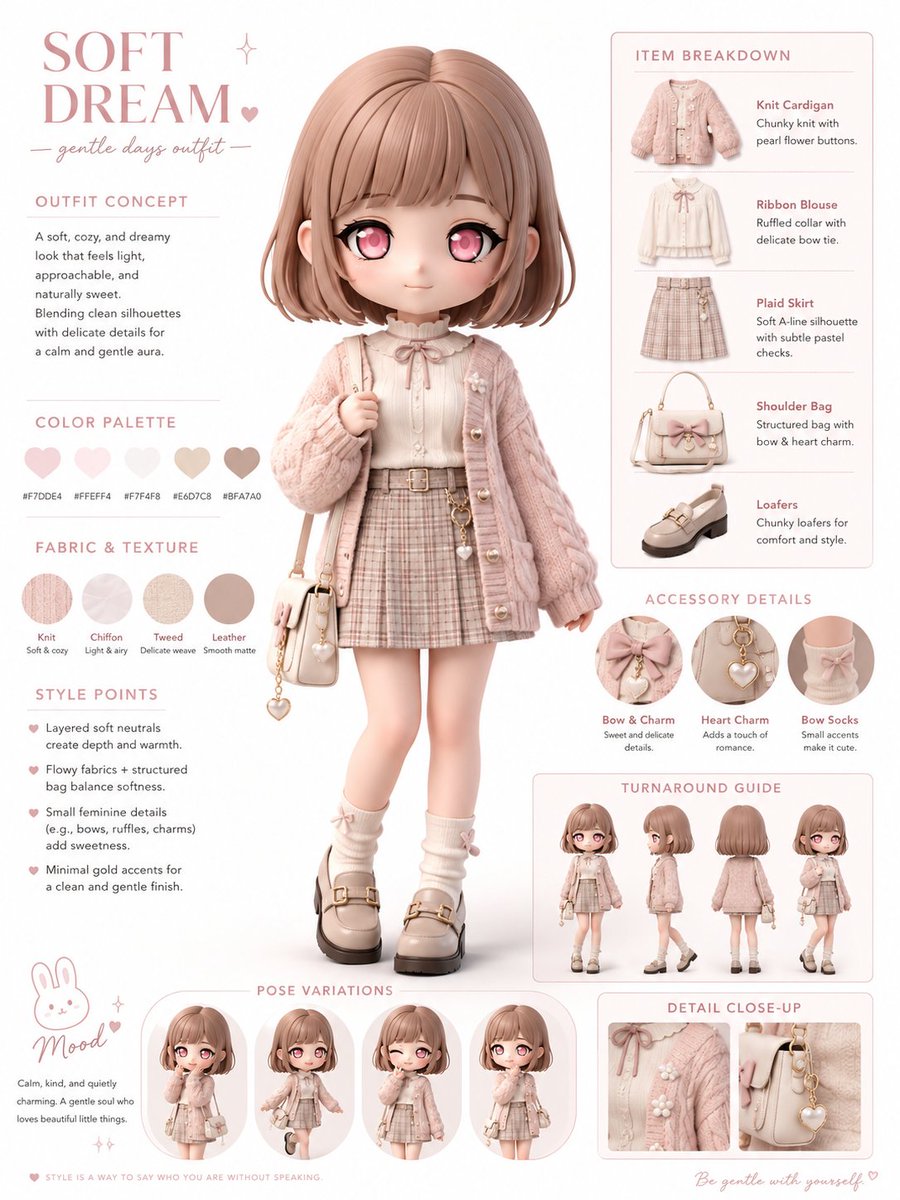
Chibi Fashion Infographic
Enlarge

Chibi Fashion Infographic

Prompt
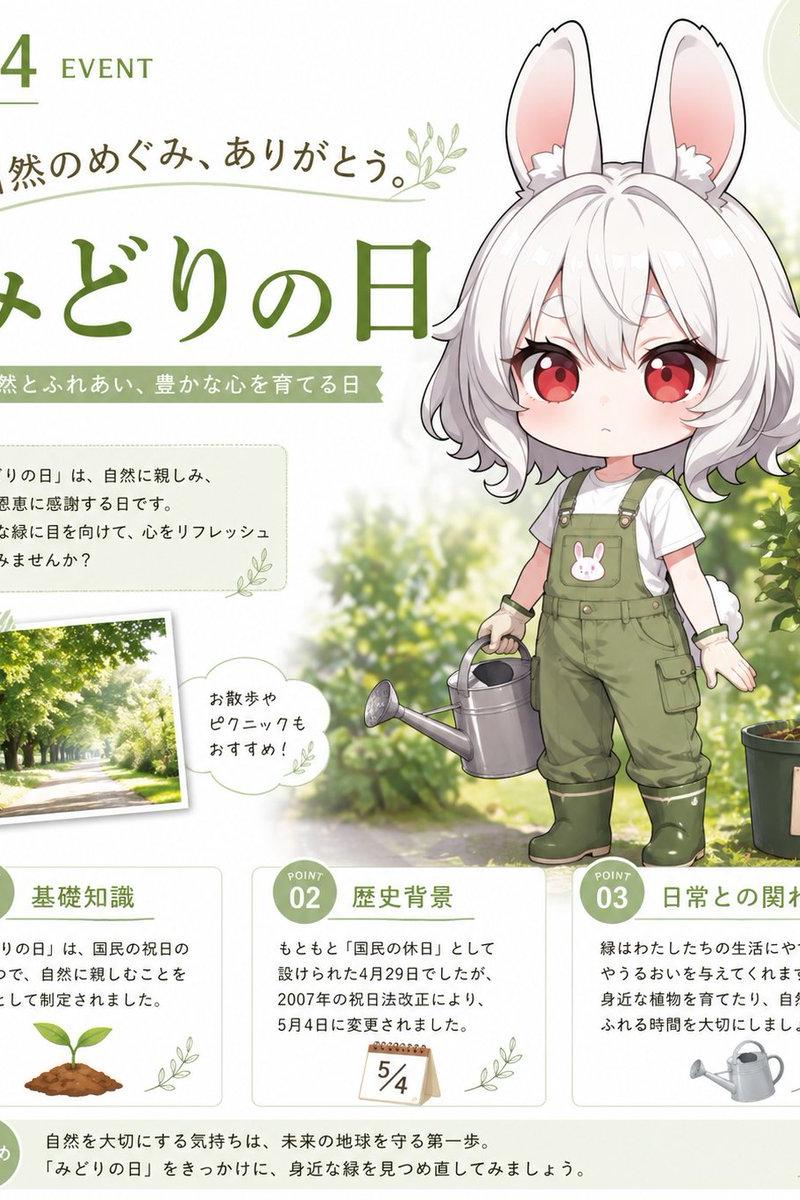
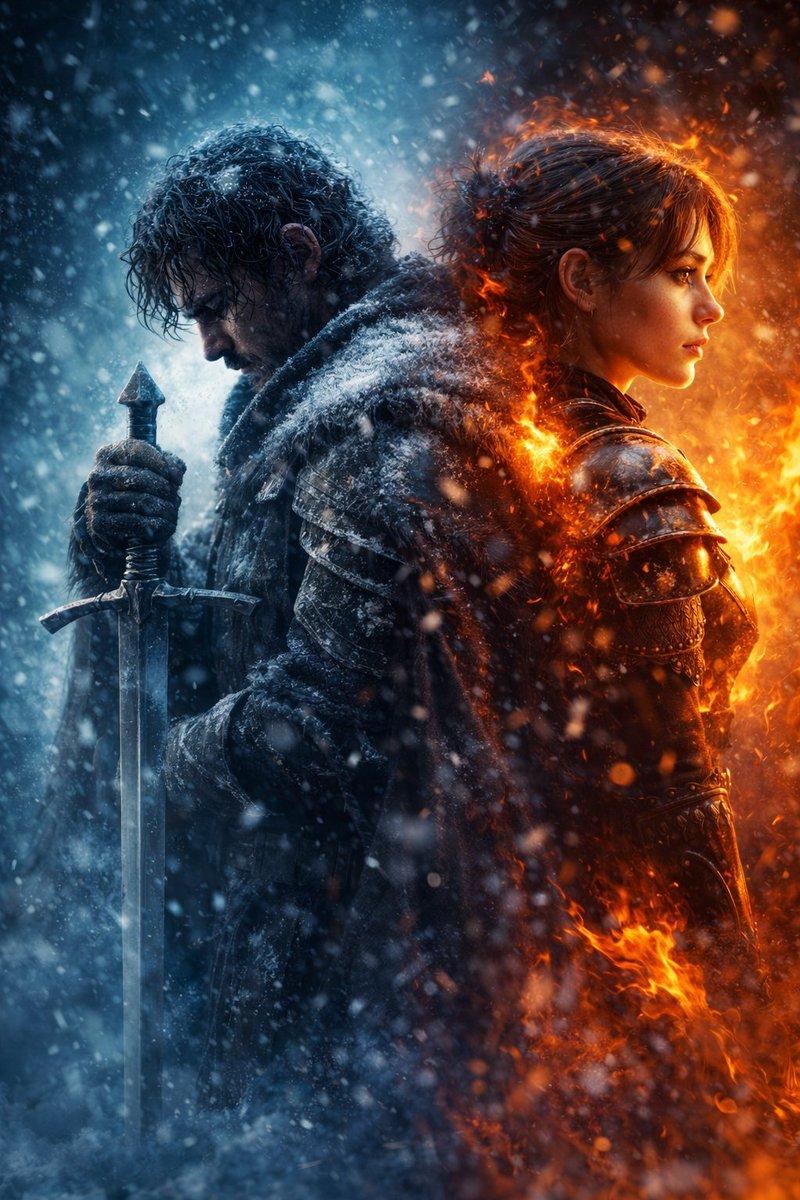
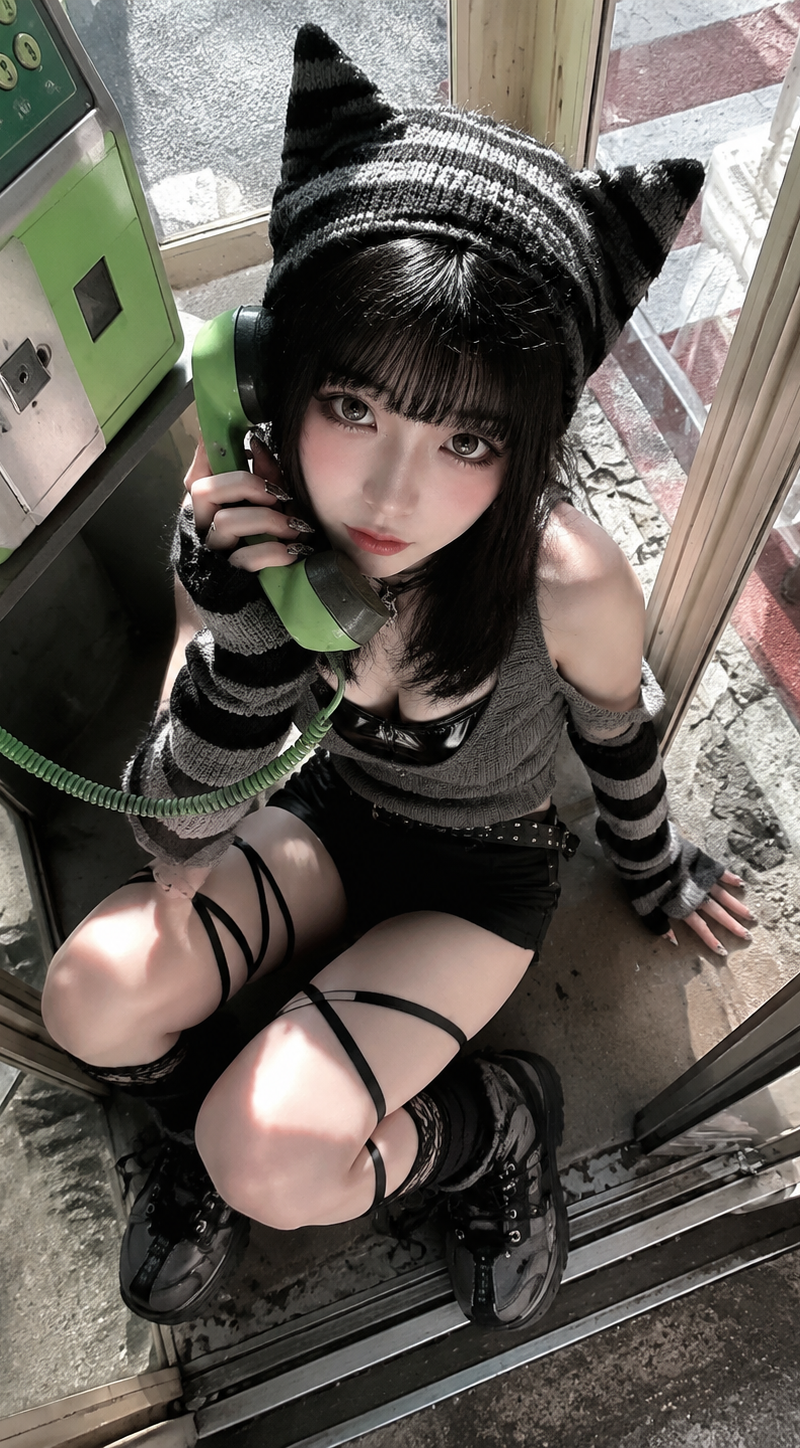
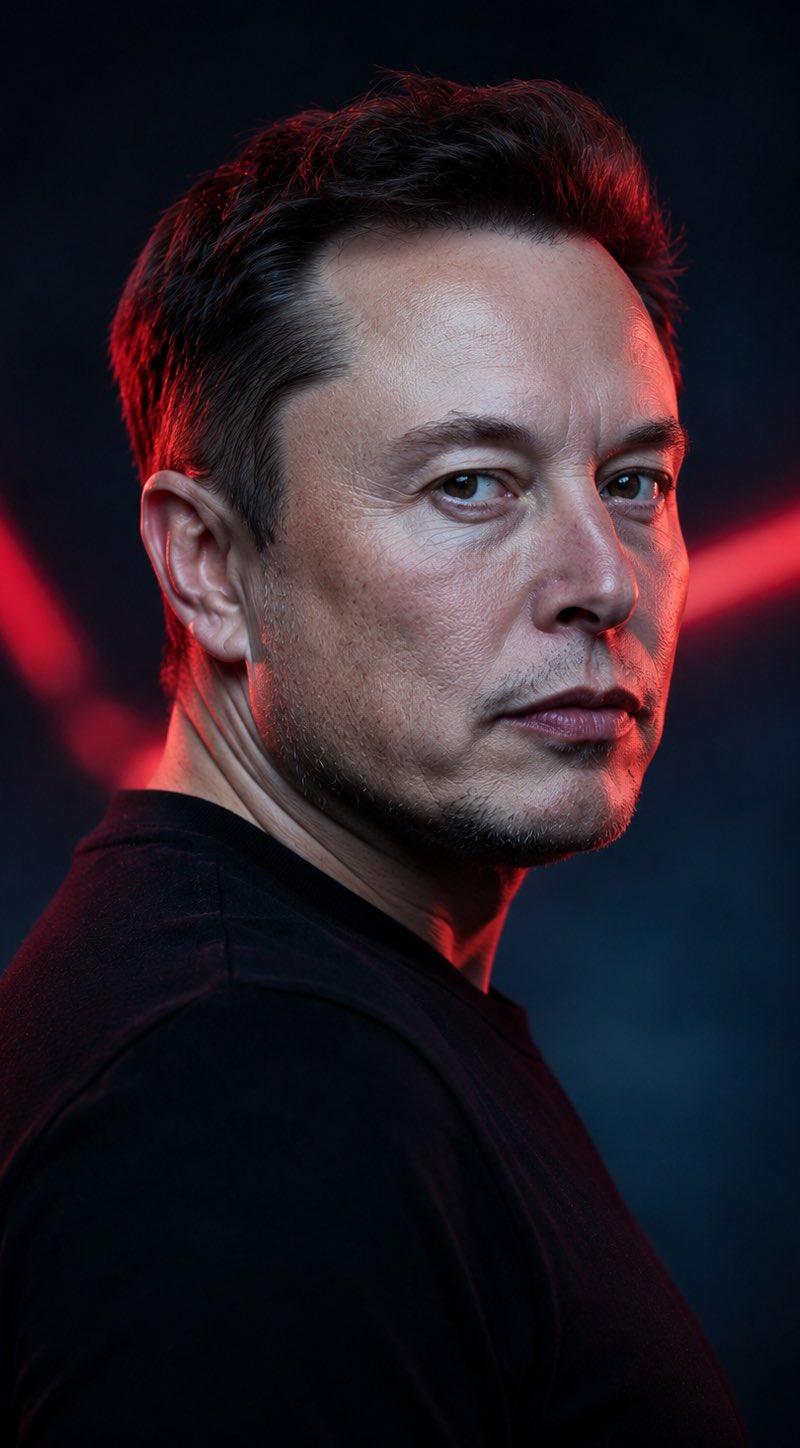
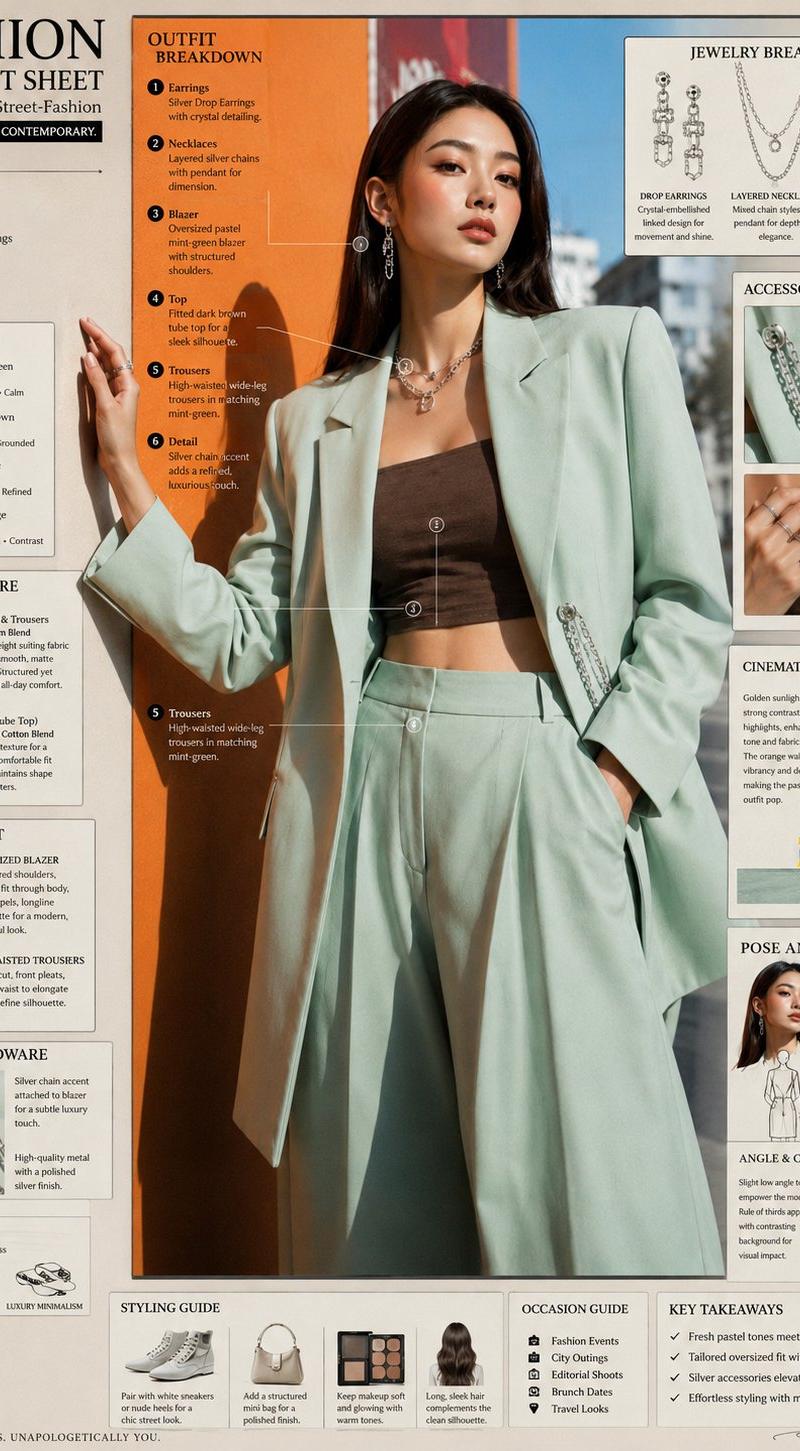
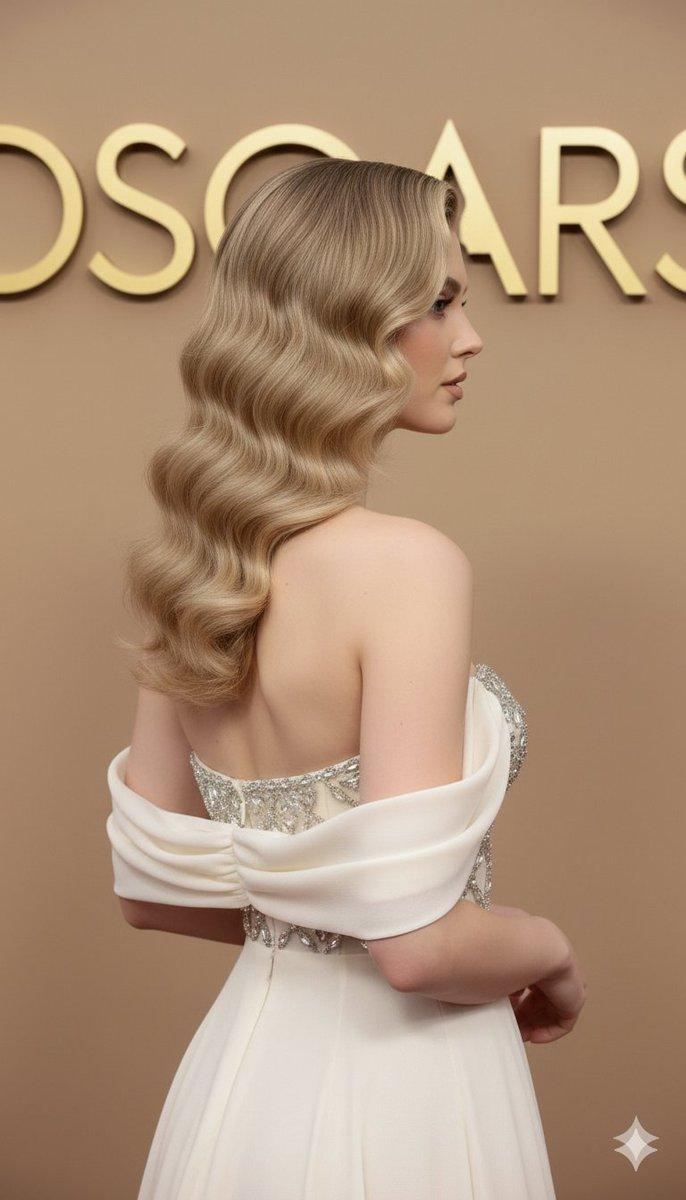
Create a fashion infographic based on the reference image. Use the reference image mainly to understand the character’s identity, hairstyle, facial features, color impression, personality, and overall mood.

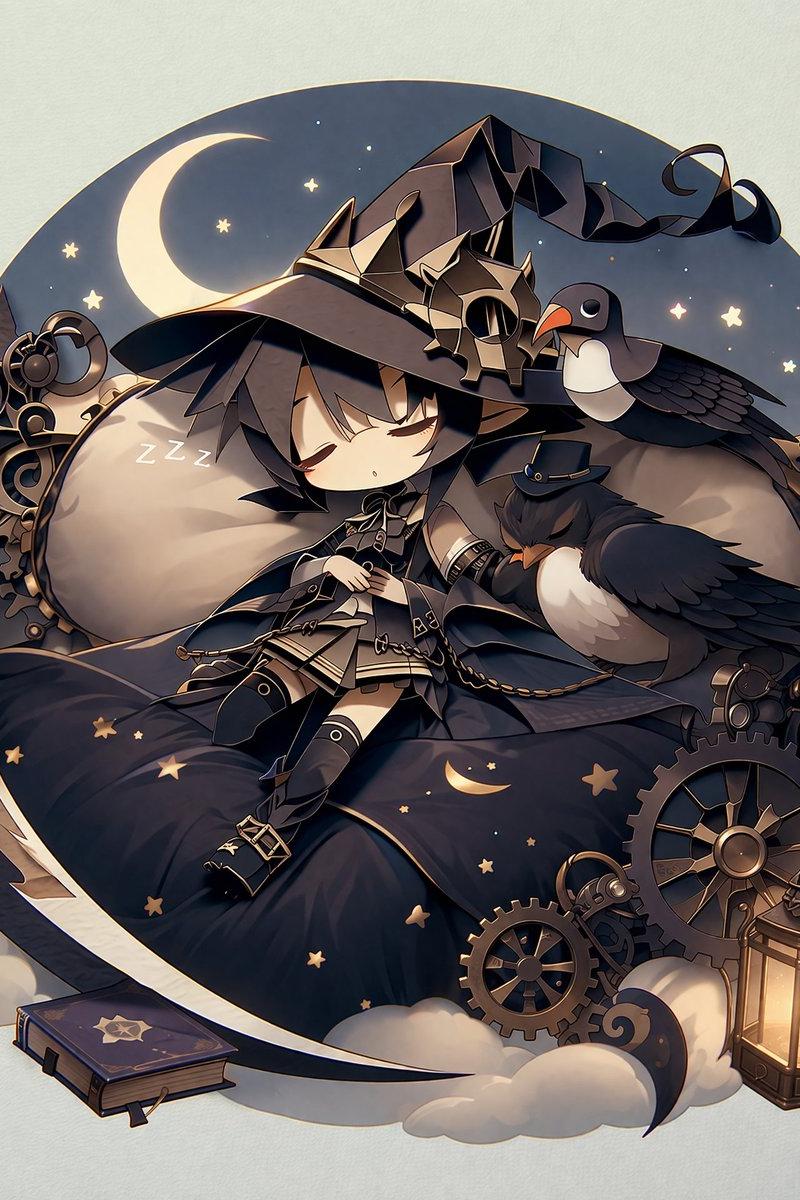
Transform the character into a polished 3D chibi character with a large head, small body, expressive eyes, and soft cute proportions. Keep the character’s recognizable features, such as hairstyle, hair color, eye color, facial impression, and overall aura, while designing a new original outfit that naturally suits the character’s atmosphere.

Do not simply copy the clothing from the reference image. Instead, create a coordinated fashion style that feels appropriate for this character’s personality, color palette, and visual mood. The outfit may include thoughtfully chosen clothing, shoes, accessories, textures, and silhouettes that enhance the character’s charm.

Show a full-body main pose in the center, surrounded by editorial callouts: outfit concept, clothing item breakdown, fabric texture swatches, styling points, accessory close-ups, color palette, and a small pose guide. Use a clean white background, soft lighting, premium lookbook layout, ultra-detailed 3D rendering, stylish fashion editorial design, cute but refined.
Category
Posters & Typography
Model
GPT Image 2
Creator
chi_vc_
Source language
en
Views4
Source ID
evolink-chi_vc_-2061619597821022407
Published
Jun 2, 2026
Studio

Guide

About "Chibi Fashion Infographic"

What is this prompt for?

"Chibi Fashion Infographic" AI image prompt for GPT Image 2 (Posters & Typography). Create a fashion infographic based on the reference image. Use the referenc…

The full copyable prompt and example visuals above are ready for AI image generation or one-click recreate in Picva.

How to use this prompt

  1. Step 1

    Open the prompt detail

    Review the example visuals, category, and full prompt text for "Chibi Fashion Infographic".

  2. Step 2

    Copy the prompt

    Copy the prompt body from this page, or load it directly in Studio.

  3. Step 3

    Pick a model (GPT Image 2)

    Prefer GPT Image 2. If you switch models, keep subject and composition and tweak style terms.

  4. Step 4

    Generate and export

    Recreate the look in Picva, or export into your workflow for editing and publishing.

FAQ

What is the "Chibi Fashion Infographic" prompt?
It is an AI image-generation prompt for GPT Image 2 in the Posters & Typography category. This page includes the full prompt text, example visuals, and a one-click recreate path in Picva.
How do I use this prompt to generate an image?
Copy the prompt from this page, or use Generate / Studio. Paste it into a compatible image model, or recreate the look in Picva with optional reference images.
Which model is this prompt for?
This page lists GPT Image 2. Most descriptive prompts also transfer to nearby image models such as GPT Image, Flux, or Midjourney with light style tweaks.
Can I use the result commercially?
You can usually copy the prompt for creation, but commercial use of the final image depends on the model terms, reference-image rights, and the generated content. Follow the source author and platform rules.