19

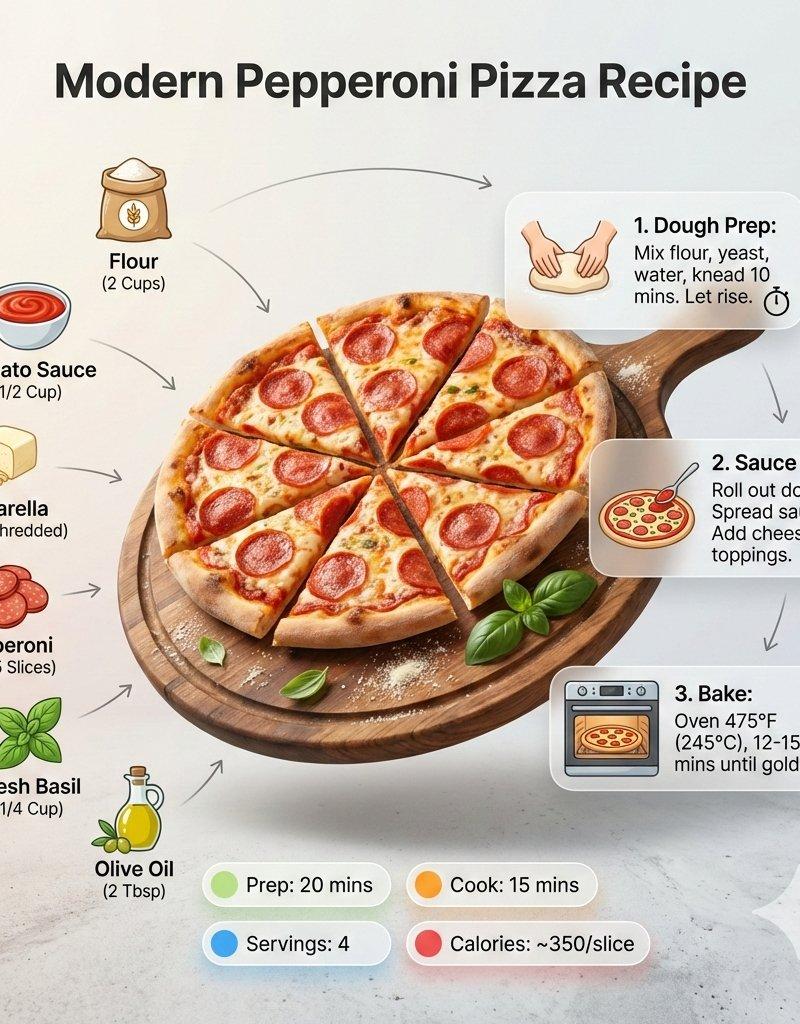
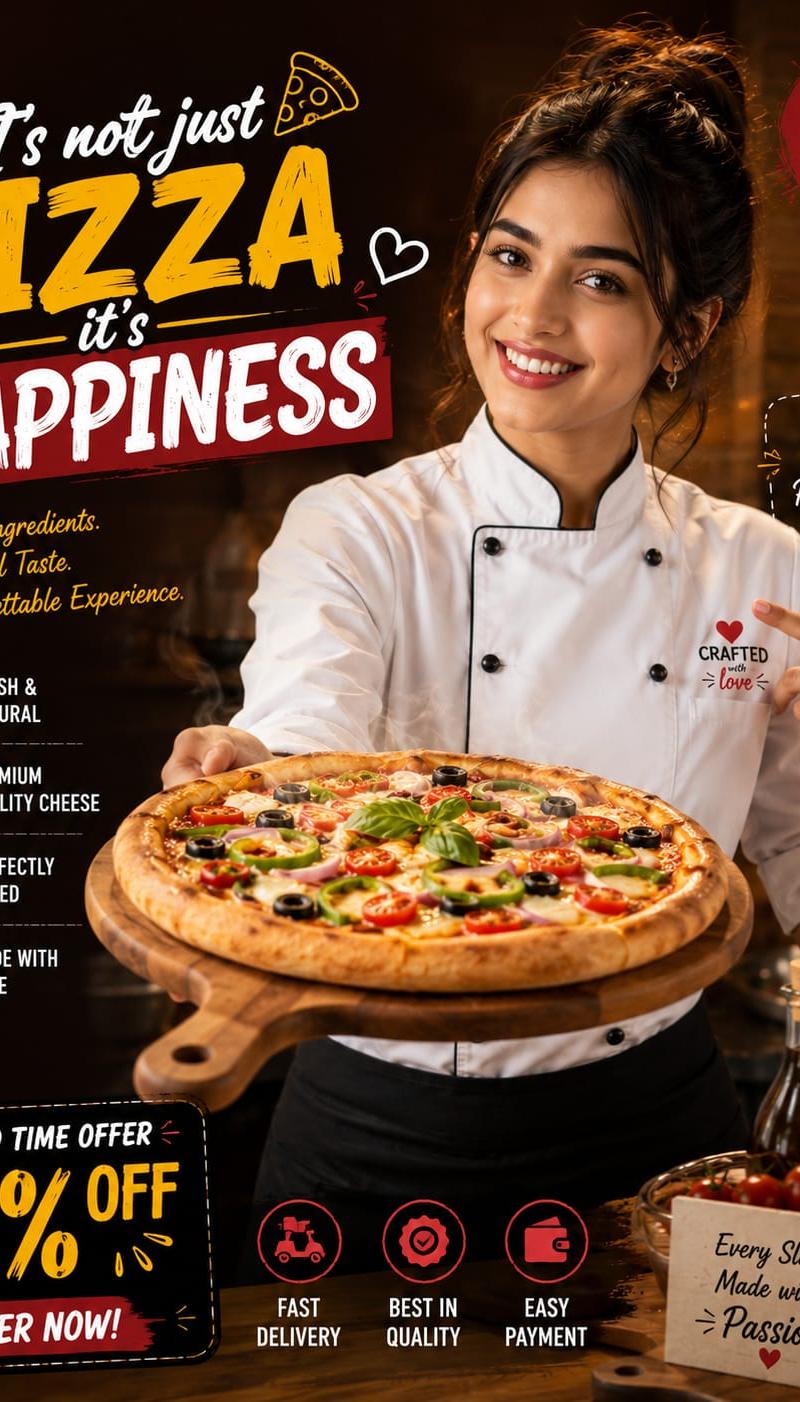
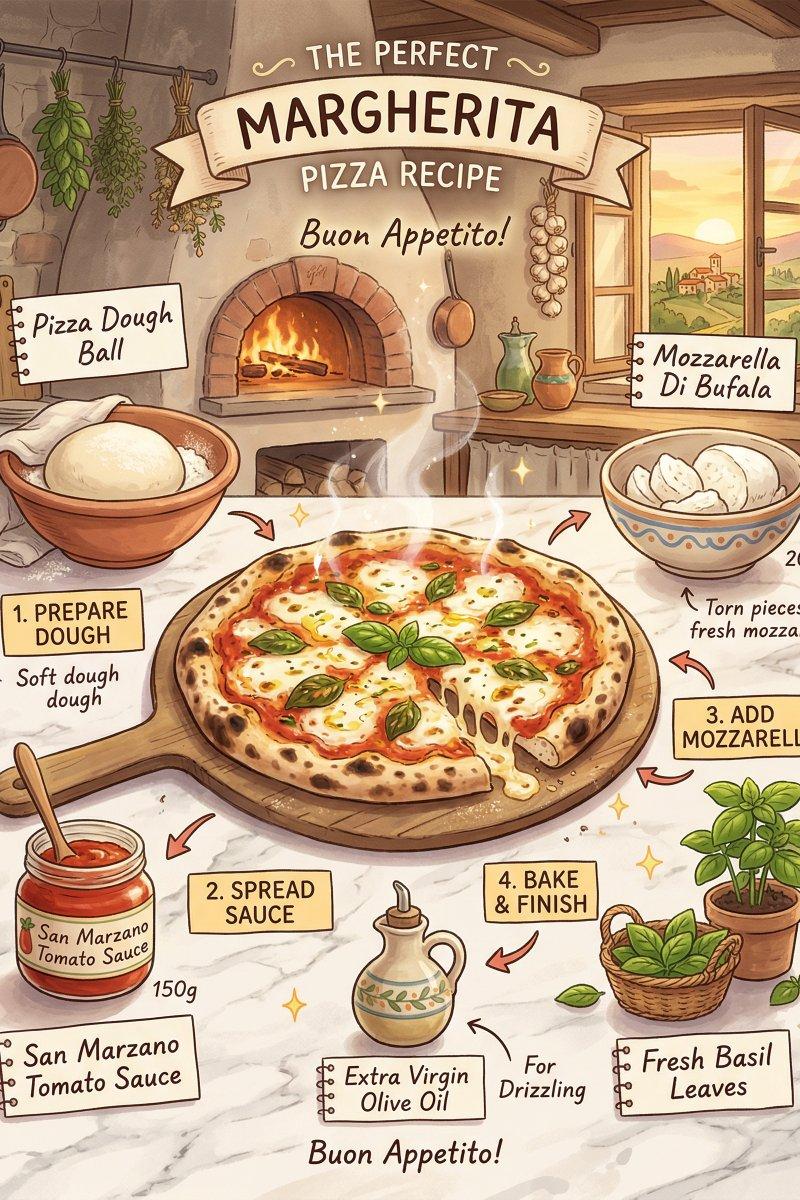
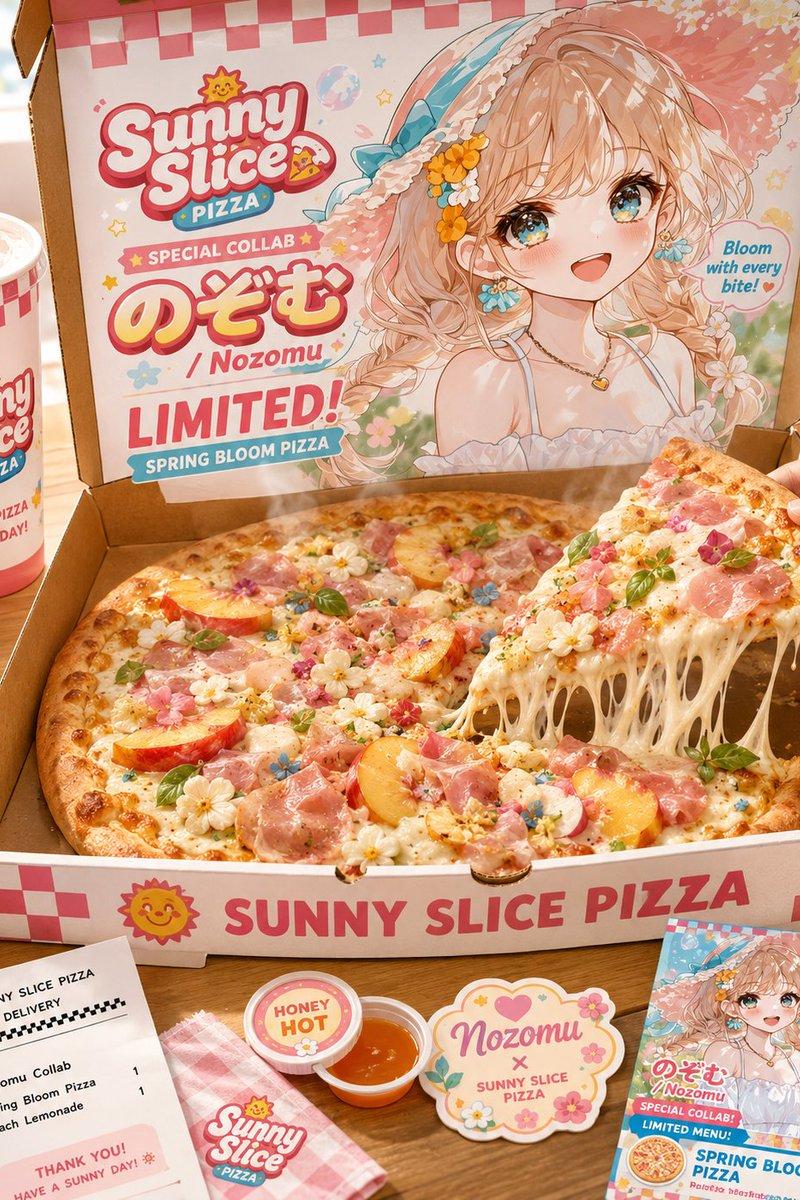
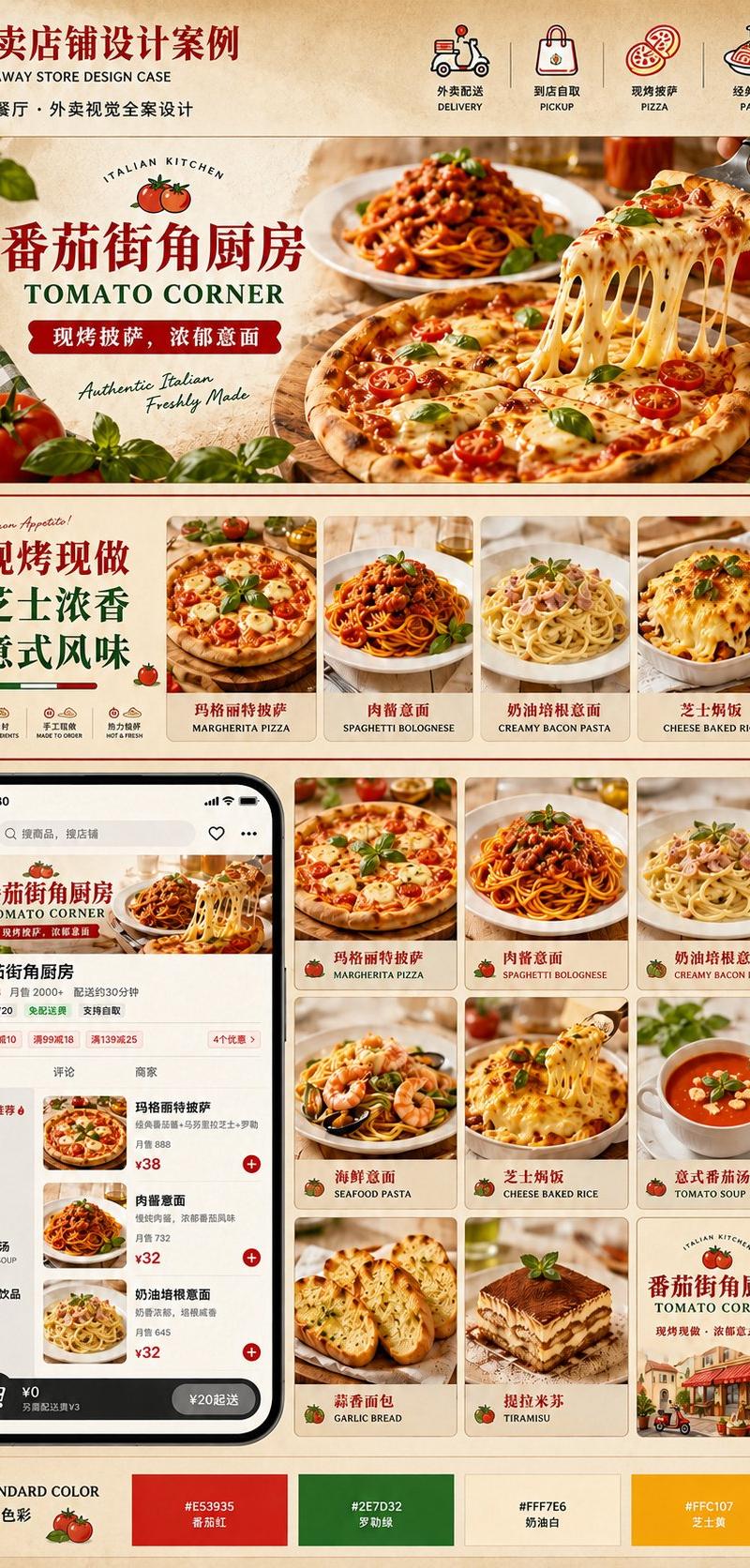
Editorial recipe infographic: GPT Image 2 prompt
Enlarge

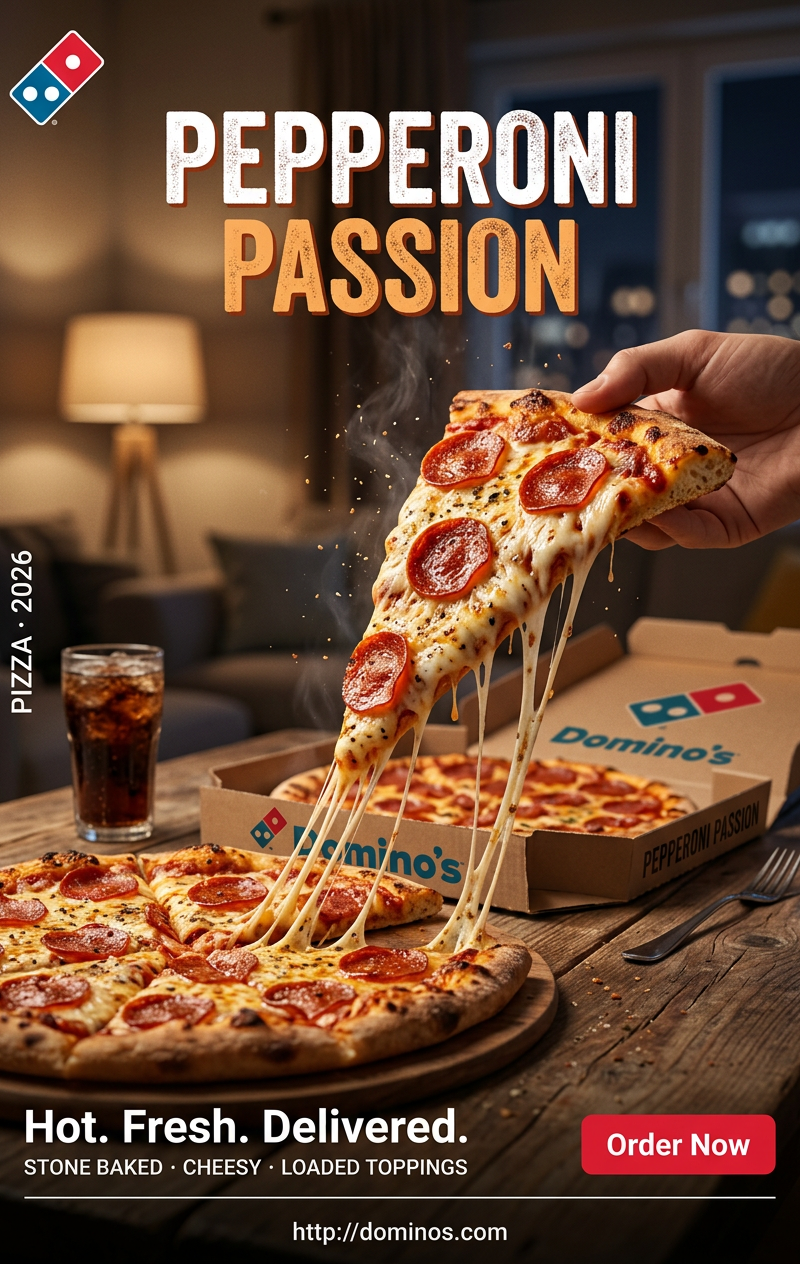
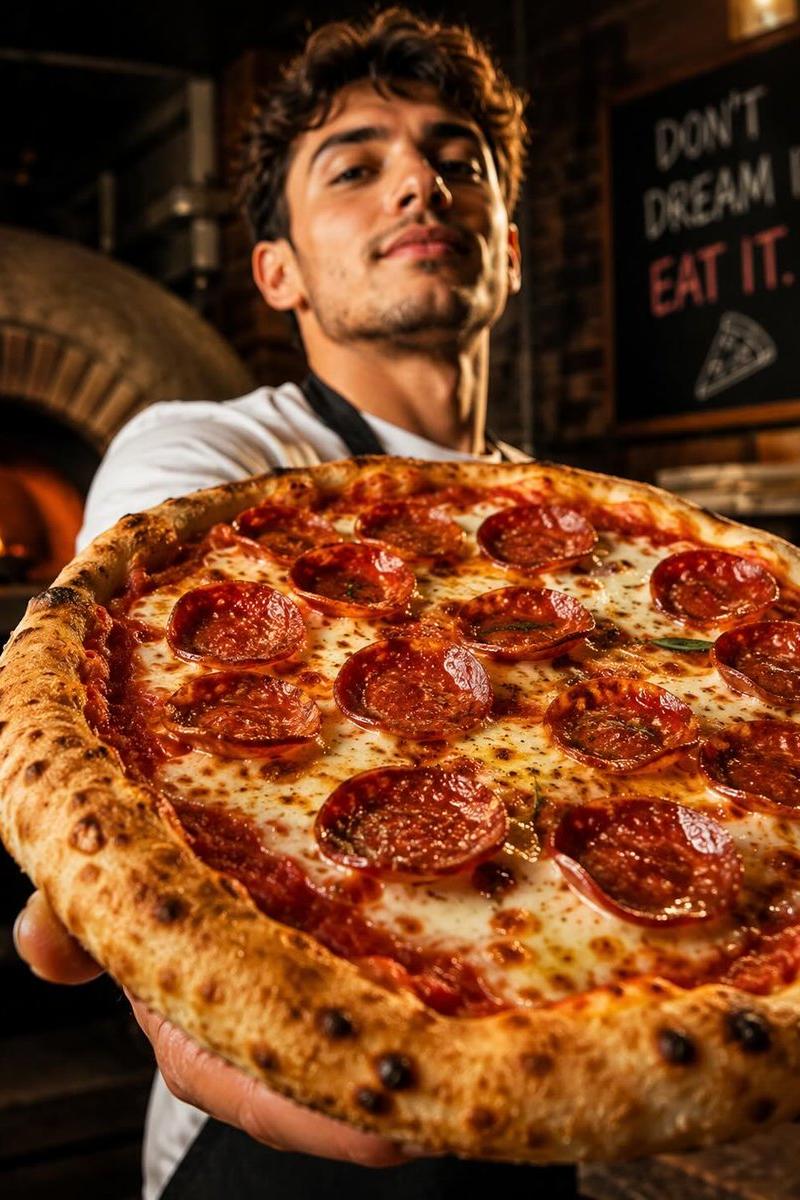
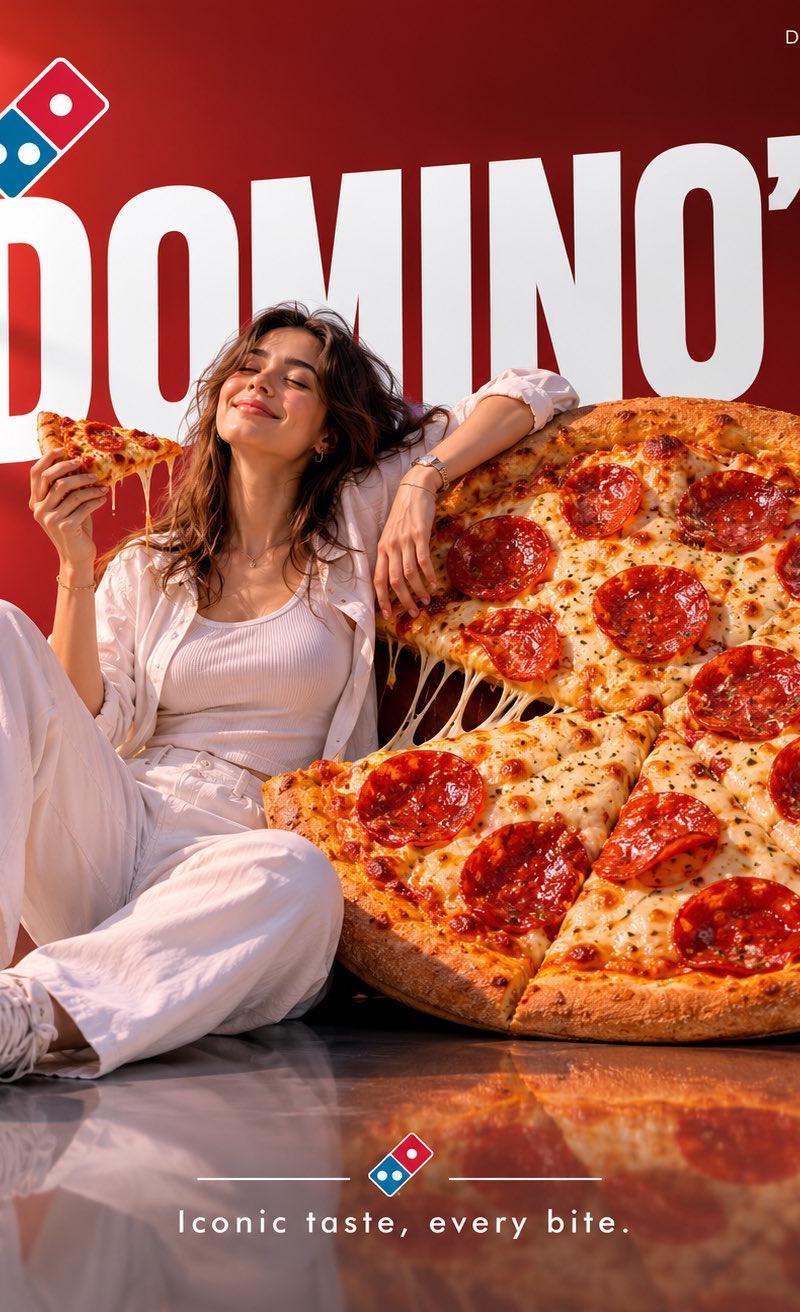
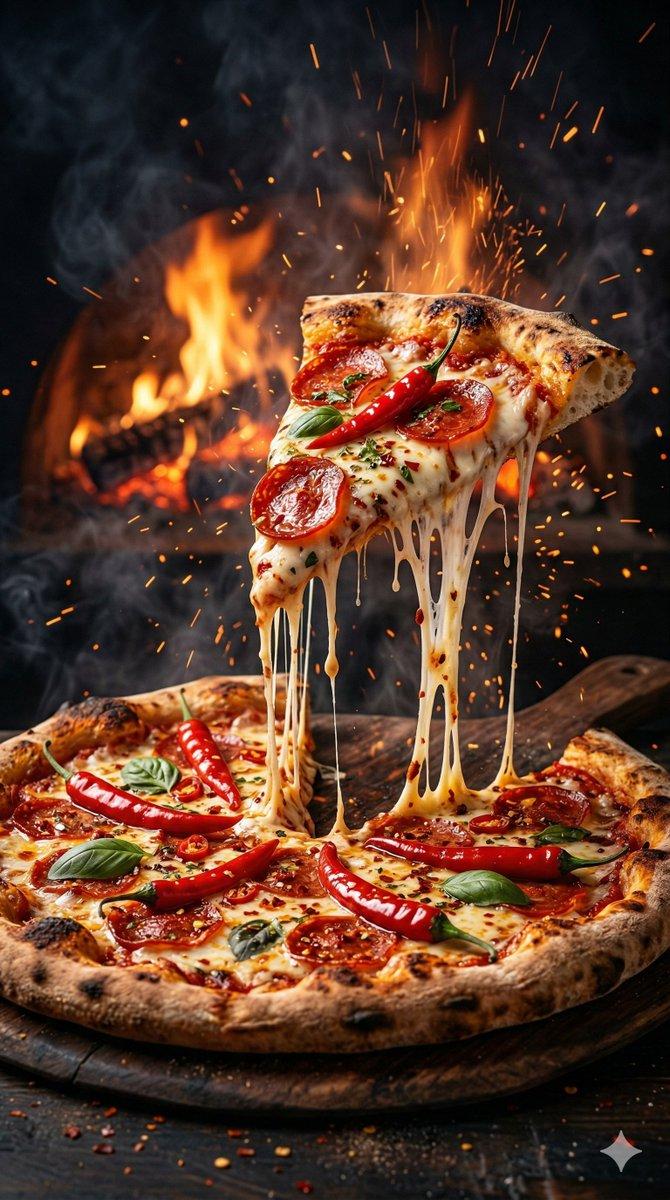
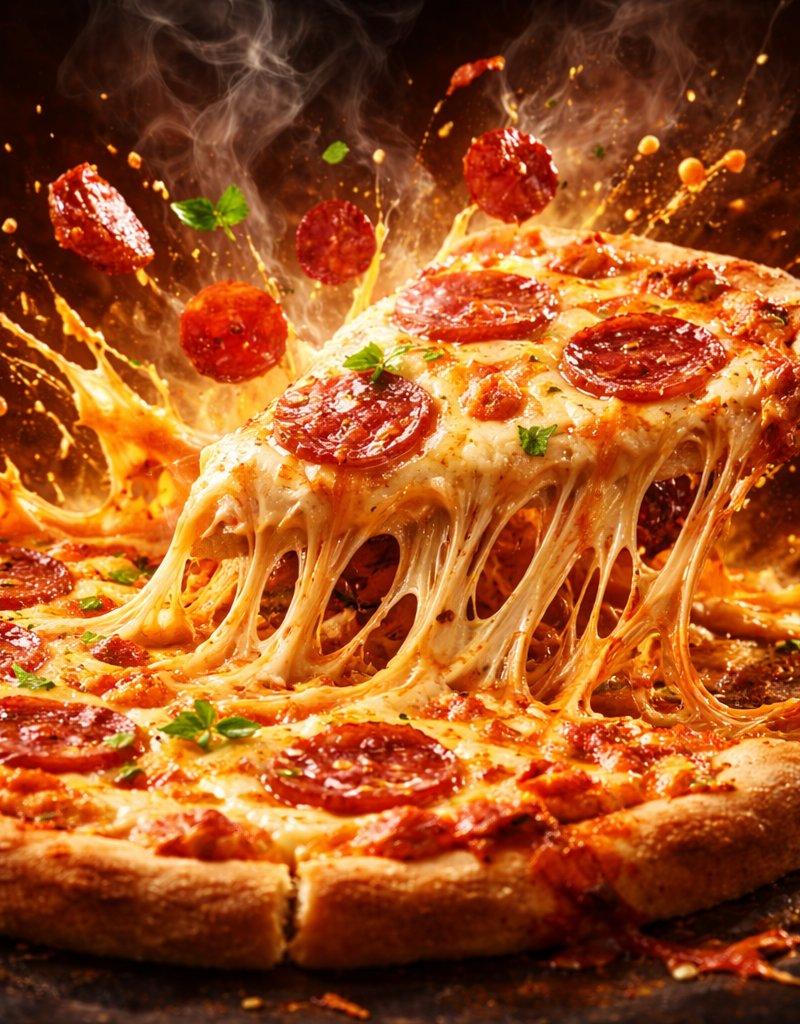
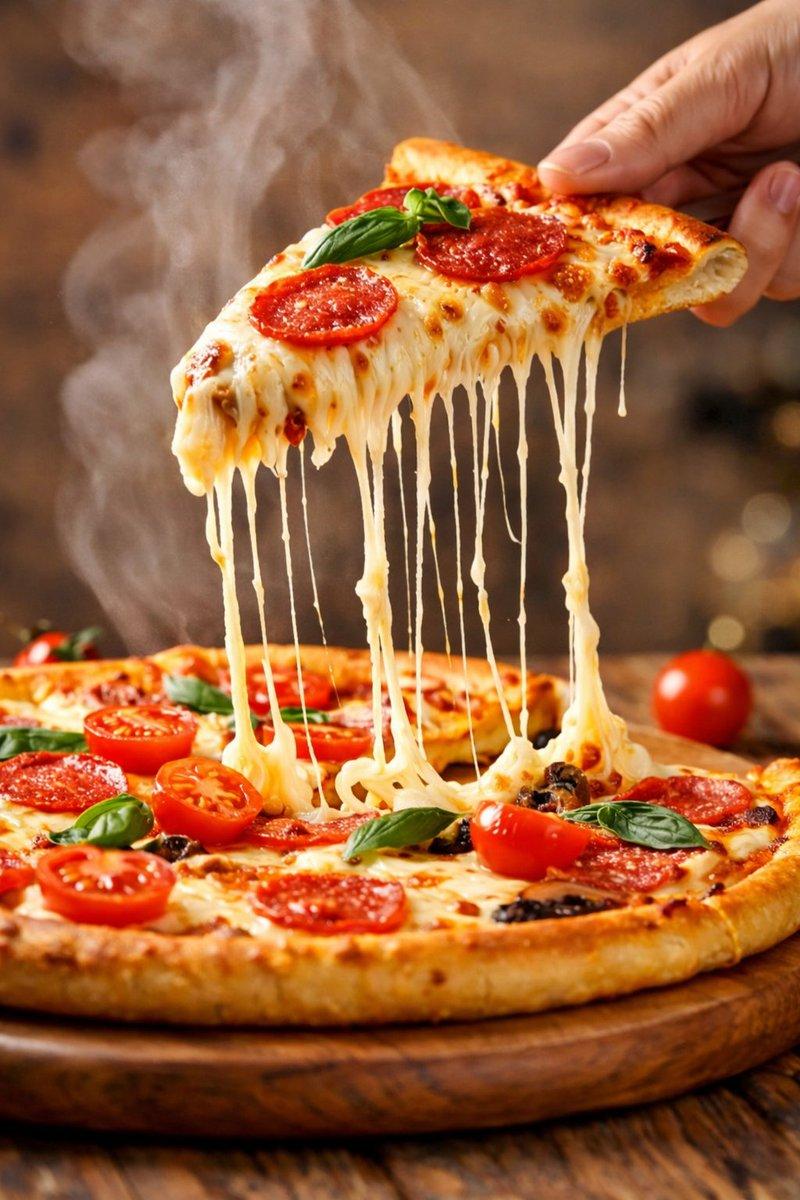
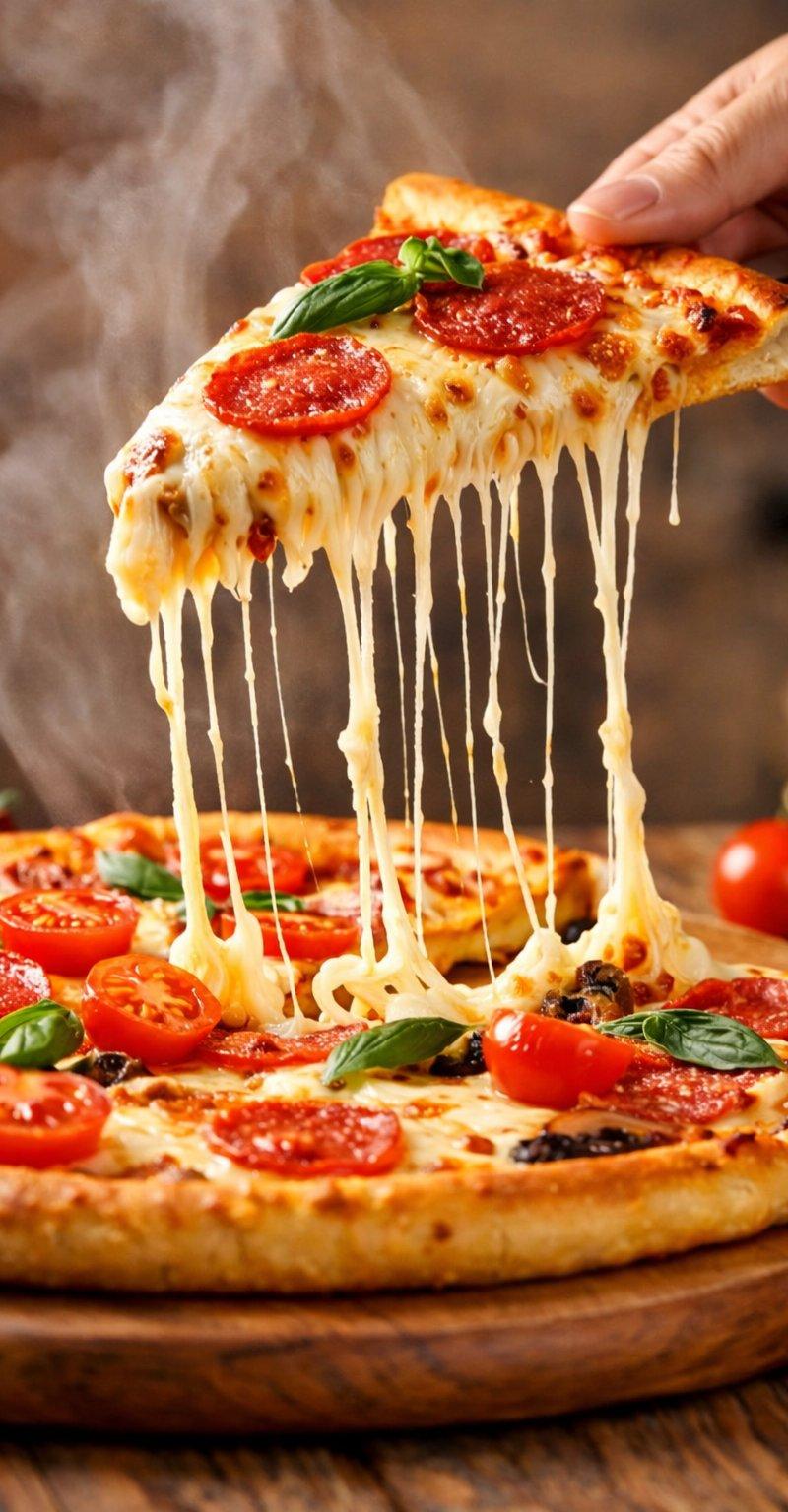
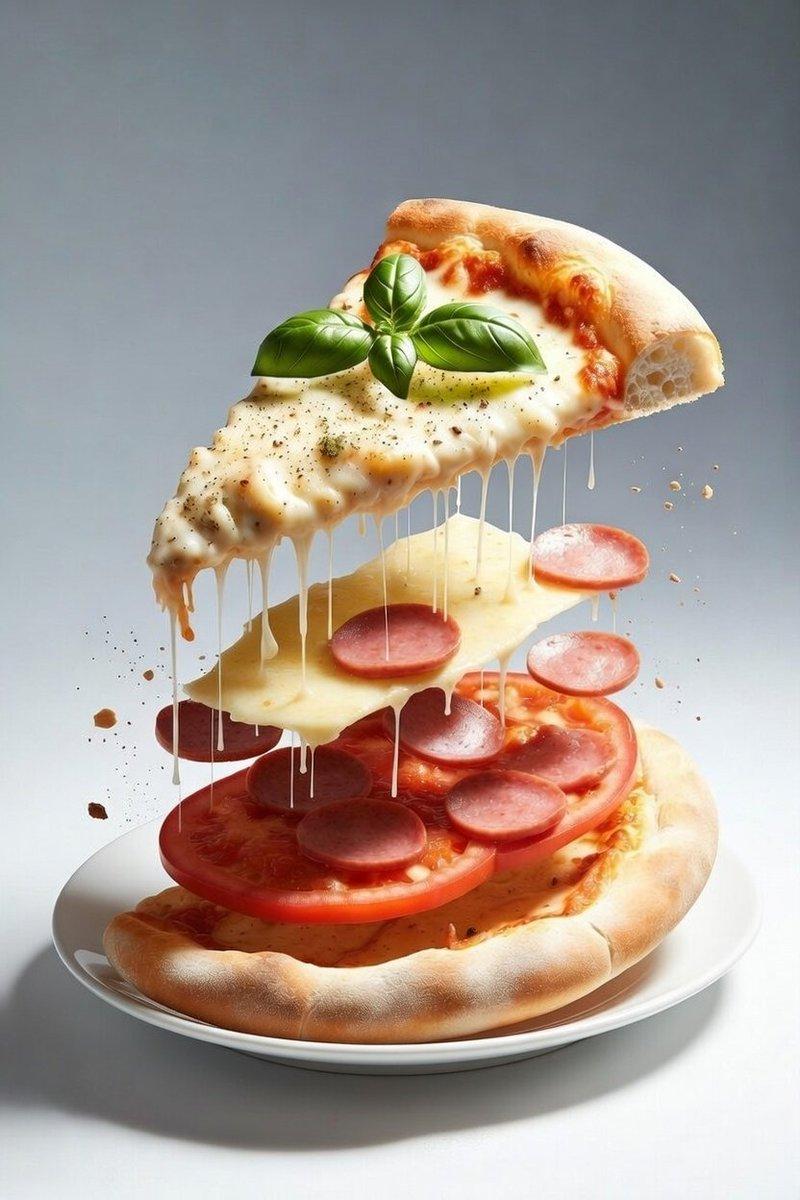
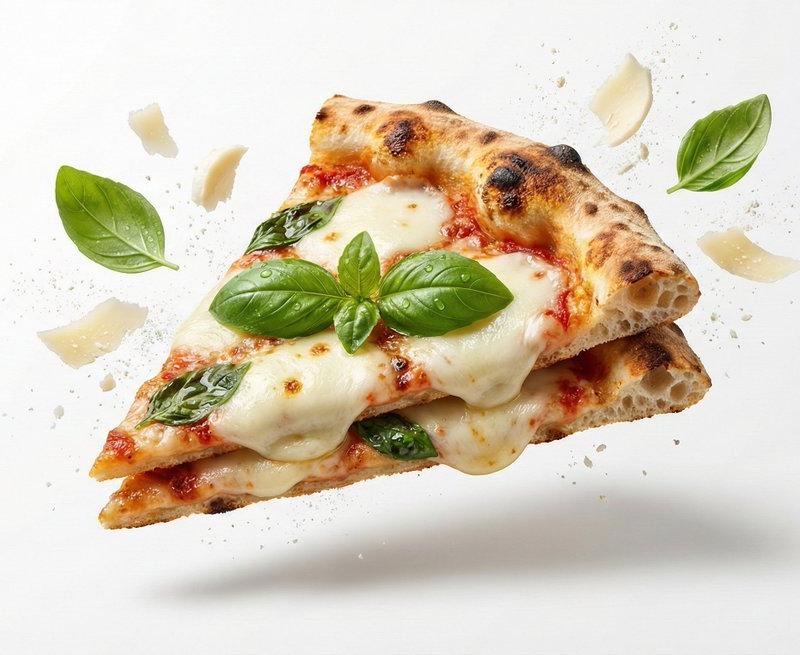
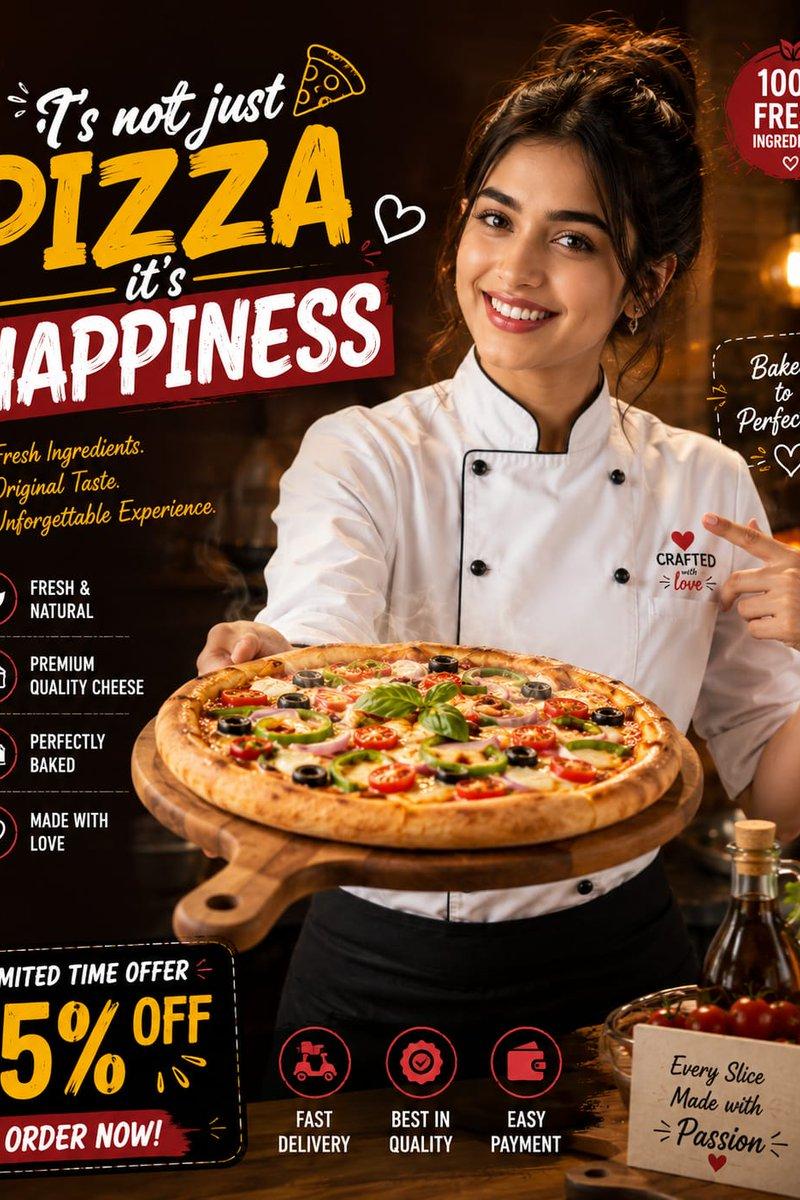
Example images

Editorial recipe infographic: GPT Image 2 prompt

Prompt
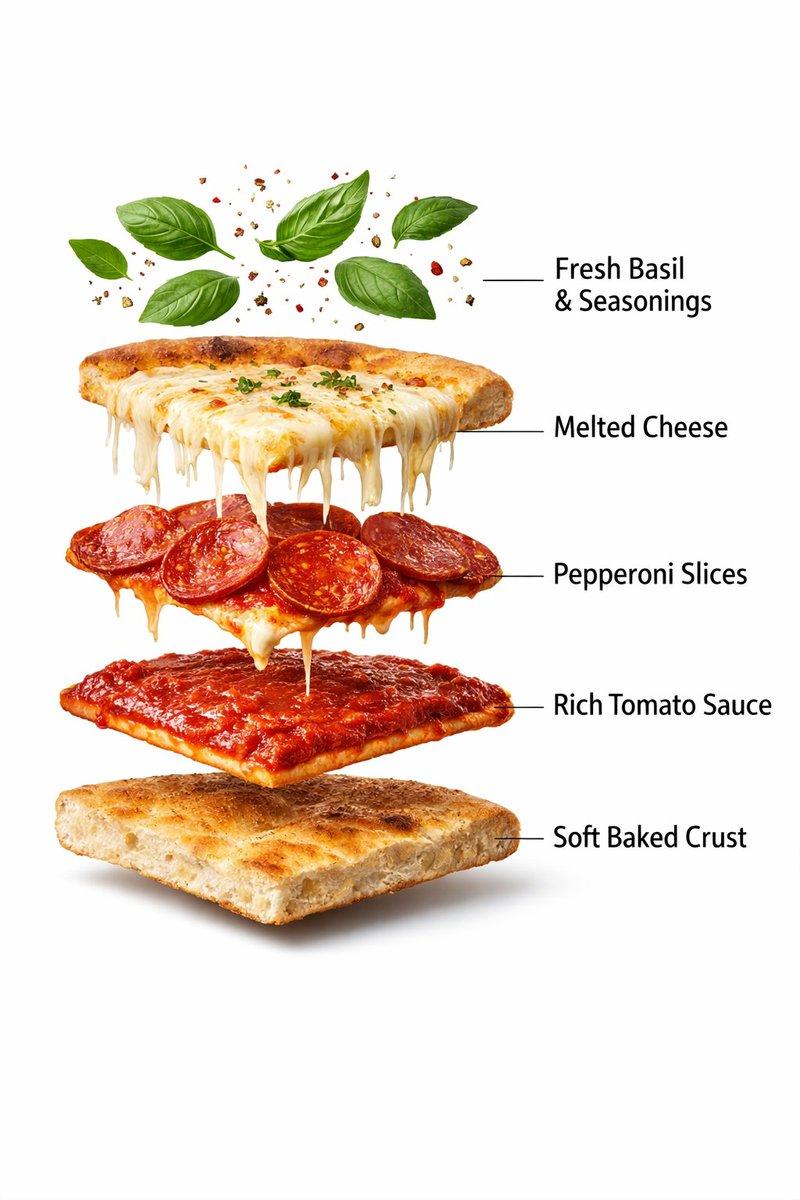
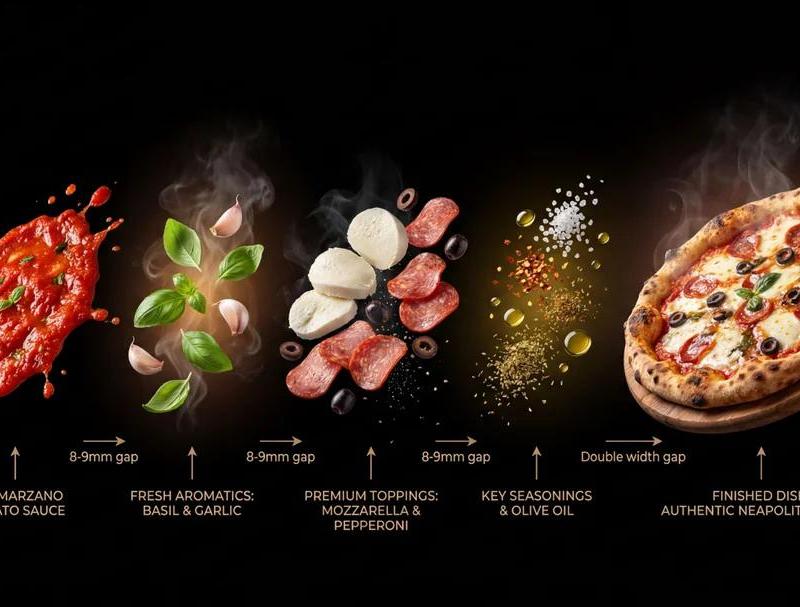
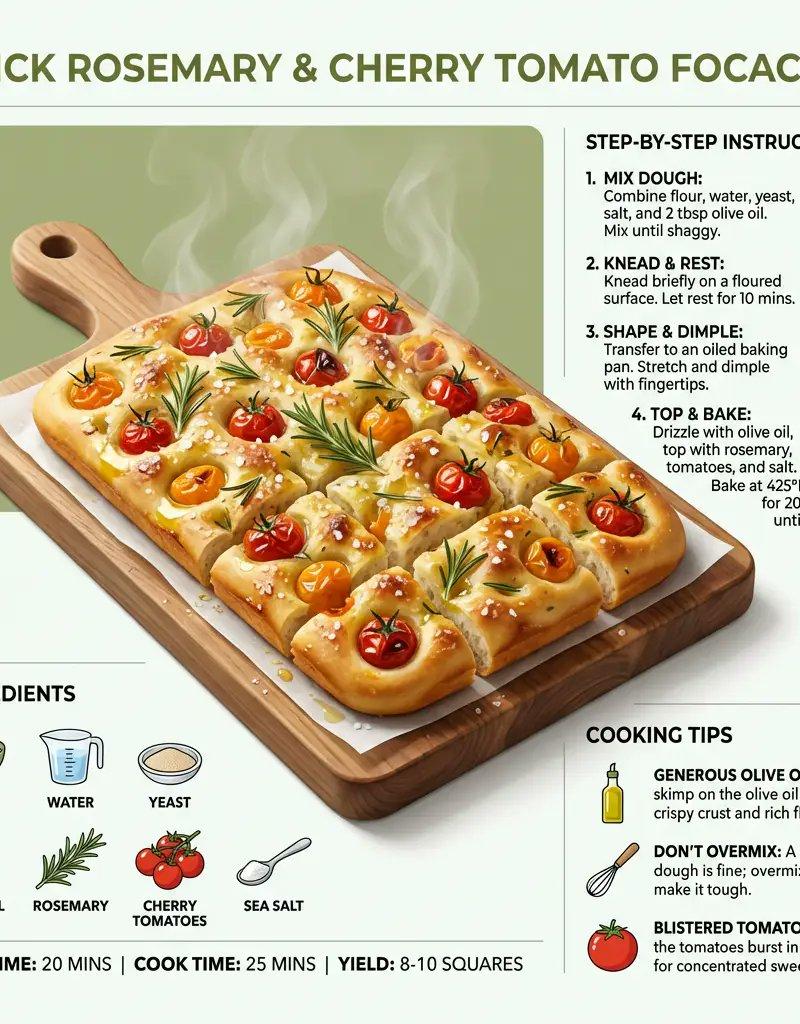
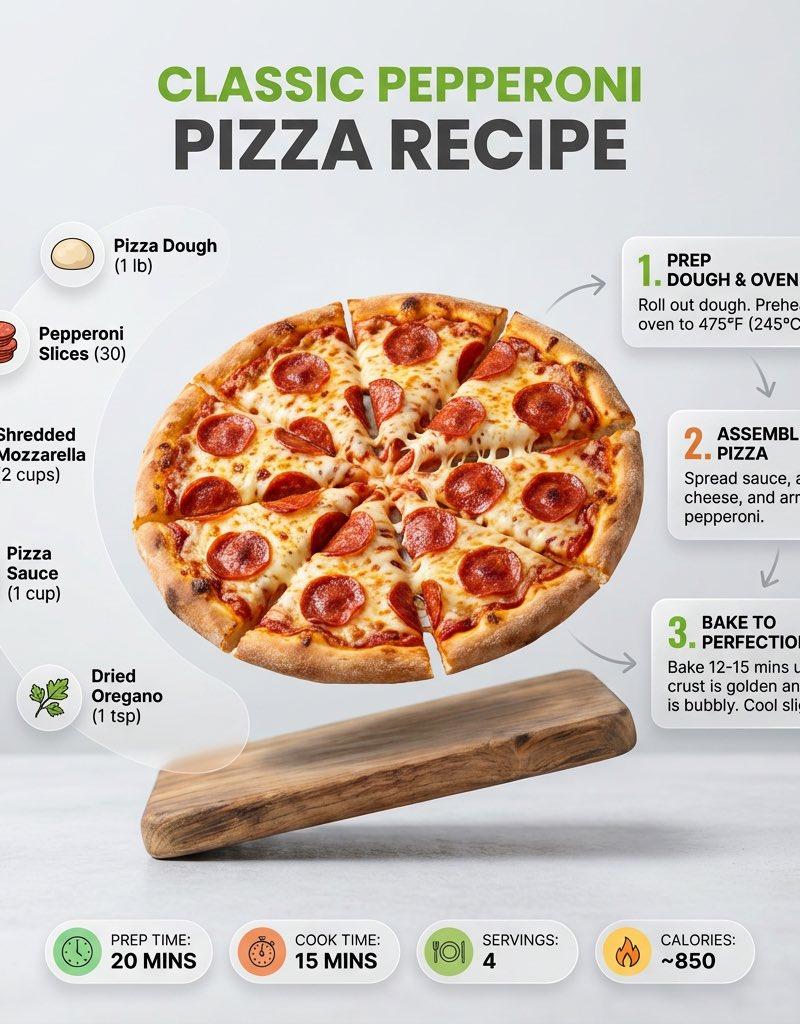
Ultra-clean modern recipe infographic. Showcase [FOOD] in a visually appealing finished form—sliced, plated, or portioned—floating slightly in perspective or angled view. Arrange ingredients, steps, and tips around the dish in a dynamic editorial layout, not restricted to top-down. Ingredients Section: Include icons or mini illustrations for each ingredient with quantities. Arrange them in clusters, lists, or circular flows connected visually to the dish. Steps Section: Show preparation steps with numbered panels, arrows, or lines, forming a logical flow around the main dish. Include small cooking icons (knife, pan, oven, timer) where helpful. Additional Info (optional): Total calories, prep/cook time, servings, spice level—displayed as clean bubbles or badges near the dish. Visual Style: Editorial infographic meets lifestyle food photography. Vibrant, natural food colors, subtle drop shadows, clean vector icons, modern typography, soft gradients or glassmorphism for step panels. Accent colors can highlight key info (calories, prep time). Composition Guidelines: Finished meal as hero visual (perspective or angled) Ingredients and steps flow dynamically around the dish Clear visual hierarchy: dish > steps > ingredients > optional stats Enough negative space to keep design airy and readable Lighting & Background: Soft, natural studio lighting, minimal textured or gradient background for premium editorial feel. Output: 1080×1080, ultra-crisp, social-feed optimized, no watermark
Category
Products & E-commerce
Model
GPT Image 2
Creator
TechieBySA
Source language
en
Views0
Source ID
2013233539706233086
Published
Jan 19, 2026
Studio

Guide

About "Editorial recipe infographic: GPT Image 2 prompt"

What is this prompt for?

"Editorial recipe infographic: GPT Image 2 prompt" AI image prompt for GPT Image 2 (Products & E-commerce). Ultra-clean modern recipe infographic. Showcase [FO…

The full copyable prompt and example visuals above are ready for AI image generation or one-click recreate in Picva.

How to use this prompt

  1. Step 1

    Open the prompt detail

    Review the example visuals, category, and full prompt text for "Editorial recipe infographic: GPT Image 2 prompt".

  2. Step 2

    Copy the prompt

    Copy the prompt body from this page, or load it directly in Studio.

  3. Step 3

    Pick a model (GPT Image 2)

    Prefer GPT Image 2. If you switch models, keep subject and composition and tweak style terms.

  4. Step 4

    Generate and export

    Recreate the look in Picva, or export into your workflow for editing and publishing.

FAQ

What is the "Editorial recipe infographic: GPT Image 2 prompt" prompt?
It is an AI image-generation prompt for GPT Image 2 in the Products & E-commerce category. This page includes the full prompt text, example visuals, and a one-click recreate path in Picva.
How do I use this prompt to generate an image?
Copy the prompt from this page, or use Generate / Studio. Paste it into a compatible image model, or recreate the look in Picva with optional reference images.
Which model is this prompt for?
This page lists GPT Image 2. Most descriptive prompts also transfer to nearby image models such as GPT Image, Flux, or Midjourney with light style tweaks.
Can I use the result commercially?
You can usually copy the prompt for creation, but commercial use of the final image depends on the model terms, reference-image rights, and the generated content. Follow the source author and platform rules.