18

Realistic vs stylized split: GPT Image 2 prompt
Enlarge

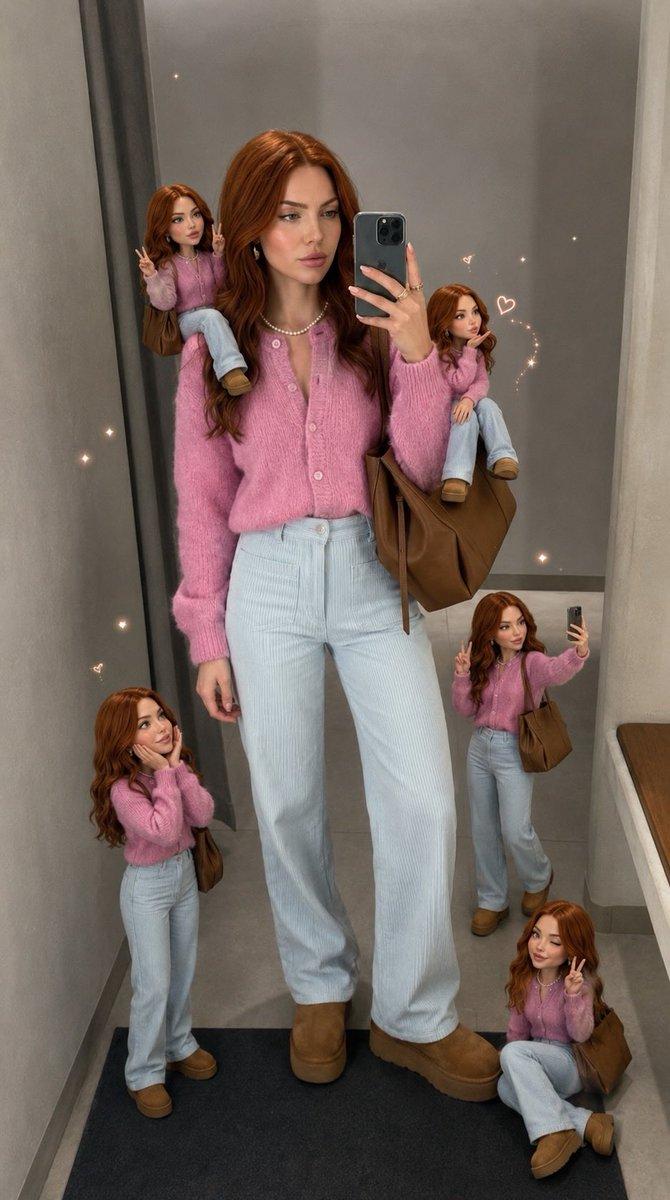
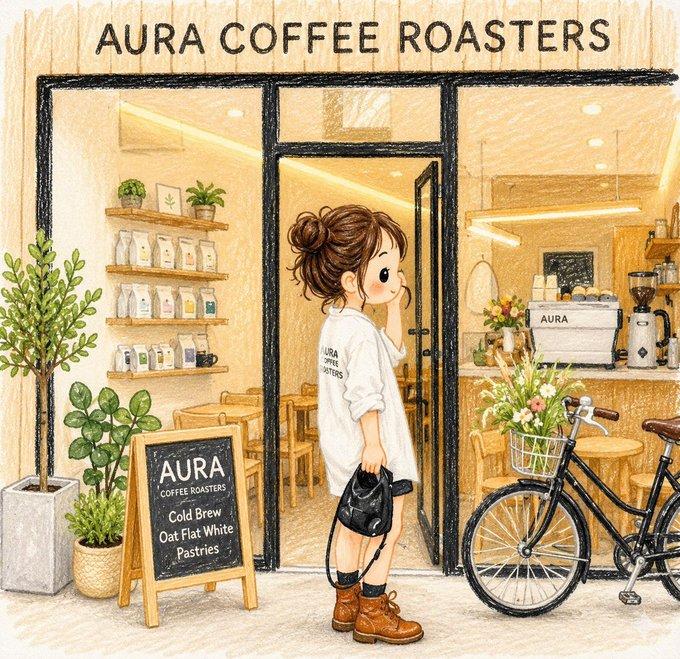
Example images

Realistic vs stylized split: GPT Image 2 prompt

Prompt
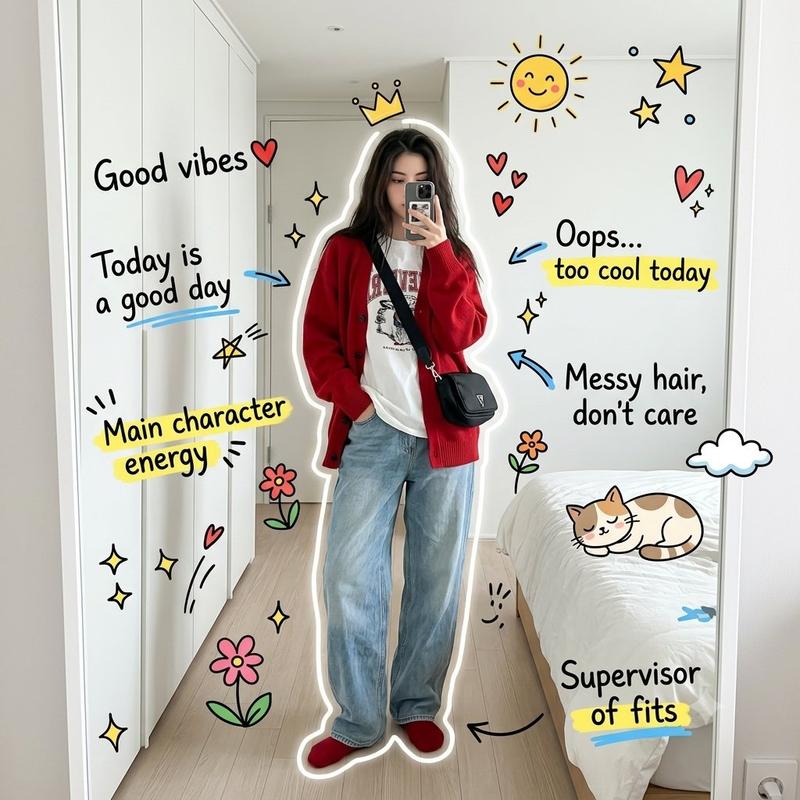
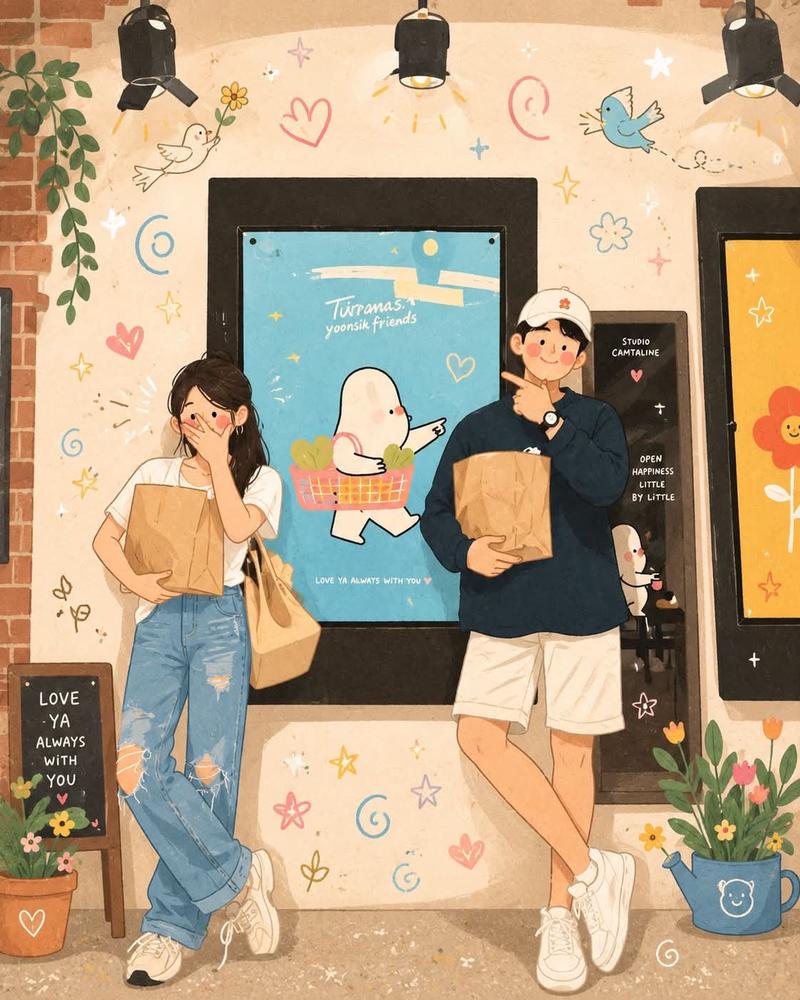
High-detail 8K split-style composition where the subject is divided vertically into two halves.
LEFT SIDE:
Keep the original photo fully realistic. Preserve natural lighting, textures, and fine details. Slightly enhance sharpness and clarity. Add subtle hand-drawn doodle outlines (soft pastel or neon lines) around the subject for a creative aura.
RIGHT SIDE:
Transform the same subject into a stylized cartoon/digital illustration. Maintain the exact same pose, angle, and facial expression. Use clean lineart, soft shading, and pastel or vibrant colors in a modern cute style (chibi / semi-realistic). Add small decorative elements like sticker-style doodles, cute icons, or mini characters floating around.
BACKGROUND (IMPORTANT):
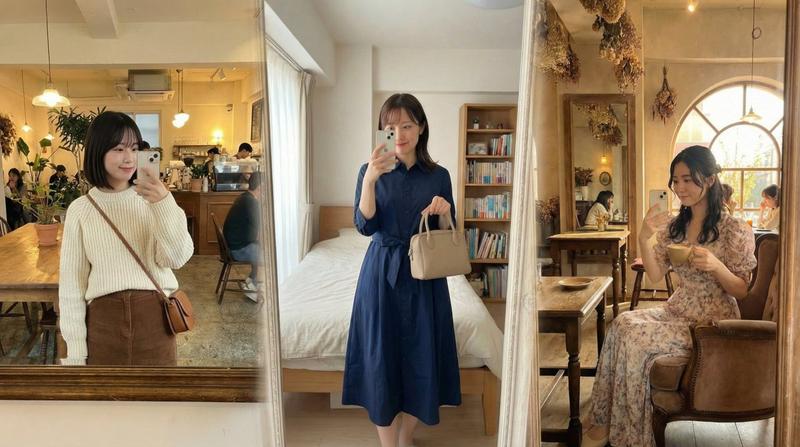
Keep the ORIGINAL background unchanged on BOTH sides. Do not replace, redraw, or stylize the background. Maintain consistency across the entire image.
CENTER DIVISION:
Add a vertical torn-paper or glitch-style transition separating the realistic and illustrated halves.
STYLE:
modern digital art, clean composition, soft lighting, aesthetically pleasing, social media style
QUALITY: 8K resolution, ultra-detailed.
Category
Charts & Infographics
Model
GPT Image 2
Creator
Ciri
Views0
Source ID
2040118989775585520
Published
Apr 3, 2026

Guide

About "Realistic vs stylized split: GPT Image 2 prompt"

What is this prompt for?

"Realistic vs stylized split: GPT Image 2 prompt" AI image prompt for GPT Image 2 (Charts & Infographics). High-detail 8K split-style composition where the sub…

The full copyable prompt and example visuals above are ready for AI image generation or one-click recreate in Picva.

How to use this prompt

  1. Step 1

    Open the prompt detail

    Review the example visuals, category, and full prompt text for "Realistic vs stylized split: GPT Image 2 prompt".

  2. Step 2

    Copy the prompt

    Copy the prompt body from this page, or load it directly in Studio.

  3. Step 3

    Pick a model (GPT Image 2)

    Prefer GPT Image 2. If you switch models, keep subject and composition and tweak style terms.

  4. Step 4

    Generate and export

    Recreate the look in Picva, or export into your workflow for editing and publishing.

FAQ

What is the "Realistic vs stylized split: GPT Image 2 prompt" prompt?
It is an AI image-generation prompt for GPT Image 2 in the Charts & Infographics category. This page includes the full prompt text, example visuals, and a one-click recreate path in Picva.
How do I use this prompt to generate an image?
Copy the prompt from this page, or use Generate / Studio. Paste it into a compatible image model, or recreate the look in Picva with optional reference images.
Which model is this prompt for?
This page lists GPT Image 2. Most descriptive prompts also transfer to nearby image models such as GPT Image, Flux, or Midjourney with light style tweaks.
Can I use the result commercially?
You can usually copy the prompt for creation, but commercial use of the final image depends on the model terms, reference-image rights, and the generated content. Follow the source author and platform rules.