16

{"aspect_ratio": "3:4", "camera_lens": "fisheye lens", "effect": "slightly stron
Enlarge

Example images

{"aspect_ratio": "3:4", "camera_lens": "fisheye lens", "effect": "slightly stron

Prompt
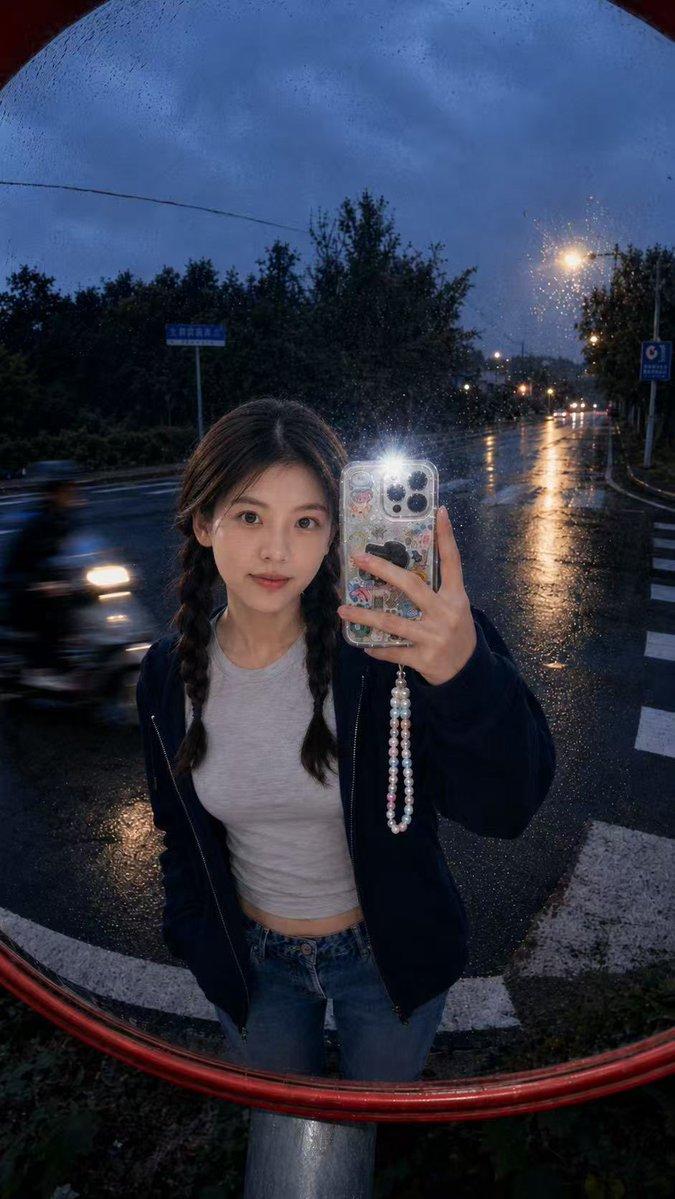
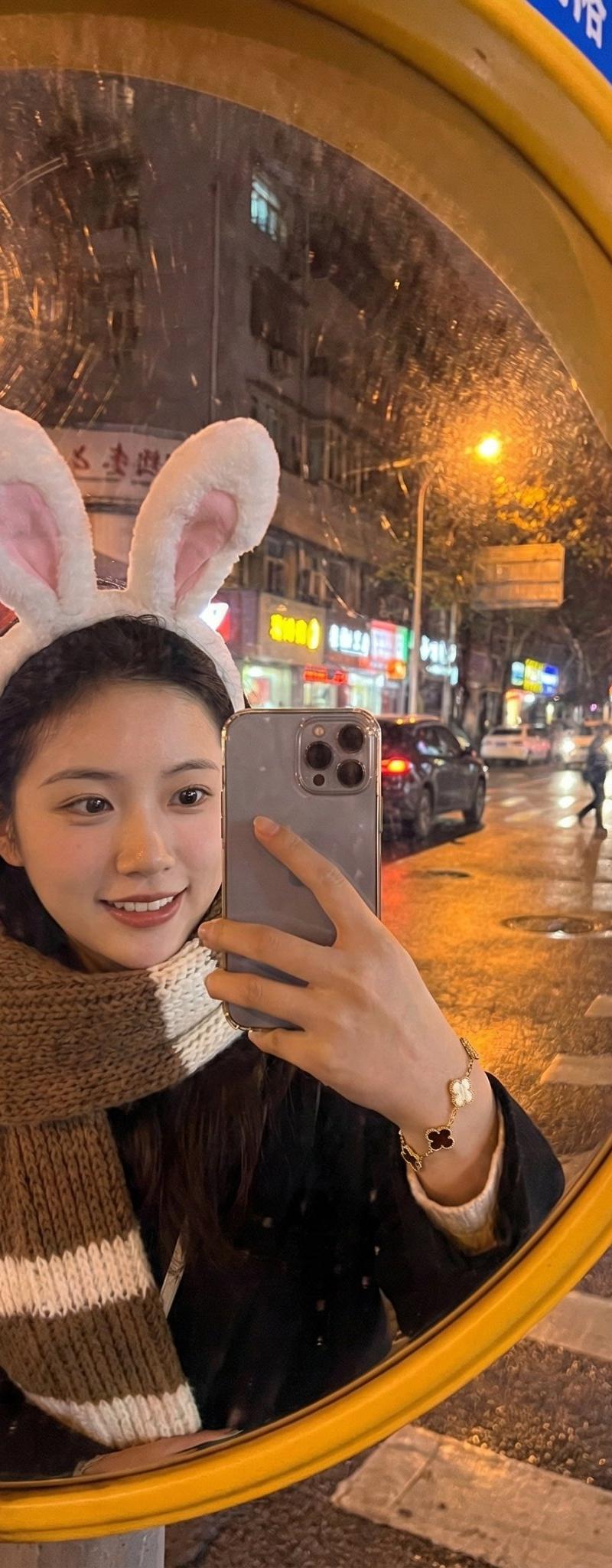
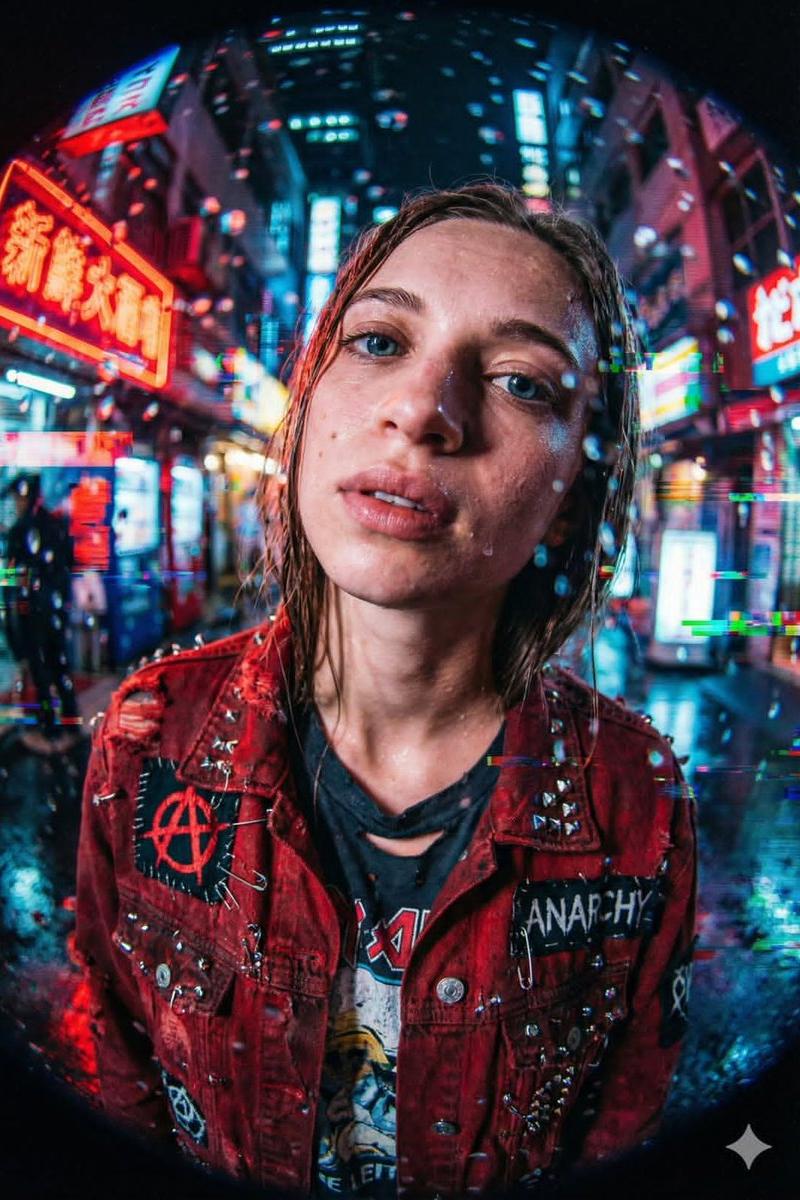
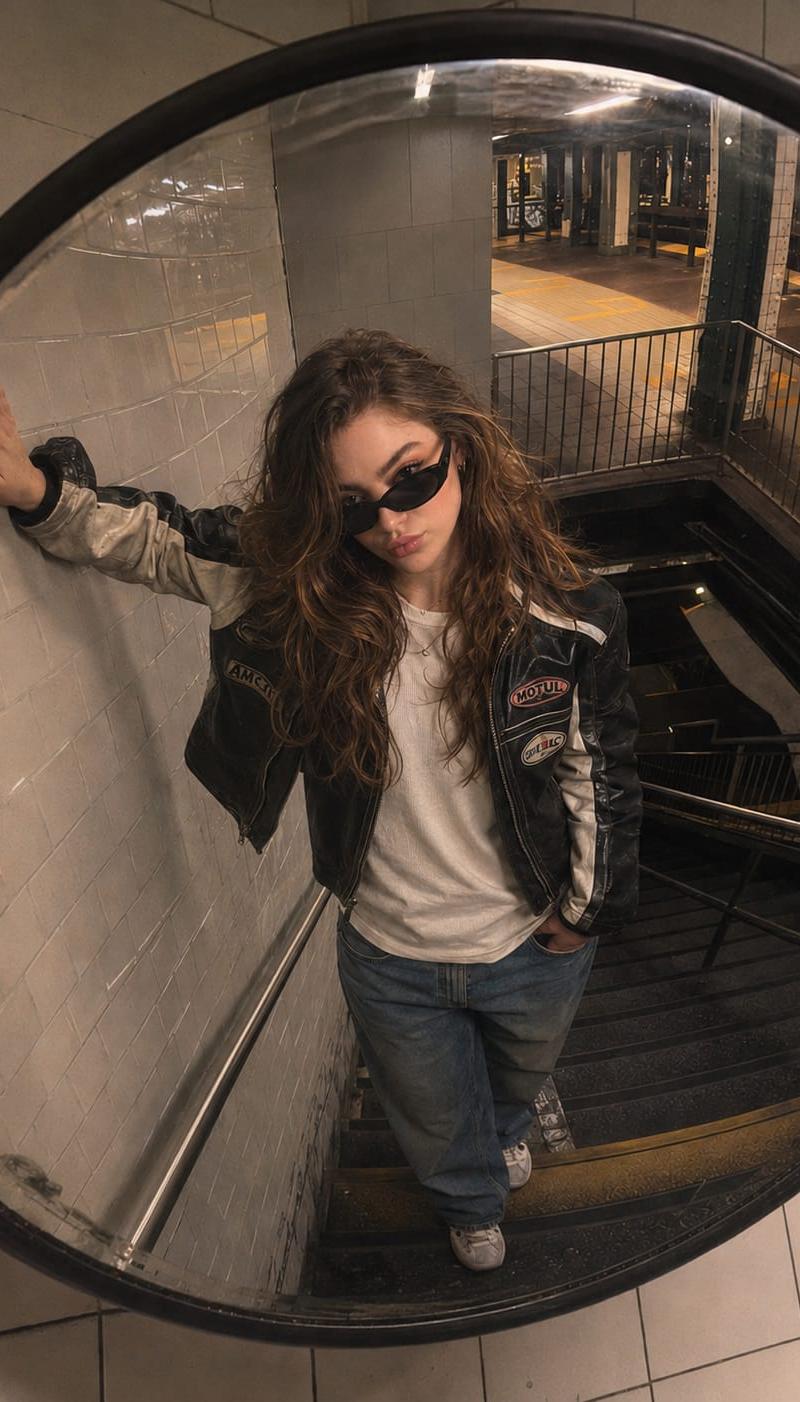
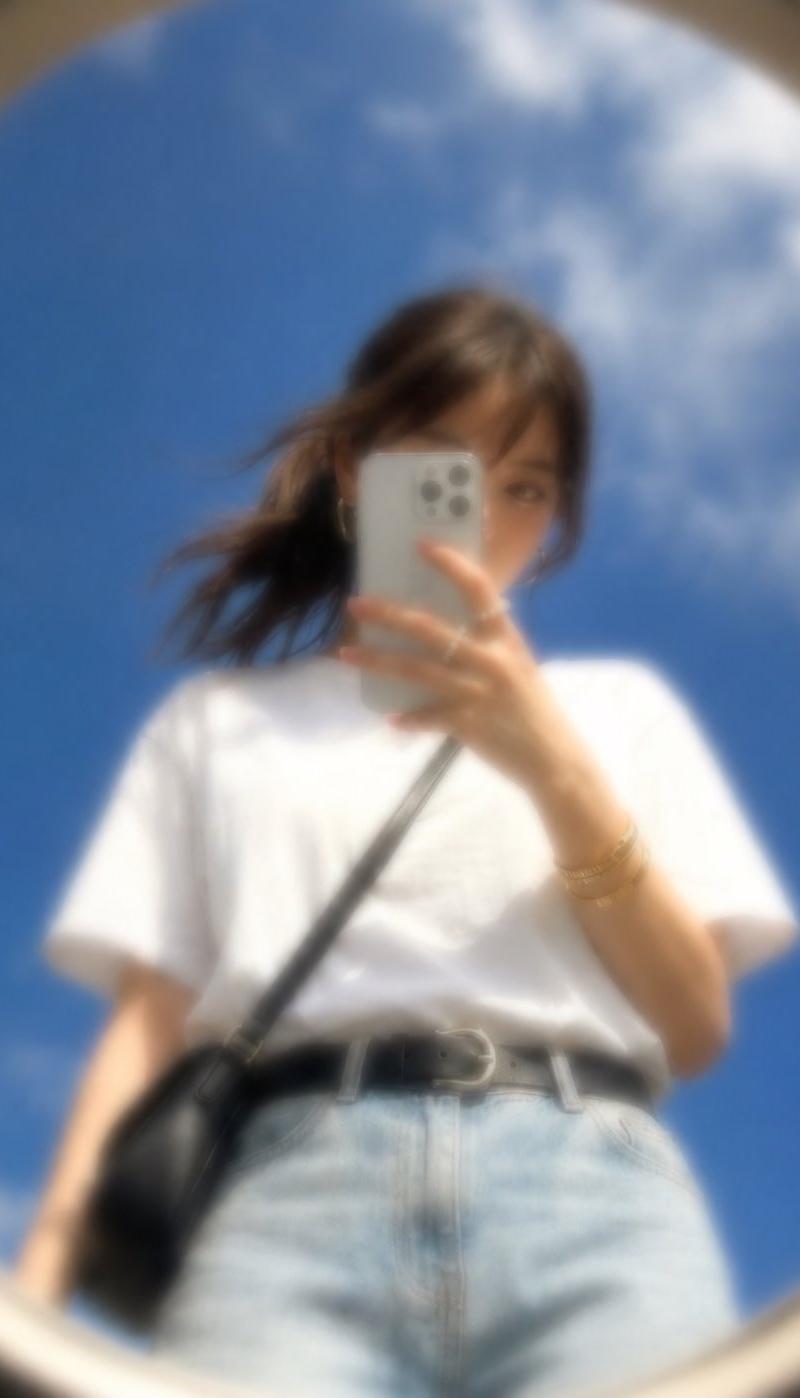
{"aspect_ratio": "3:4", "camera_lens": "fisheye lens", "effect": "slightly stronger convex traffic mirror effect, like a roadside dome mirror sign", "frame": "no black edges; the entire circular frame is fully filled with the surrounding street", "distortion": "more pronounced fisheye distortion with deeper curvature bending the road, buildings, poles, scaffolding, and the passing car toward the edges", "motion": "a car is moving through the road with subtle motion blur, reflecting intense red neon and traffic lights, casting red highlights onto the asphalt", "subject": {"position": "at the center", "pose": "posing from the waist up", "object": "holding a white iPhone 15 Pro Max", "clothing": "black leather jacket", "accessories": "silver rings"}, "lighting": "red neon signs and street lamps dominate the scene", "background": "construction scaffolding and a red-and-yellow striped road barrier clearly visible along the curved edges", "atmosphere": "cinematic, realistic, candid night street atmosphere"}
Category
Architecture & Spaces
Model
GPT Image 2
Creator
xie underwood
Source language
en
Views174
Source ID
2053
Published
Apr 22, 2026
Studio

Guide

About "{"aspect_ratio": "3:4", "camera_lens": "fisheye lens", "effect": "slightly stron"

What is this prompt for?

"{"aspect_ratio": "3:4", "camera_lens": "fisheye lens", "effect": "slightly stron" AI image prompt for GPT Image 2 (Architecture & Spaces). {"aspect_ratio": "3…

The full copyable prompt and example visuals above are ready for AI image generation or one-click recreate in Picva.

How to use this prompt

  1. Step 1

    Open the prompt detail

    Review the example visuals, category, and full prompt text for "{"aspect_ratio": "3:4", "camera_lens": "fisheye lens", "effect": "slightly stron".

  2. Step 2

    Copy the prompt

    Copy the prompt body from this page, or load it directly in Studio.

  3. Step 3

    Pick a model (GPT Image 2)

    Prefer GPT Image 2. If you switch models, keep subject and composition and tweak style terms.

  4. Step 4

    Generate and export

    Recreate the look in Picva, or export into your workflow for editing and publishing.

FAQ

What is the "{"aspect_ratio": "3:4", "camera_lens": "fisheye lens", "effect": "slightly stron" prompt?
It is an AI image-generation prompt for GPT Image 2 in the Architecture & Spaces category. This page includes the full prompt text, example visuals, and a one-click recreate path in Picva.
How do I use this prompt to generate an image?
Copy the prompt from this page, or use Generate / Studio. Paste it into a compatible image model, or recreate the look in Picva with optional reference images.
Which model is this prompt for?
This page lists GPT Image 2. Most descriptive prompts also transfer to nearby image models such as GPT Image, Flux, or Midjourney with light style tweaks.
Can I use the result commercially?
You can usually copy the prompt for creation, but commercial use of the final image depends on the model terms, reference-image rights, and the generated content. Follow the source author and platform rules.