17

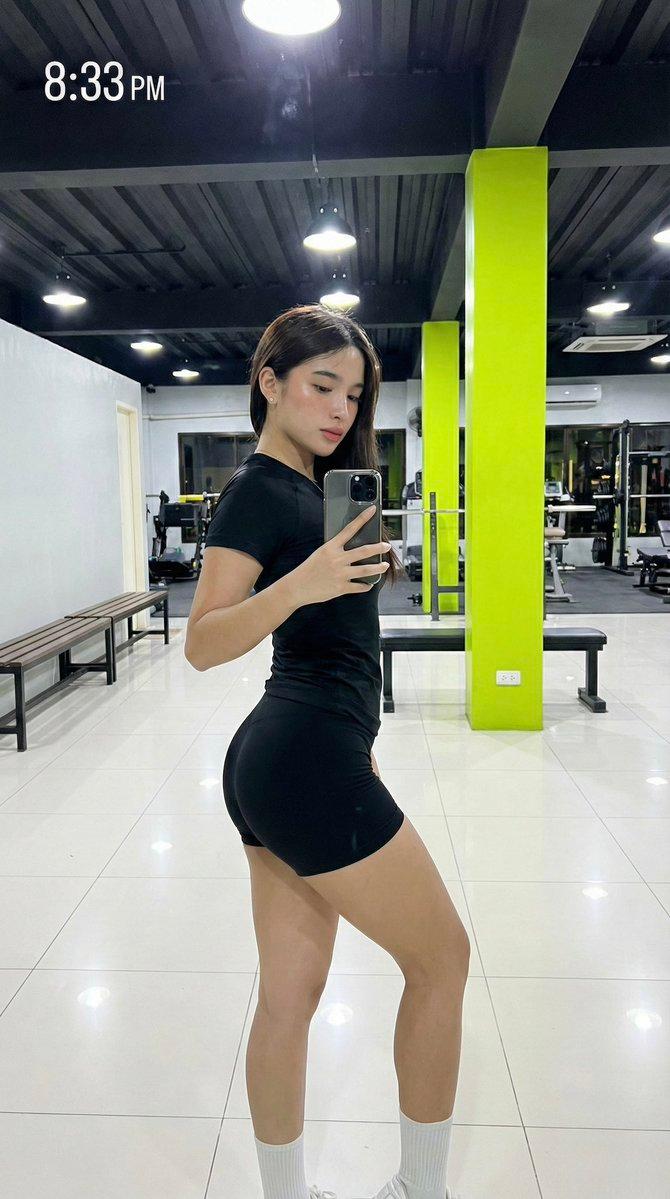
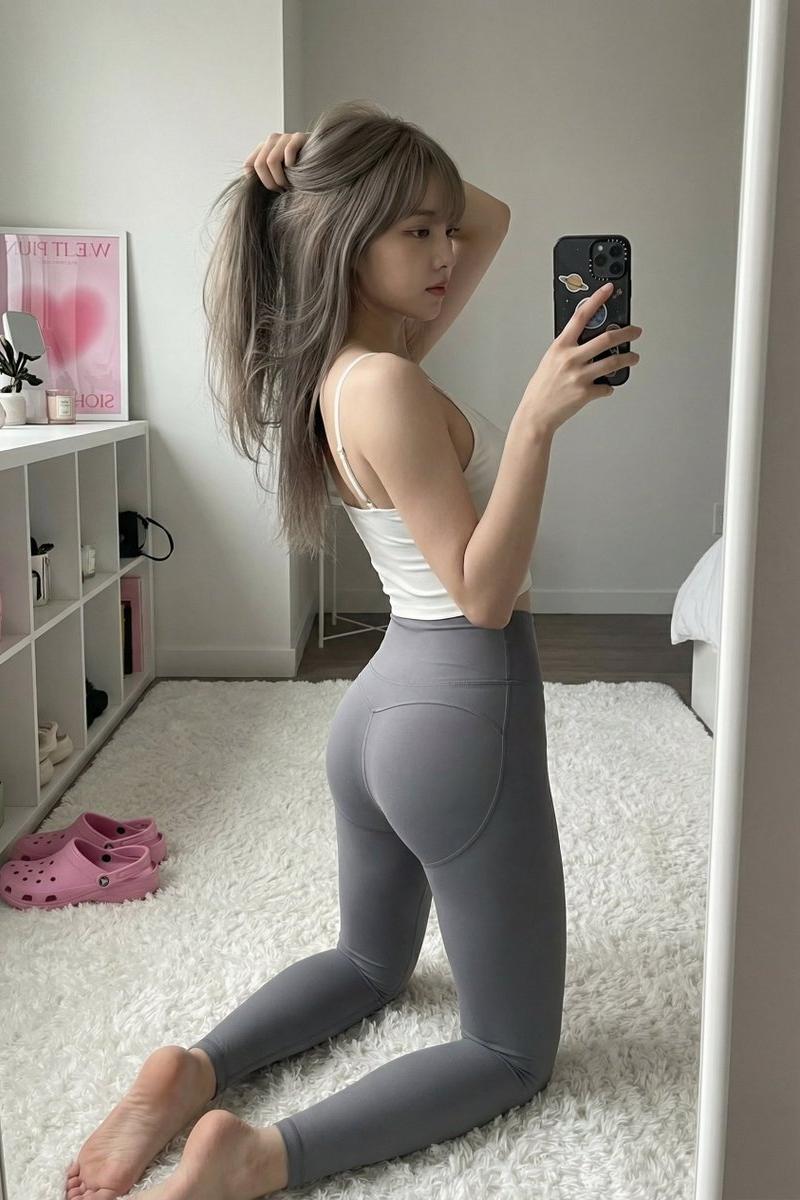
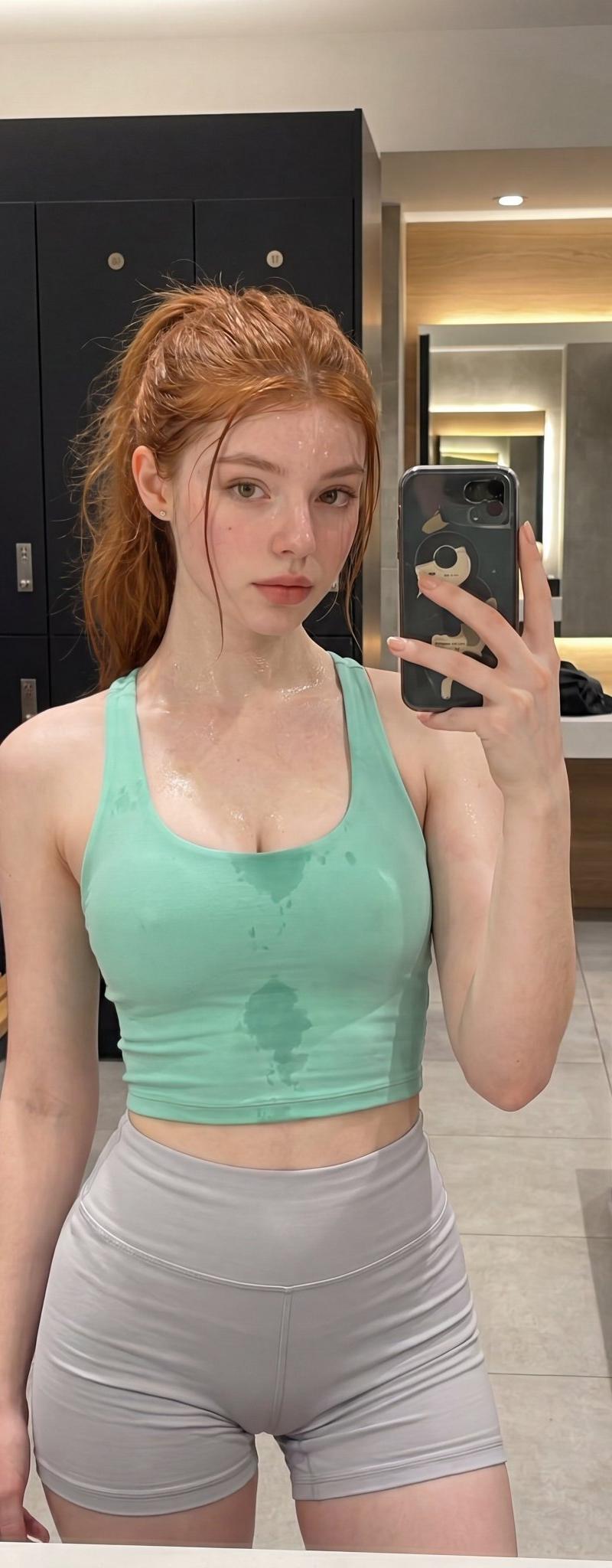
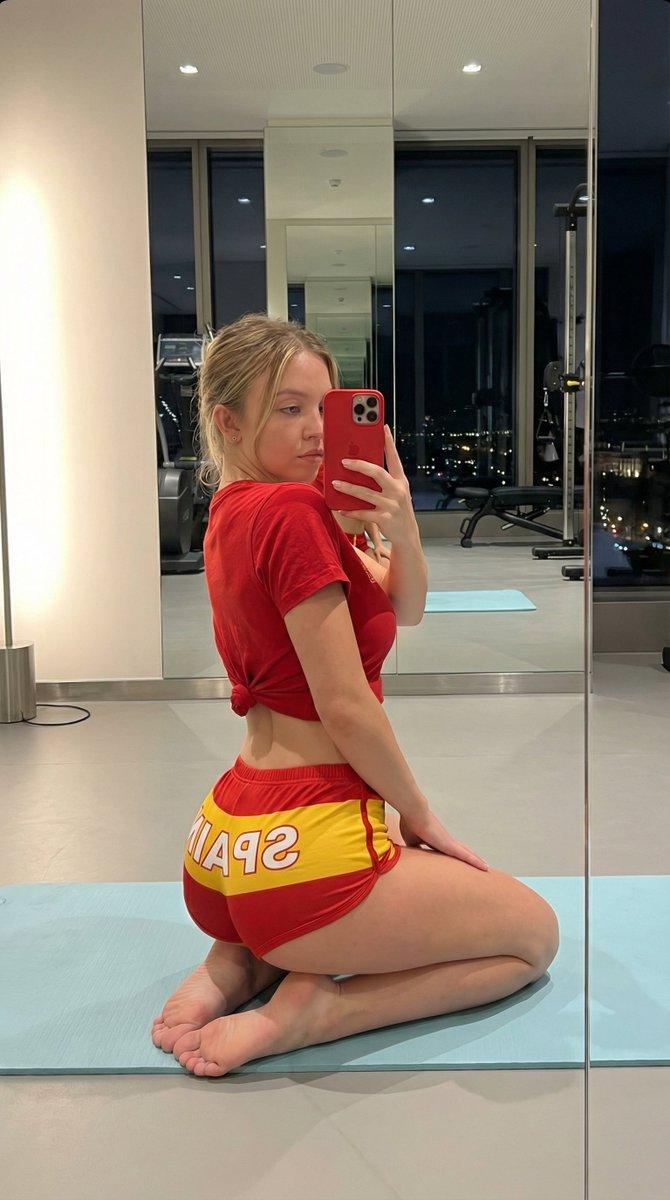
Edit the image while keeping the original photo completely unchanged — including
Enlarge

Example images

Edit the image while keeping the original photo completely unchanged — including

Prompt
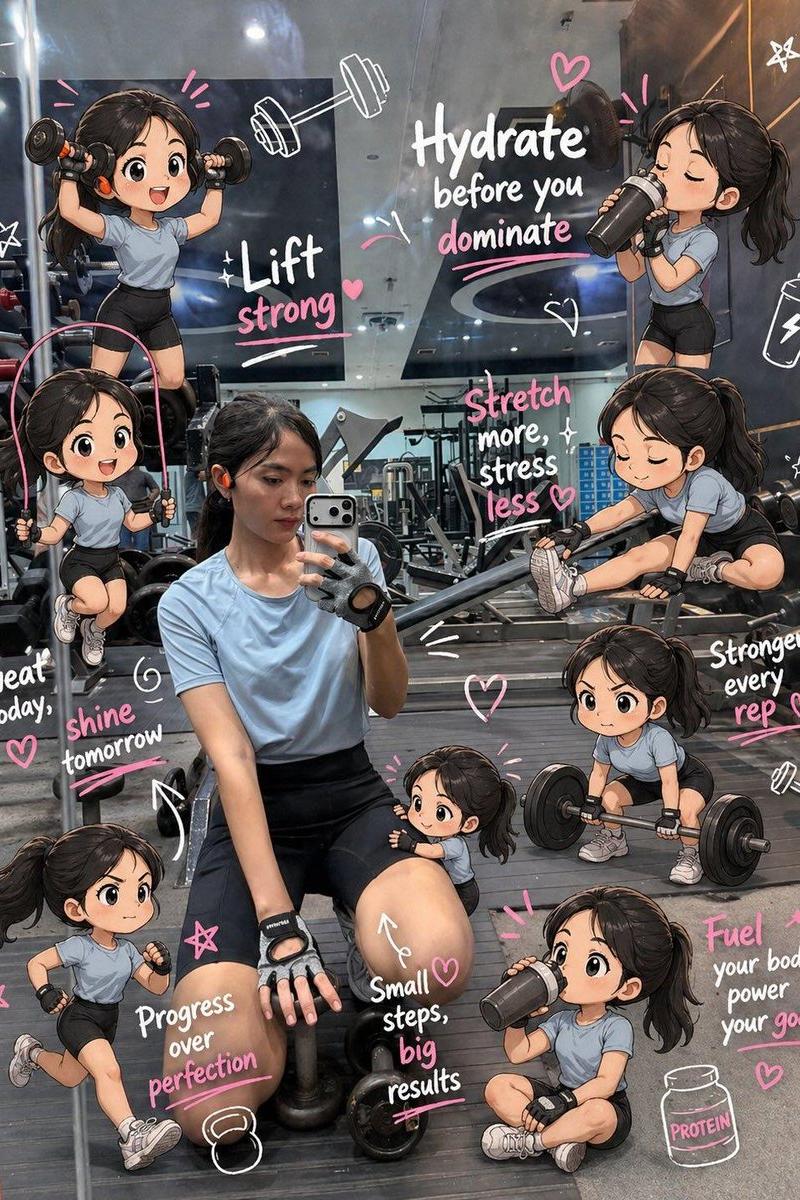
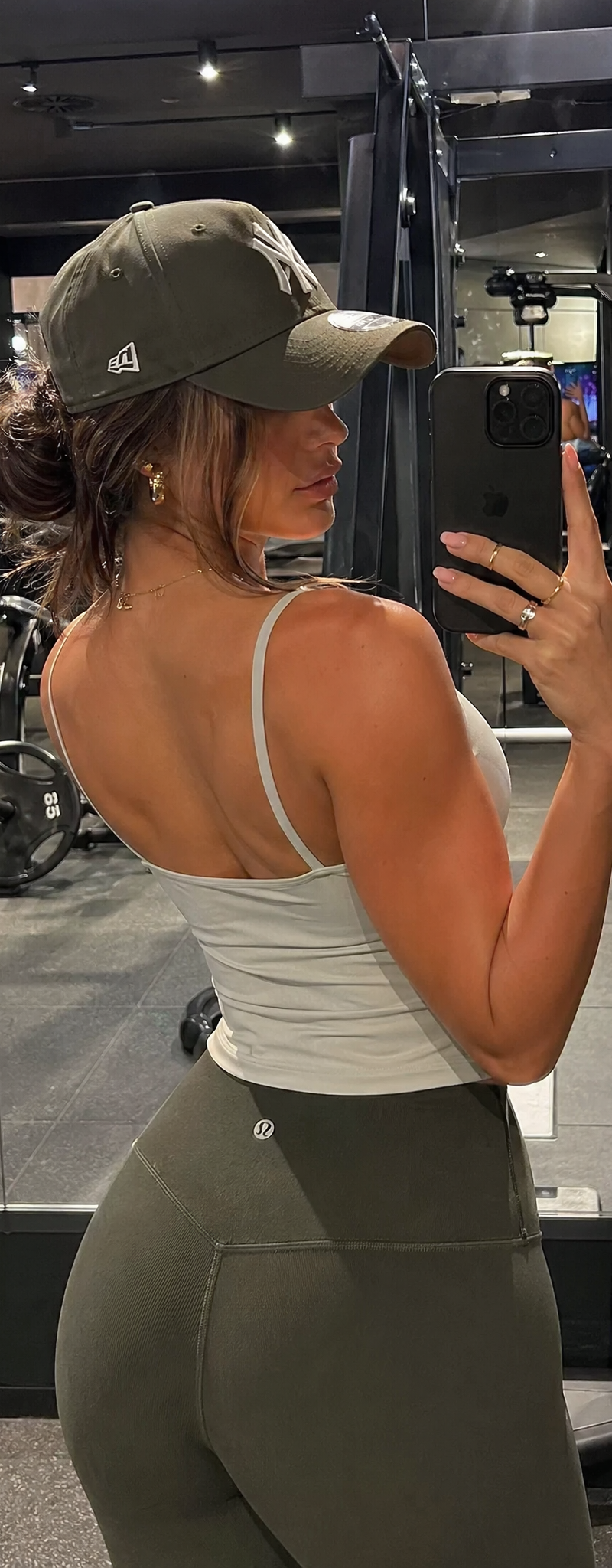
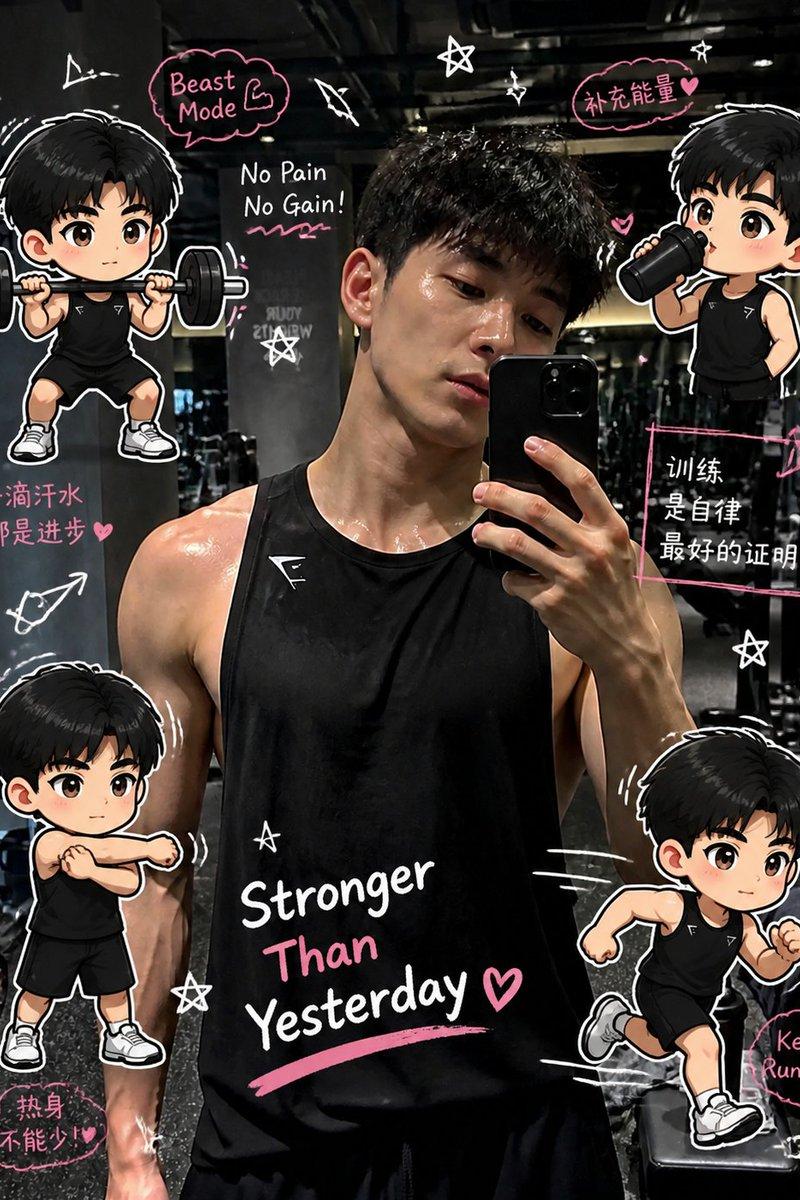
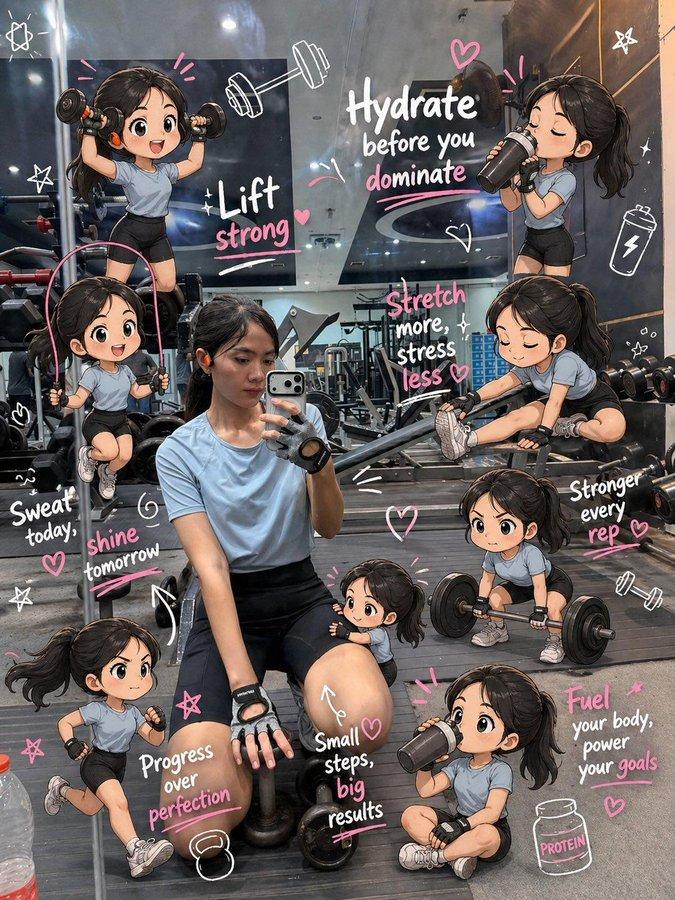
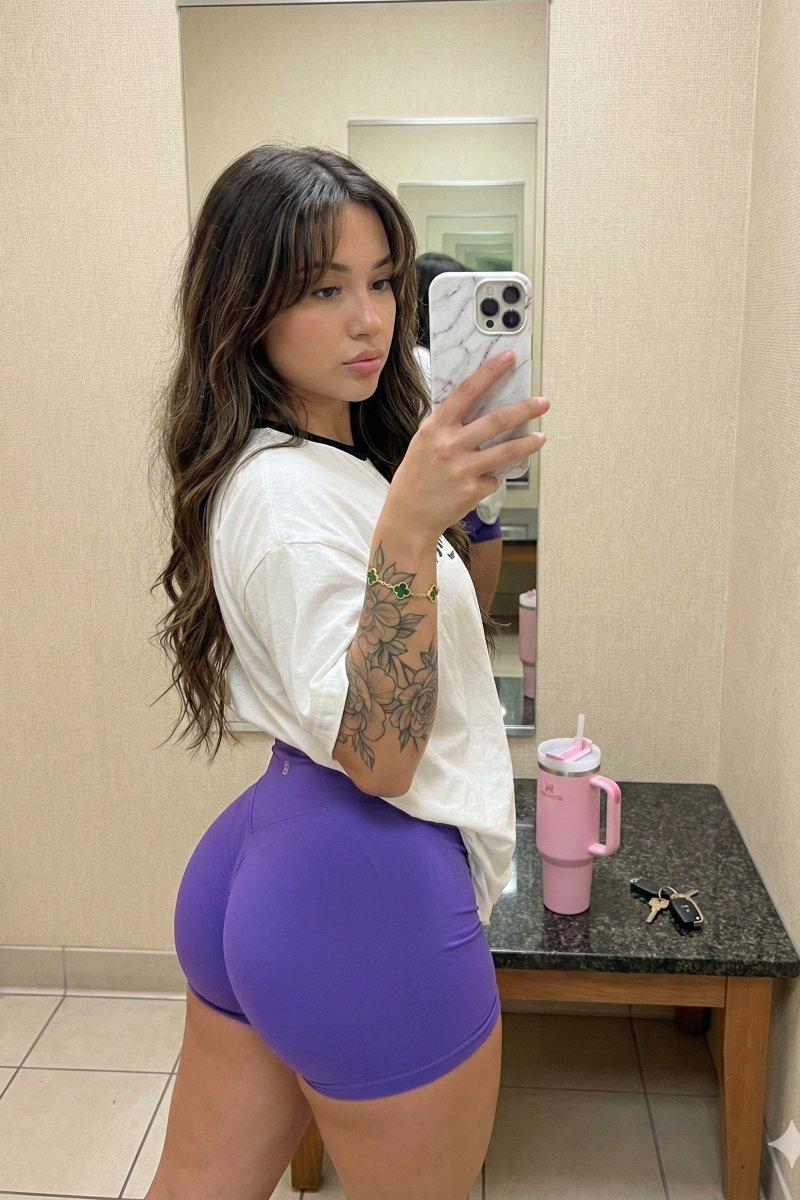
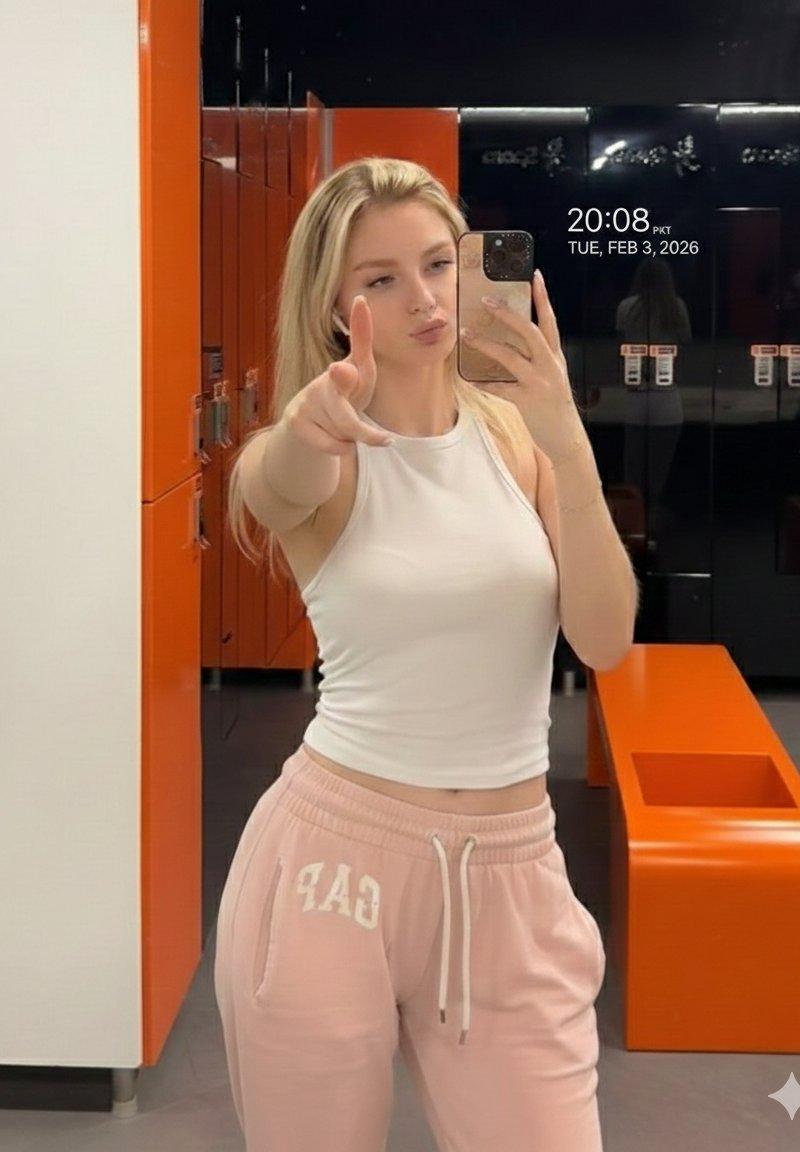
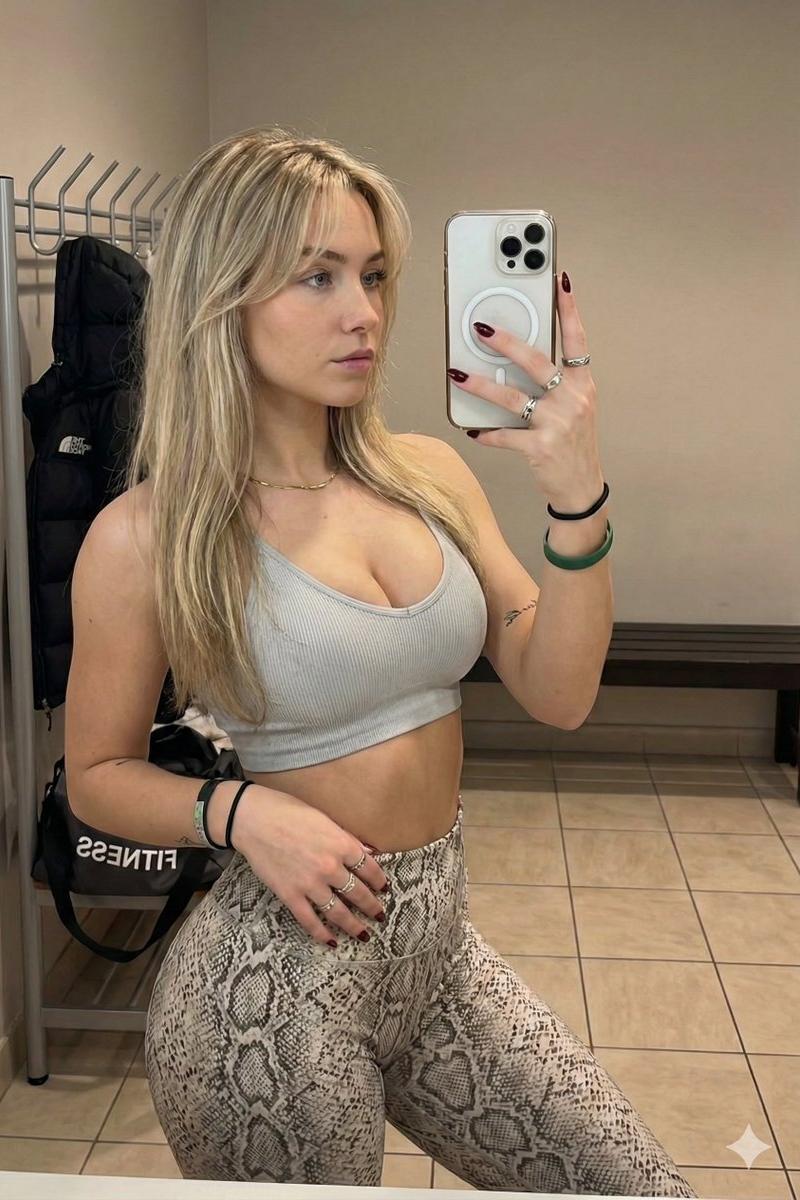
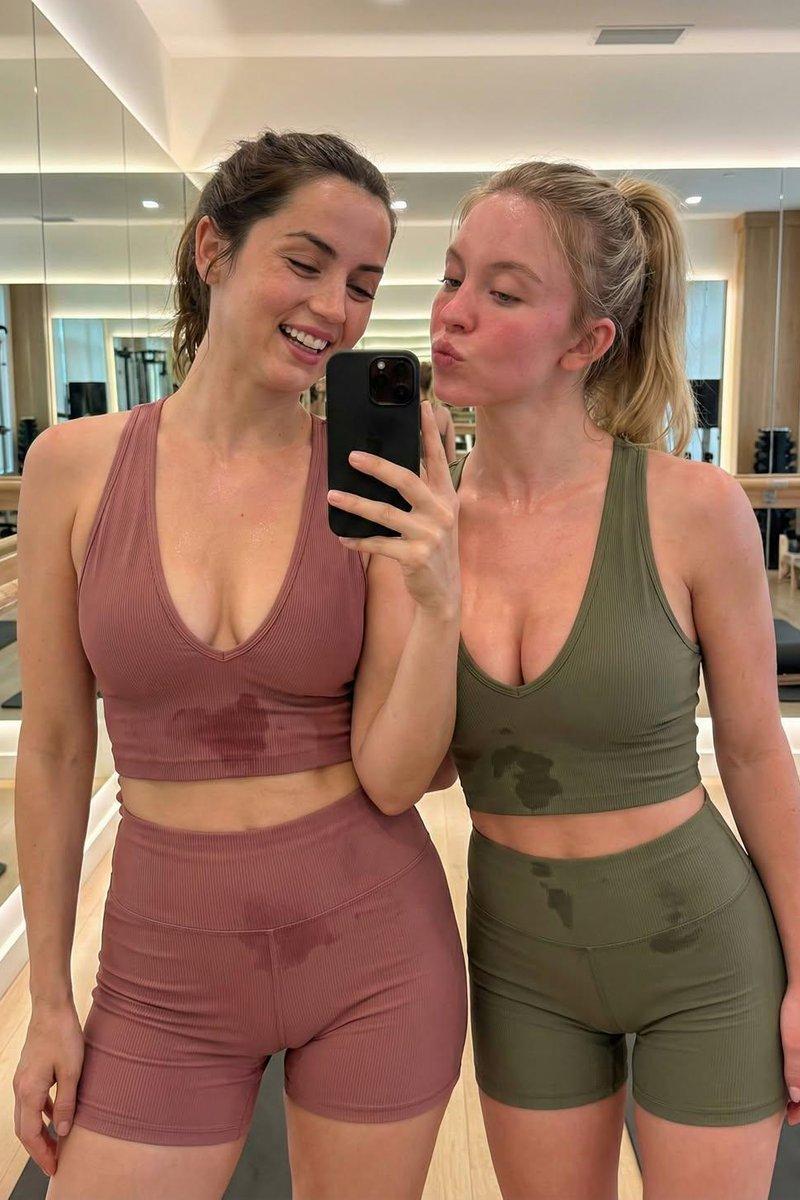
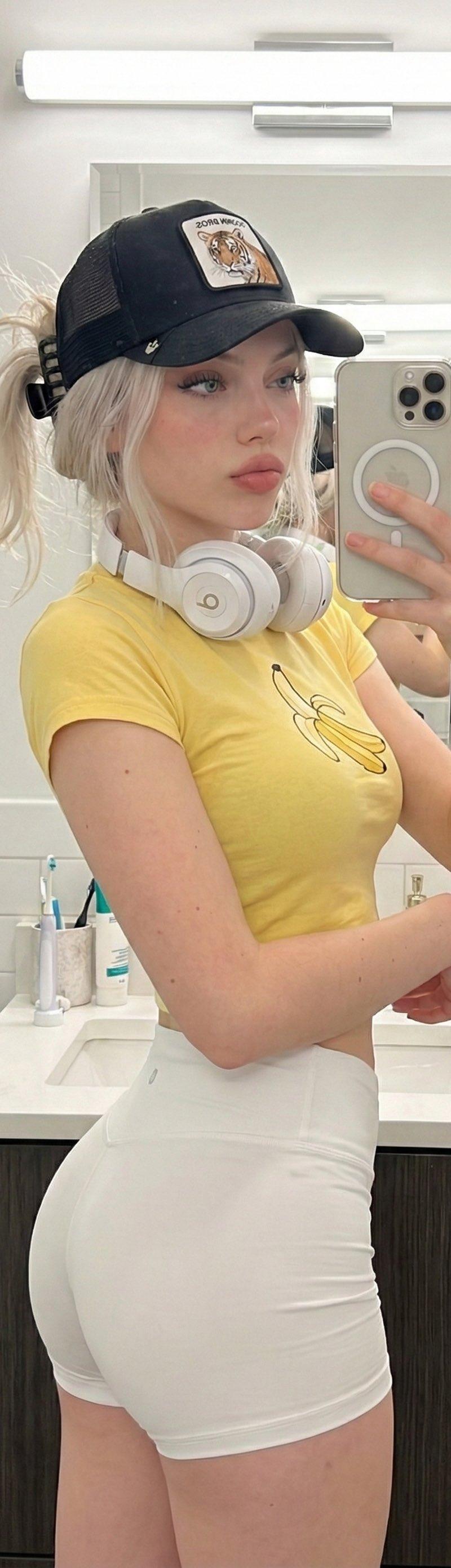
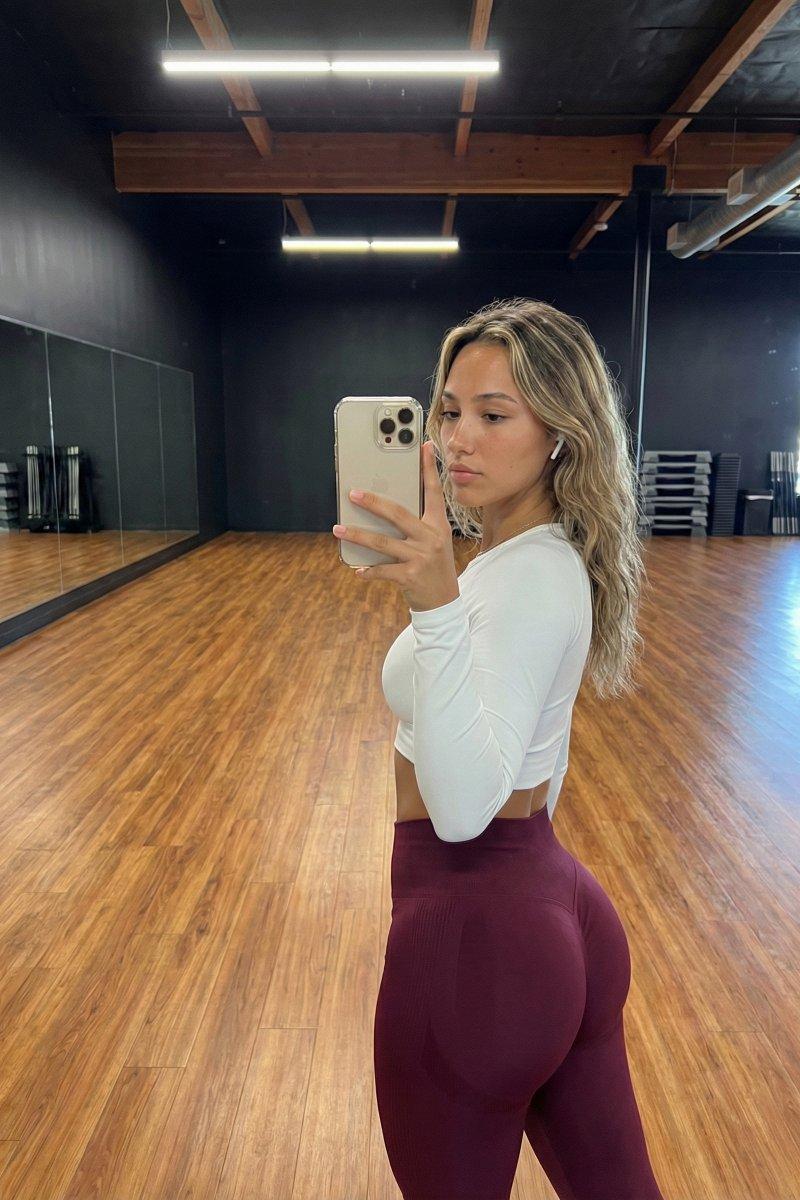
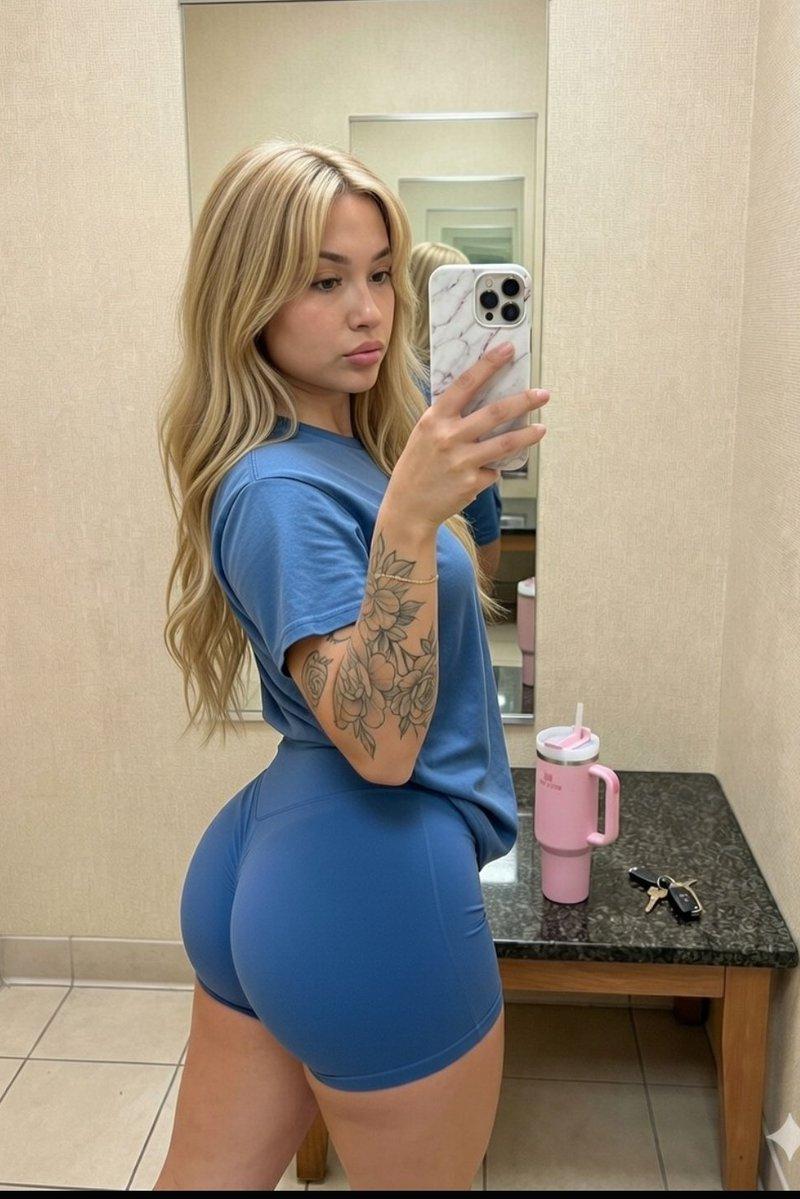
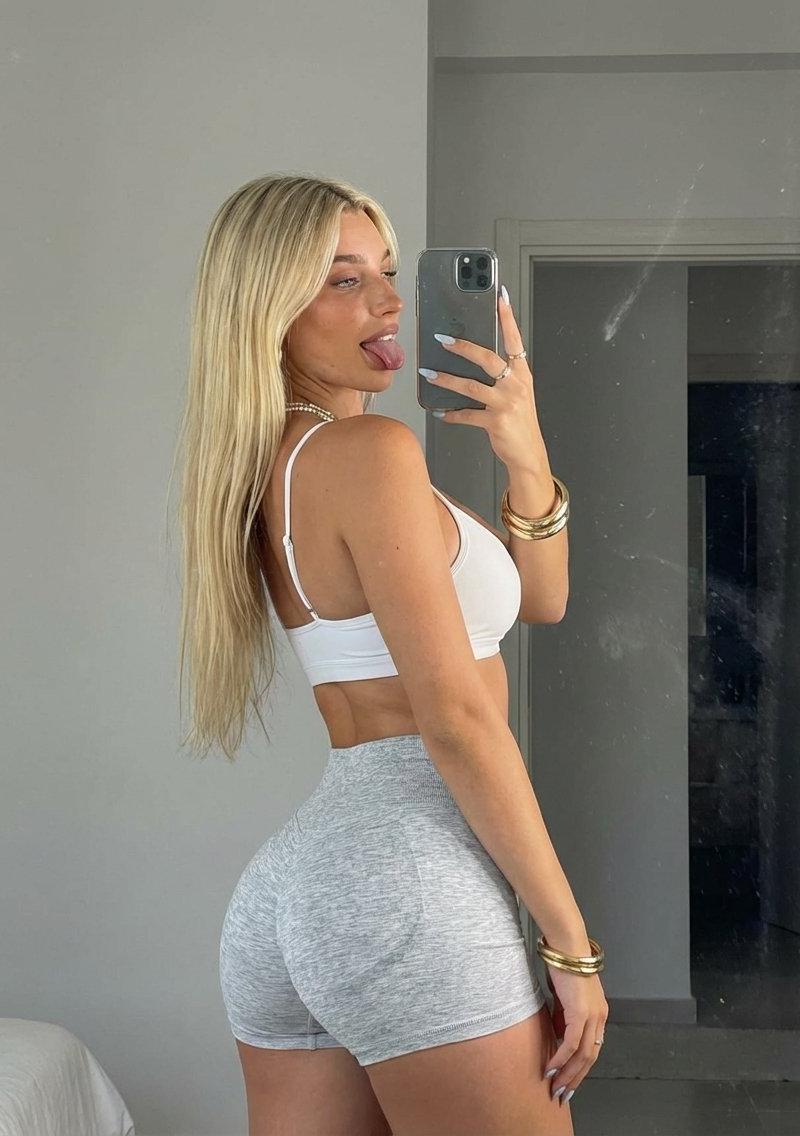
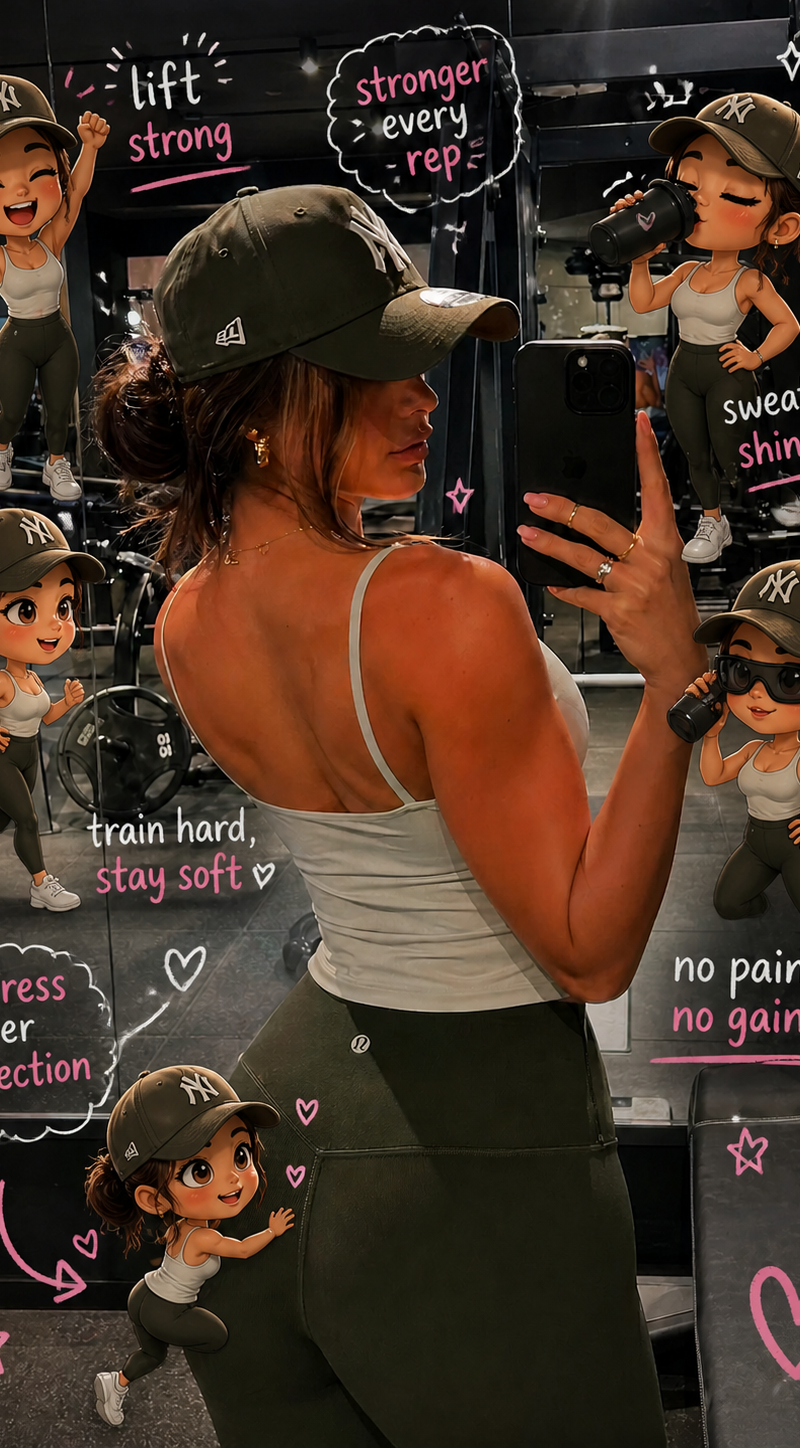
Edit the image while keeping the original photo completely unchanged — including the person, face, body, pose, lighting, and gym background.

Add multiple small, cute chibi-style “mini versions” of her around the image. Each mini character should have a big head, expressive facial features, and match her hairstyle and outfit.

Depict each mini version doing different gym-related activities:

one cheering with arms raised

one running in running shoes

one drinking from a shaker bottle

one wearing sporty running glasses

one climbing near her leg

Enhance the image with playful, hand-drawn doodles and handwritten notes in white and pink ink, in a scrapbook style. Include elements like arrows, stars, hearts, sparkles, and sketchy lines.

Add cute, handwritten gym-themed motivational phrases:

“lift strong”

“stronger every rep”

“no pain no gain”

“sweat now, shine later”

“progress over perfection”

“train hard, stay soft”

The overall vibe should feel fun, energetic, and feminine.
Category
Products & E-commerce
Model
GPT Image 2
Creator
xie underwood
Source language
en
Views267
Source ID
2443
Published
May 2, 2026
Studio

Guide

About "Edit the image while keeping the original photo completely unchanged — including"

What is this prompt for?

"Edit the image while keeping the original photo completely unchanged — including" AI image prompt for GPT Image 2 (Products & E-commerce). Edit the image whil…

The full copyable prompt and example visuals above are ready for AI image generation or one-click recreate in Picva.

How to use this prompt

  1. Step 1

    Open the prompt detail

    Review the example visuals, category, and full prompt text for "Edit the image while keeping the original photo completely unchanged — including".

  2. Step 2

    Copy the prompt

    Copy the prompt body from this page, or load it directly in Studio.

  3. Step 3

    Pick a model (GPT Image 2)

    Prefer GPT Image 2. If you switch models, keep subject and composition and tweak style terms.

  4. Step 4

    Generate and export

    Recreate the look in Picva, or export into your workflow for editing and publishing.

FAQ

What is the "Edit the image while keeping the original photo completely unchanged — including" prompt?
It is an AI image-generation prompt for GPT Image 2 in the Products & E-commerce category. This page includes the full prompt text, example visuals, and a one-click recreate path in Picva.
How do I use this prompt to generate an image?
Copy the prompt from this page, or use Generate / Studio. Paste it into a compatible image model, or recreate the look in Picva with optional reference images.
Which model is this prompt for?
This page lists GPT Image 2. Most descriptive prompts also transfer to nearby image models such as GPT Image, Flux, or Midjourney with light style tweaks.
Can I use the result commercially?
You can usually copy the prompt for creation, but commercial use of the final image depends on the model terms, reference-image rights, and the generated content. Follow the source author and platform rules.