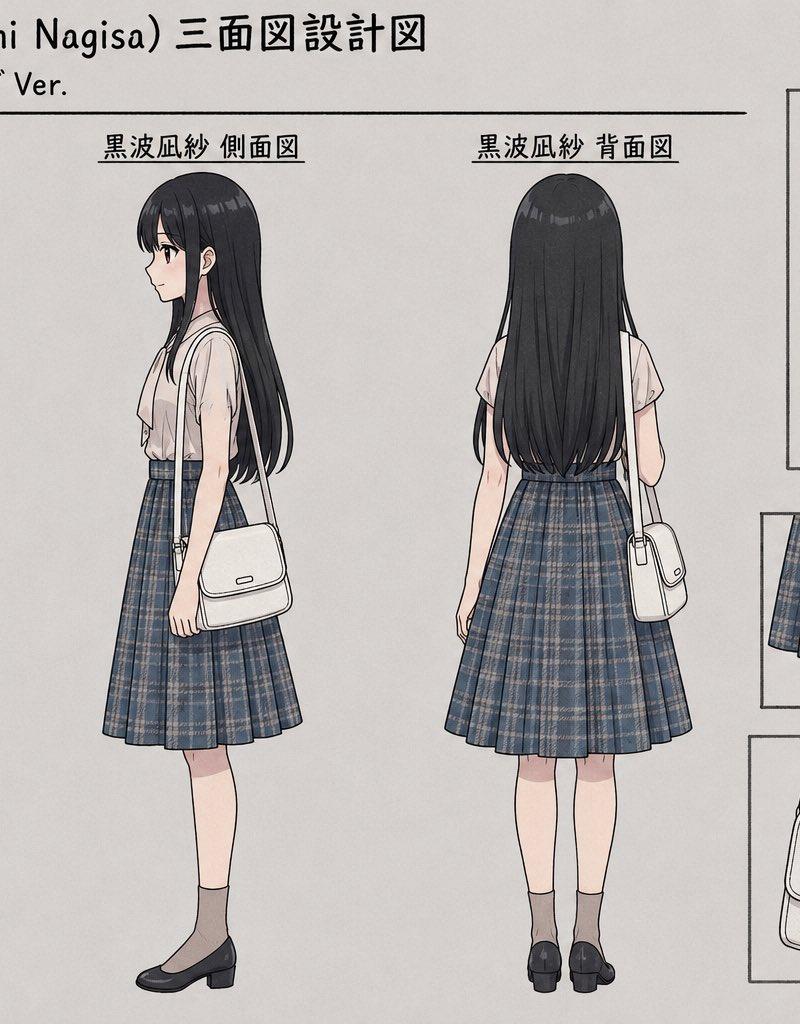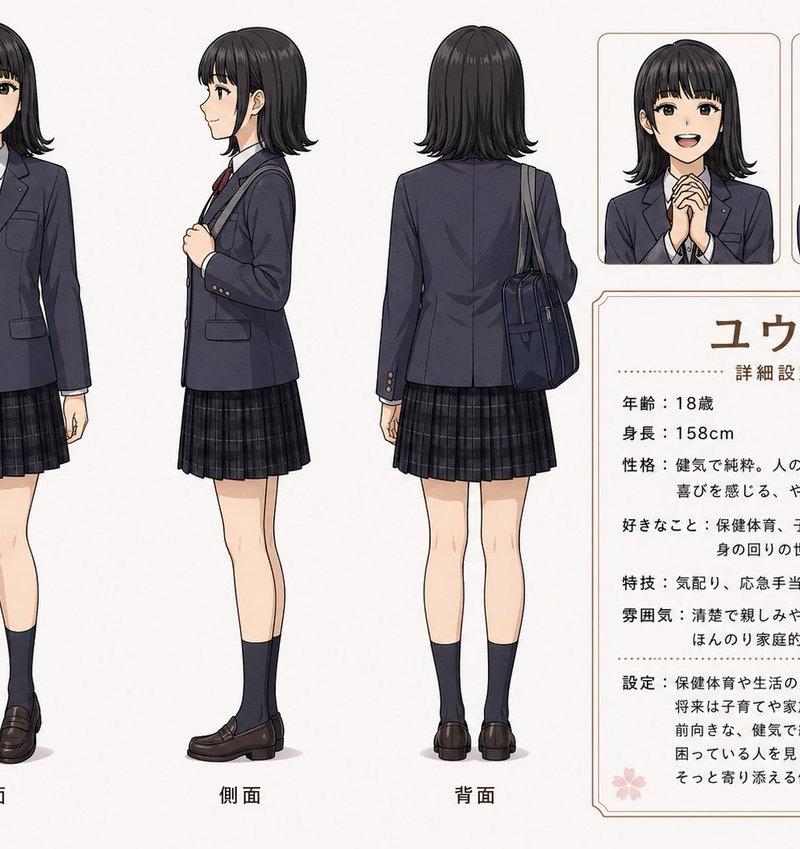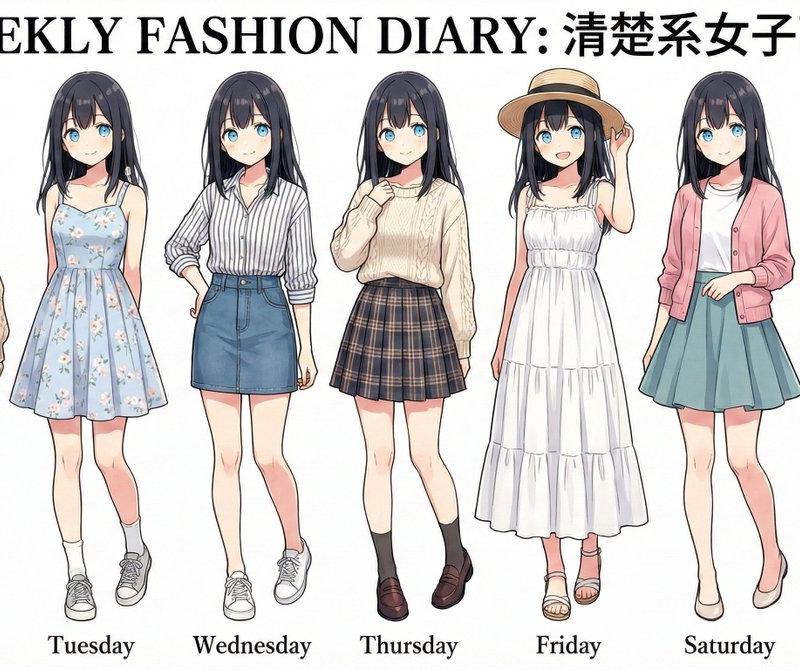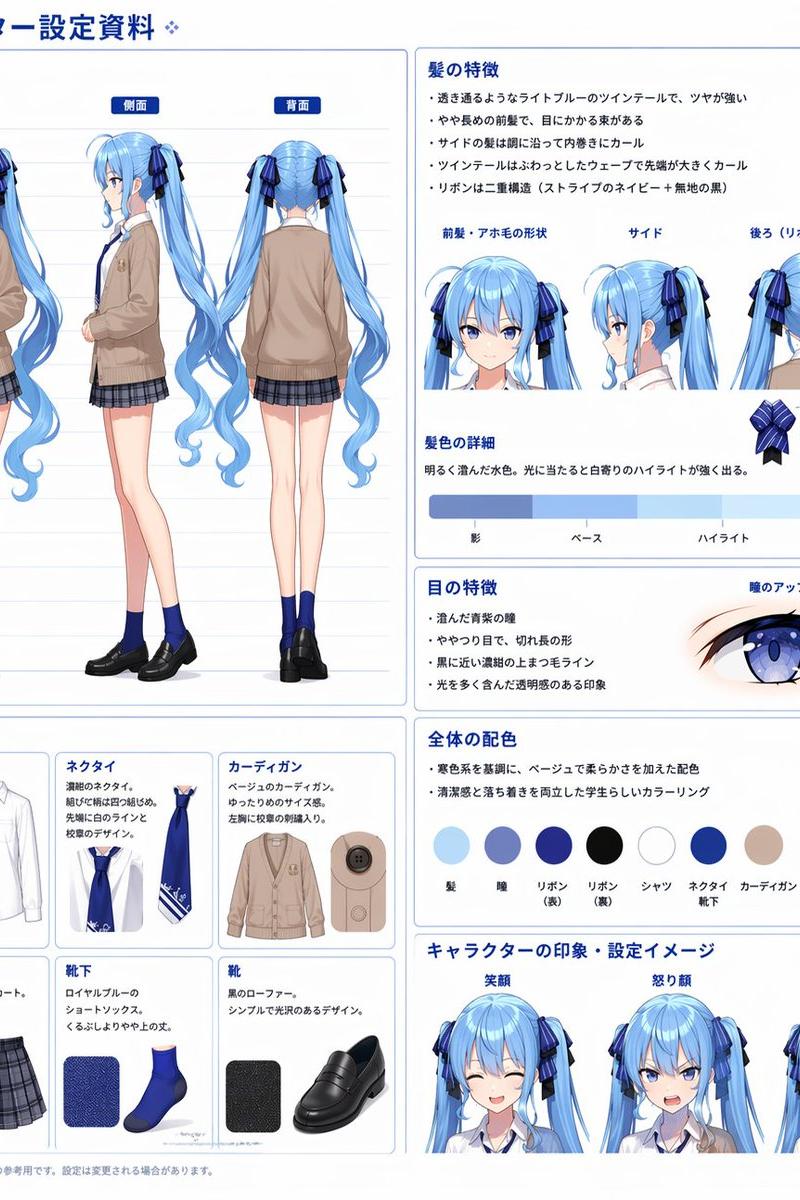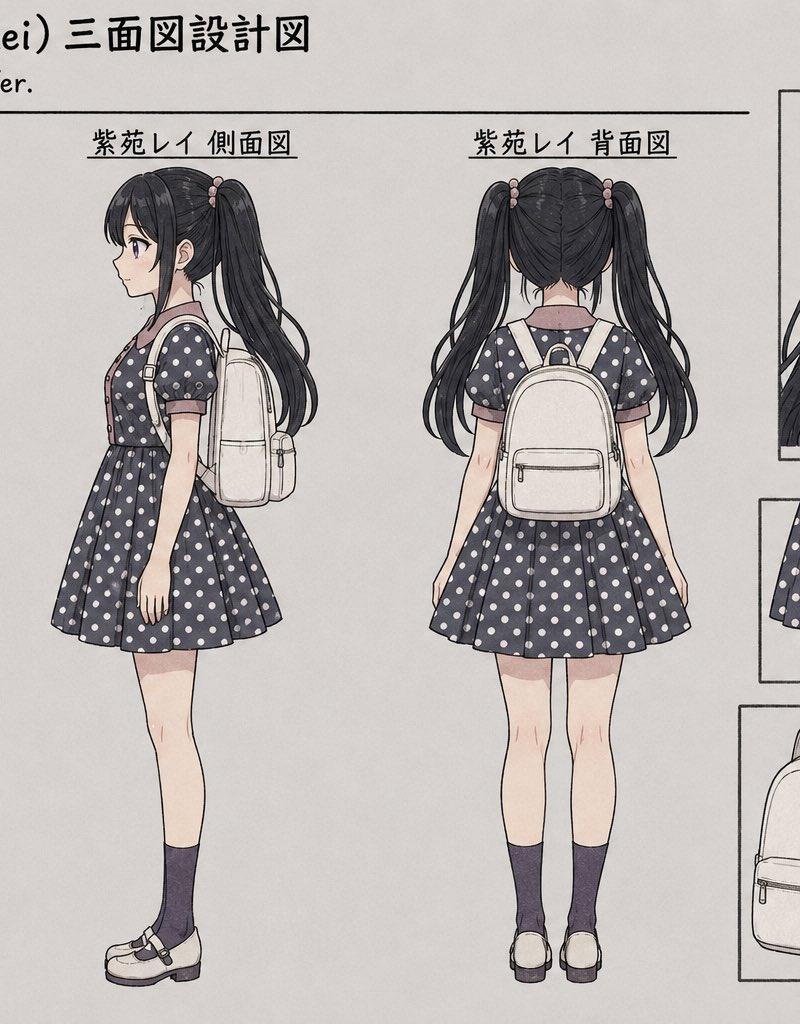
Shion Rei Three-View Character Sheet
Prompt
Goal: Create an anime character three-view reference sheet for {argument name="character name" default="Shion Rei"}, styled like a clean Japanese design document for an original schoolgirl character.

Canvas: Horizontal 16:9 sheet on an off-white lightly textured paper background, thin black divider lines, neat hand-drawn anime concept art with soft watercolor shading and crisp ink outlines. Keep the overall page monochrome-muted with navy, cream, blush pink, and black accents.

Header text: At the top left, write “紫苑レイ (Shion Rei) 三面図設計図” with a smaller subtitle underneath, “詳細設計:ツインテール Ver.” Draw a long thin horizontal rule below the subtitle. Use Japanese labels above the character views and inset boxes.

Main layout: Show exactly 3 full-body character turnaround views across the left and center of the sheet, evenly spaced and standing upright: 1) front view labeled “紫苑レイ 正面図”, 2) side view labeled “紫苑レイ 側面図”, 3) back view labeled “紫苑レイ 背面図”. The front view faces forward with arms relaxed; the side view faces left and shows the backpack profile; the back view faces away and clearly shows the backpack and twin-tails.

Character details: The girl has long {argument name="hair color" default="black"} hair in high twin-tails, slightly wavy at the ends, tied with small pale pink bead-like hair ornaments. Her face is intentionally obscured by a soft rectangular blur/mosaic mask in every face-facing view. She wears a dark navy short-sleeve polka-dot dress with many white dots, a dusty pink rounded Peter Pan collar, dusty pink front placket with buttons, puff sleeves, a fitted waist, and a flared pleated skirt above the knees. She also wears dark knee-high socks and white Mary Jane shoes with black straps and low heels. Add a cream-colored rounded school backpack with front zipper pocket, side seams, shoulder straps, and simple line detailing.

Right-side detail panels: Create exactly 4 inset reference boxes arranged on the right side. Top large box labeled “髪型/襟元クローズアップ” showing a close-up bust view of the twin-tail hairstyle, pink hair ties, collar, and upper polka-dot dress, with the face blurred. Middle-left small box shows a close-up of the skirt hem and legs. Middle-right tall box shows a close-up of one lower leg with dark knee sock and white Mary Jane shoe. Bottom-left box shows the backpack alone as a clean accessory drawing, three-quarter view with zipper pocket and straps.

Constraints: Preserve the exact count of 3 main full-body views and 4 inset detail boxes. Keep the labels in Japanese as specified. Use no extra characters, no extra props beyond the backpack and outfit, no watermark, no photorealism, and maintain a polished anime character design sheet aesthetic.- Category
- Photography & Realism
- Model
- GPT Image 2
- Creator
- スズヲ@Photo&AIart
- Source language
- en
- Source ID
- 24524
- Published
- Jun 6, 2026
Views365