16

电影感明暗对比人像
Enlarge

电影感明暗对比人像

Prompt
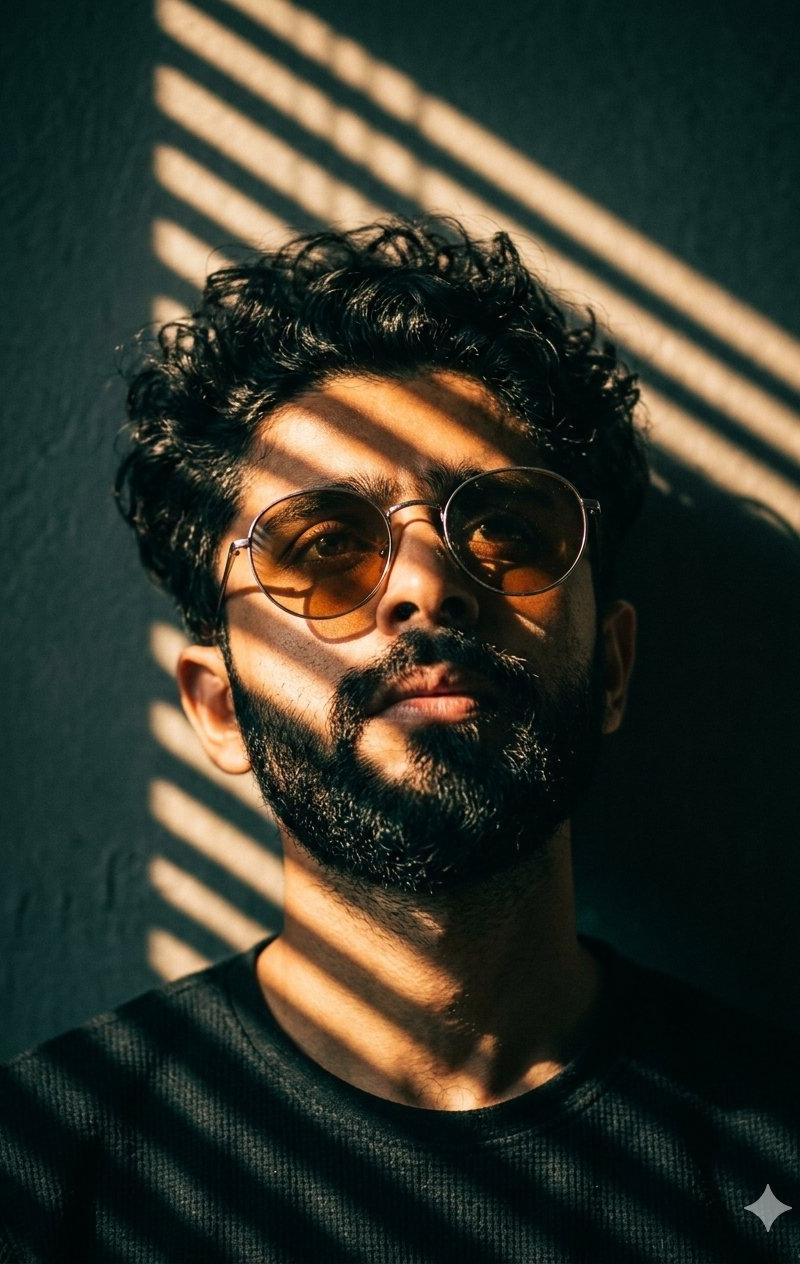
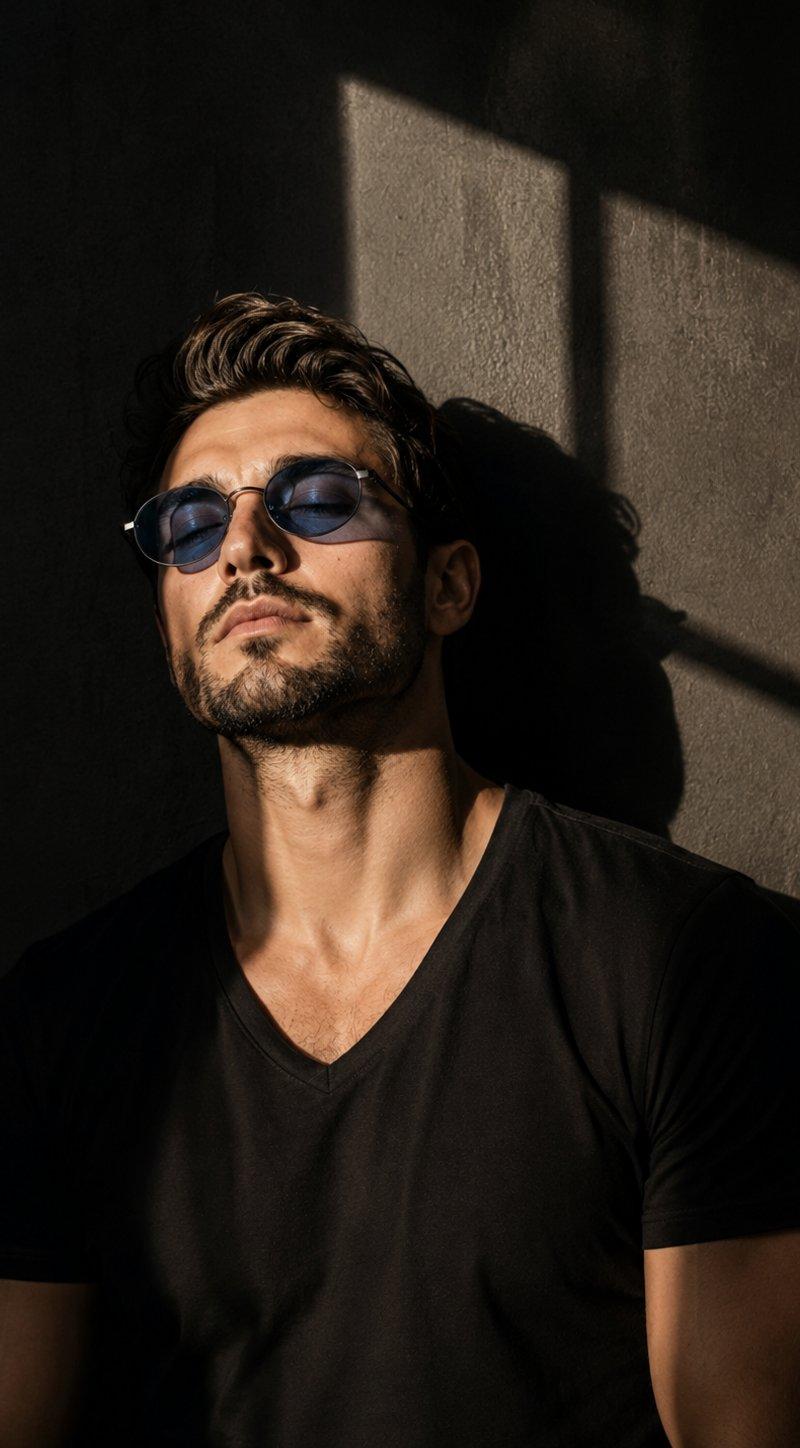
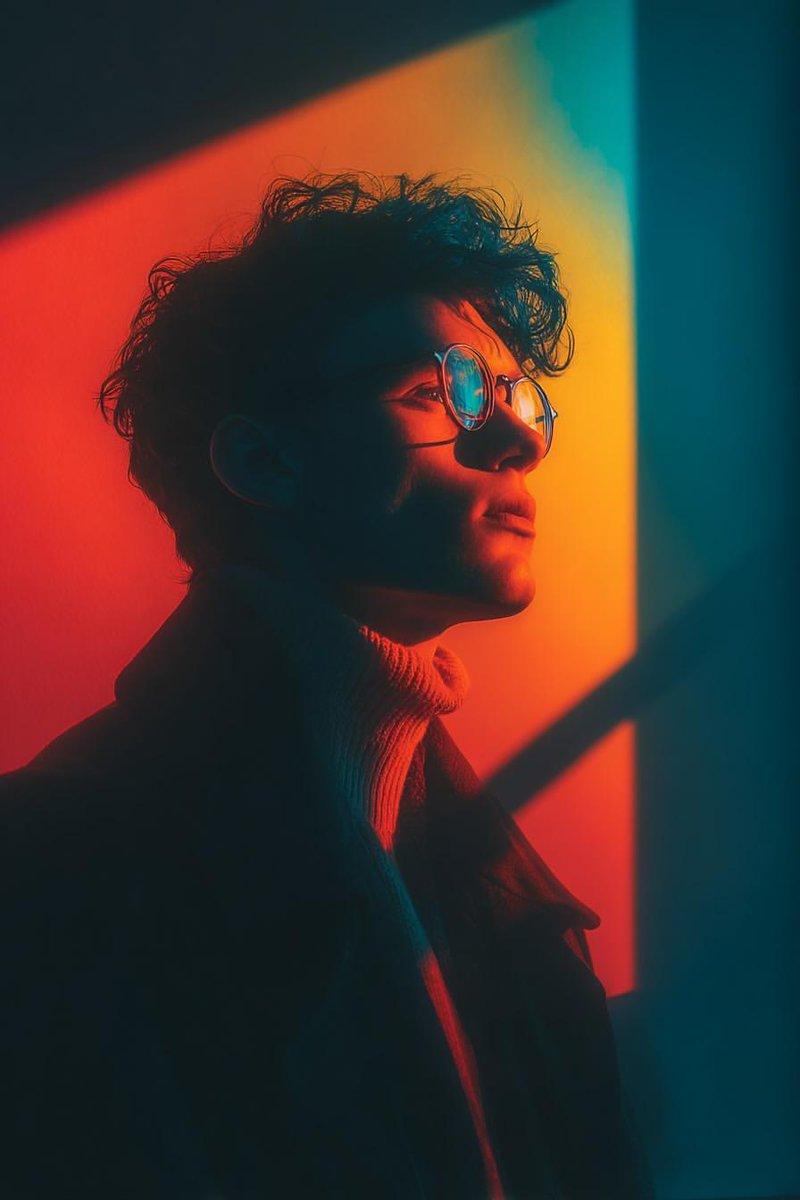
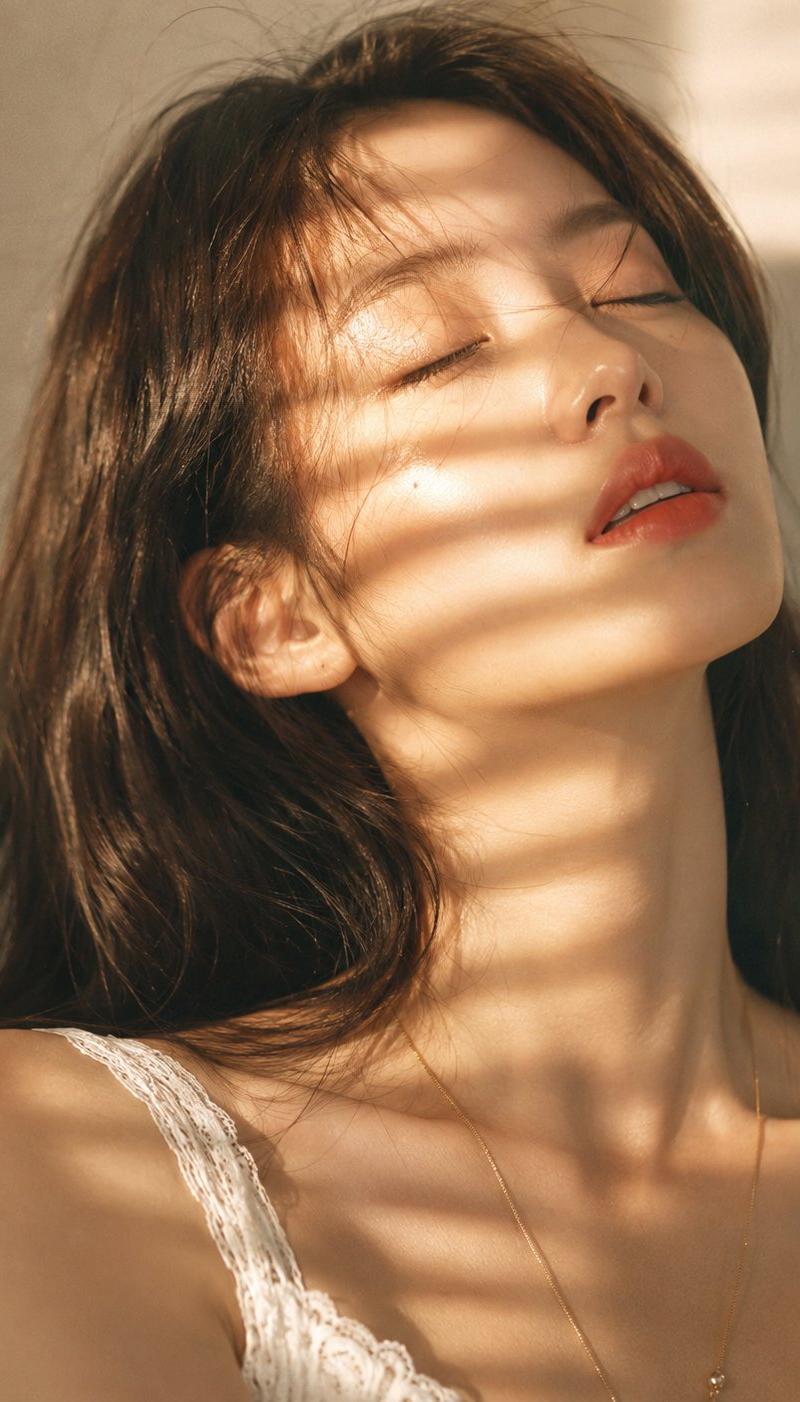
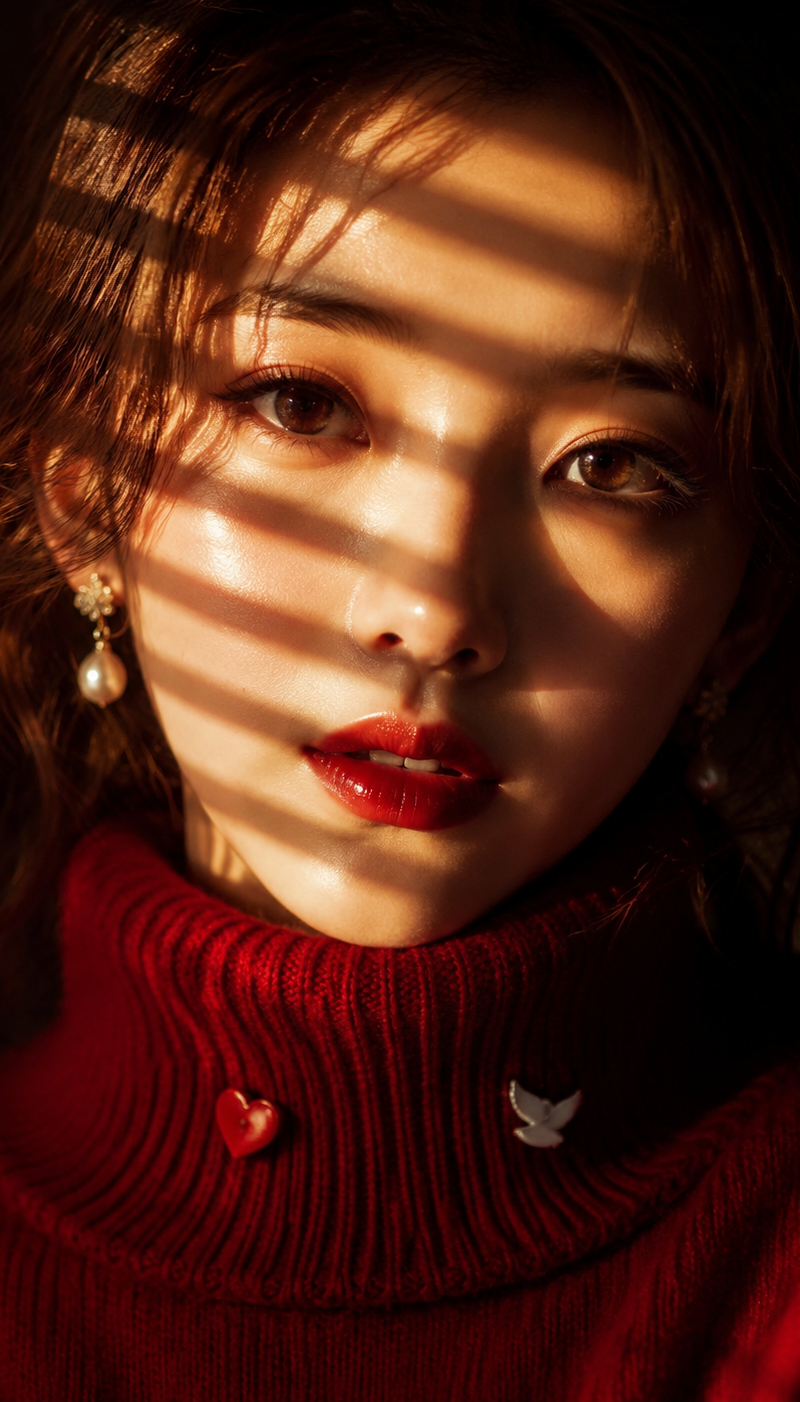
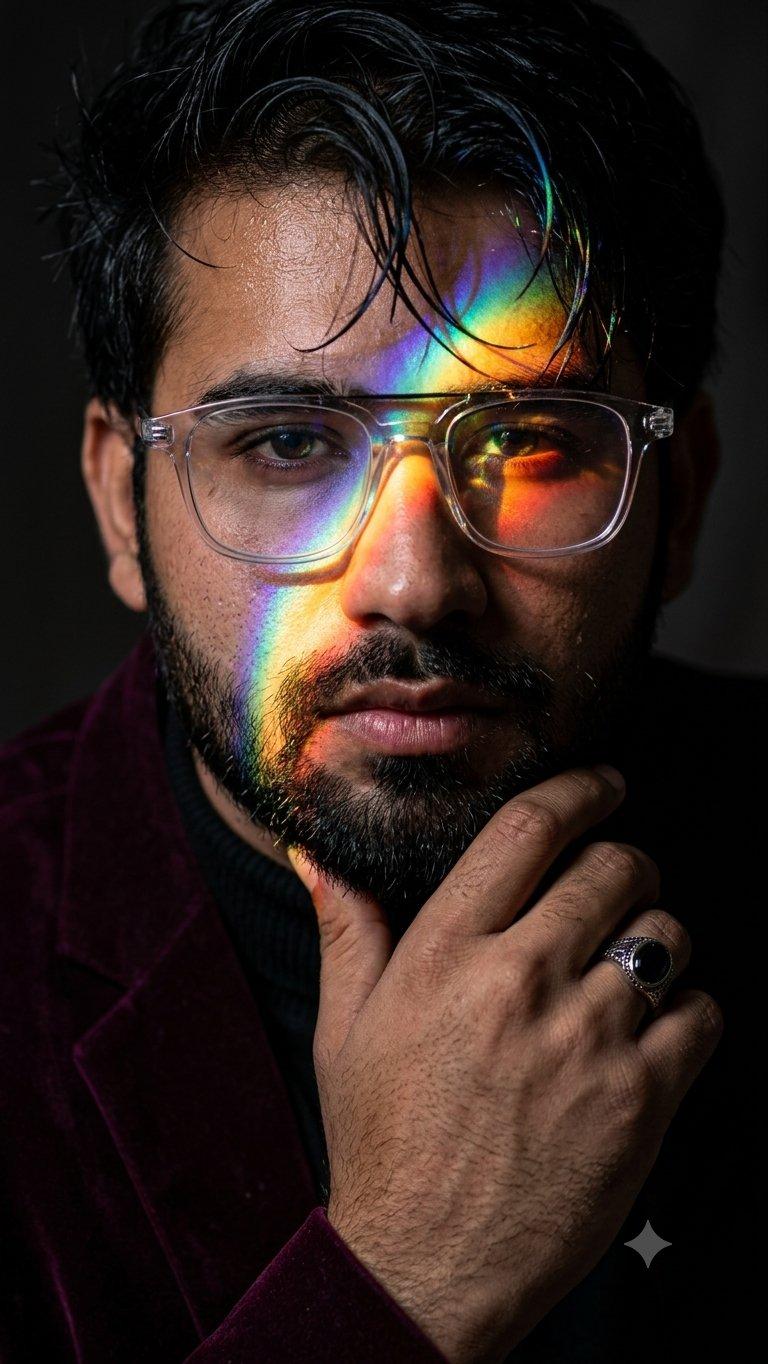
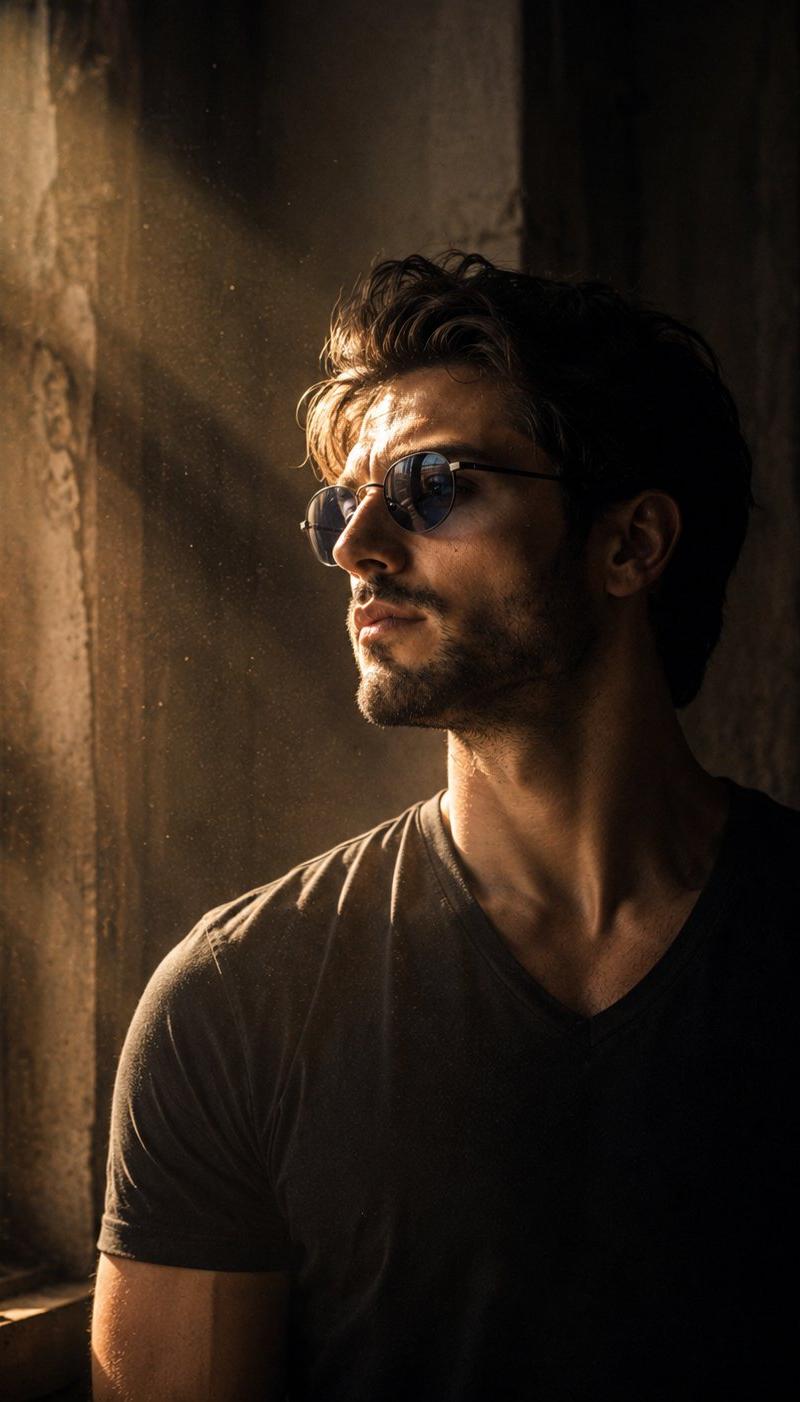
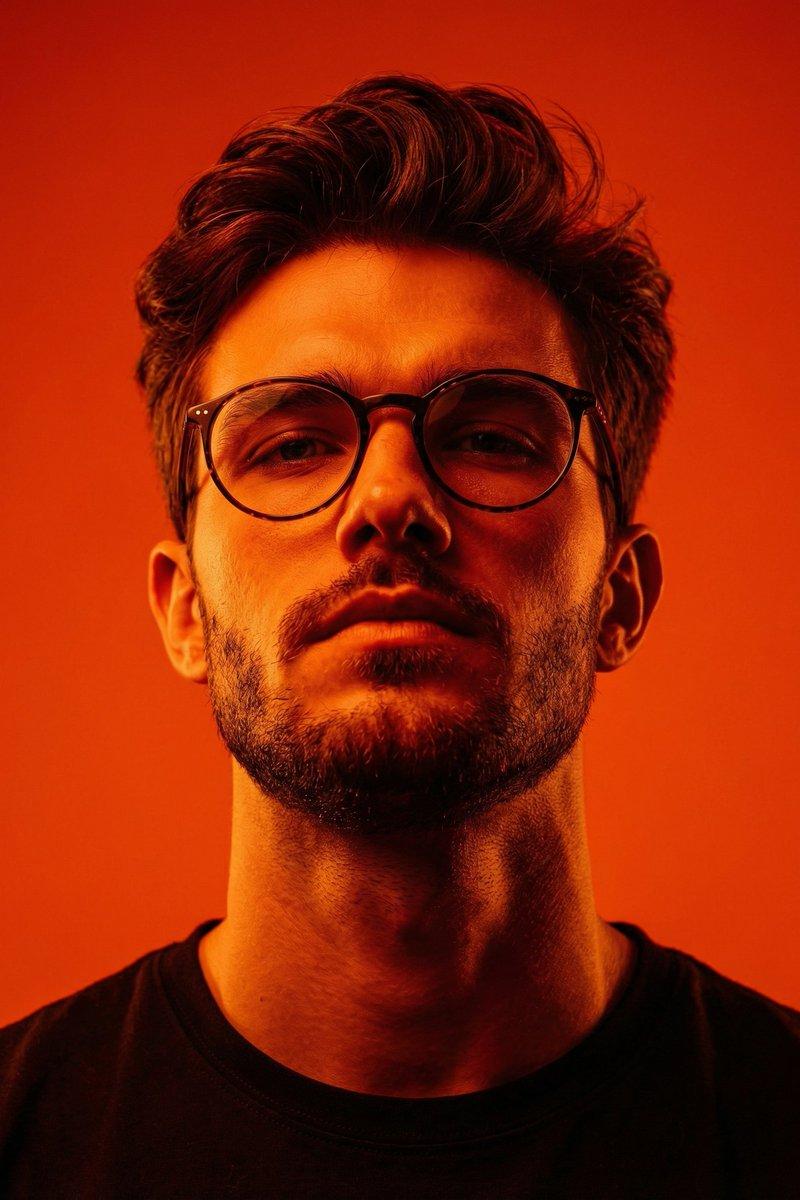
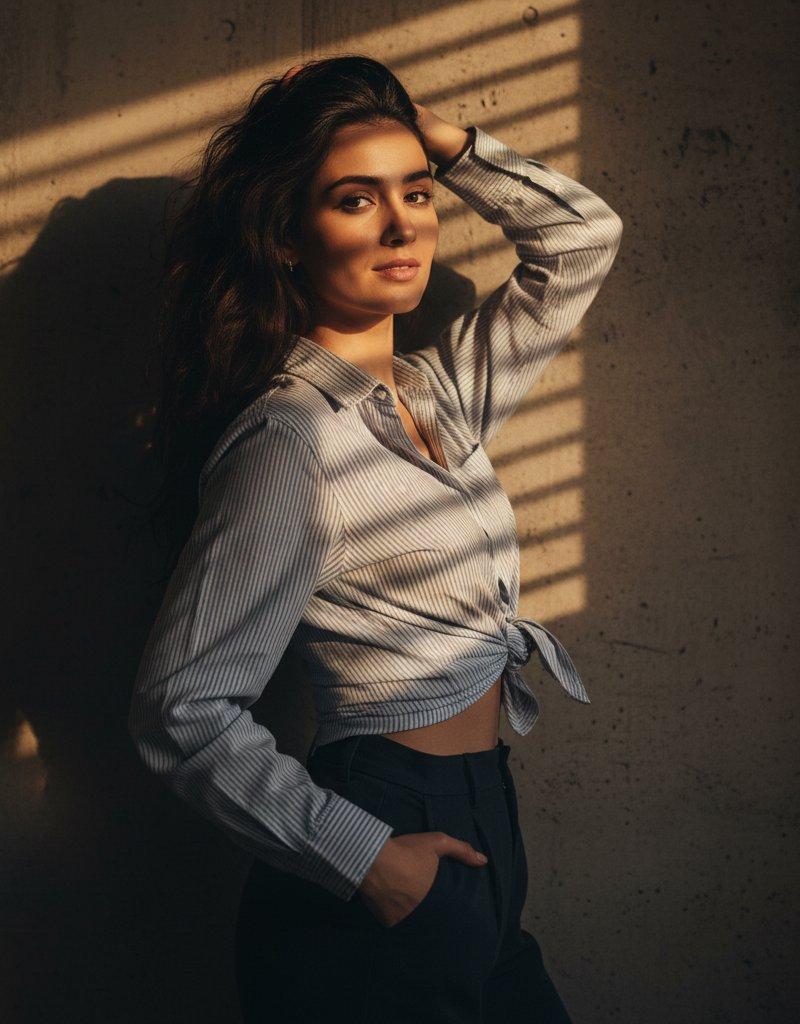
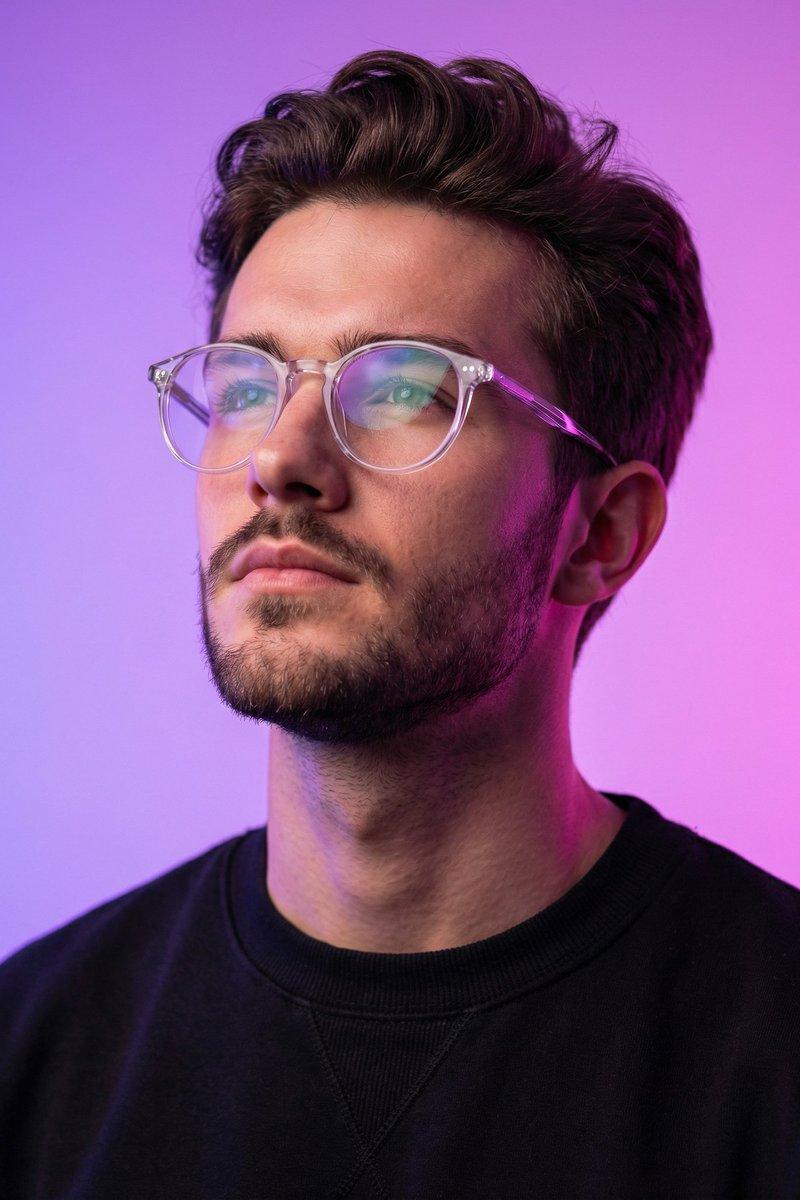
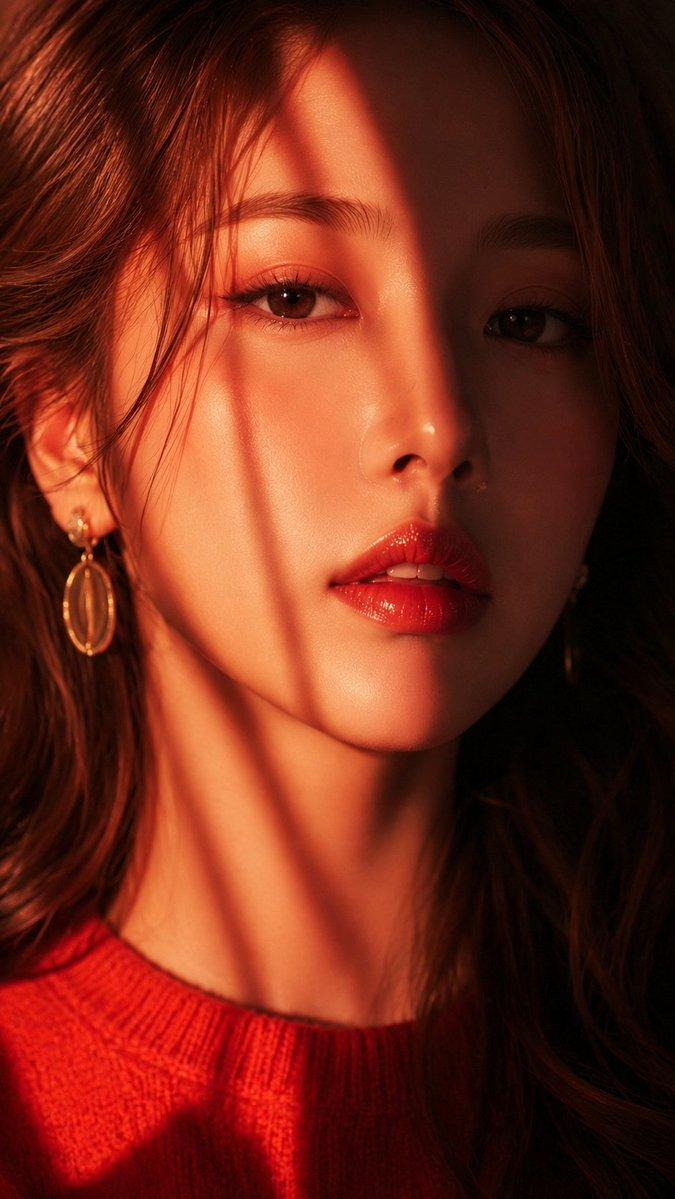
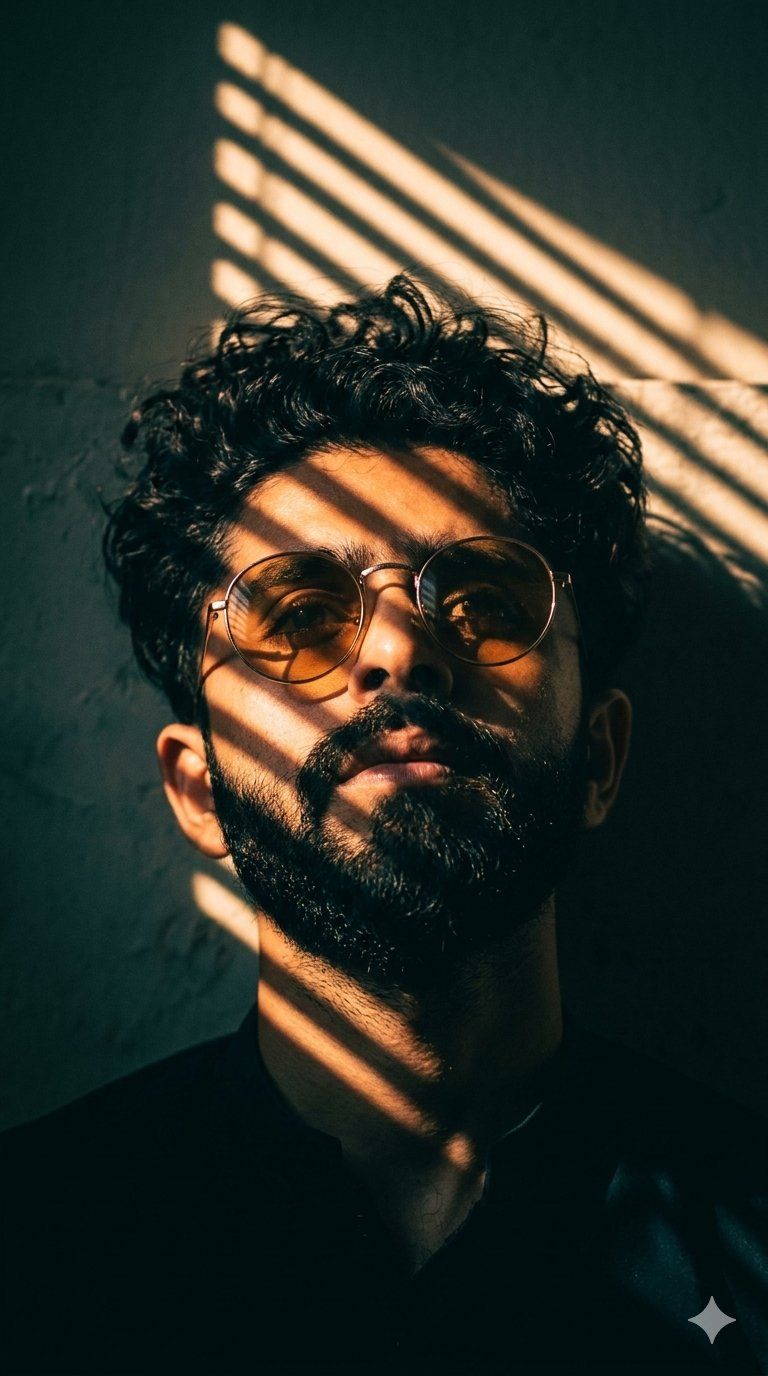
A cinematic 35mm film portrait of a man with the uploaded face as reference, featuring {argument name="hair style" default="messy dark curly hair"} and a light beard, looking slightly upward. He wears {argument name="eyewear" default="round, thin-rimmed sunglasses with amber-tinted lenses"}. The scene is defined by dramatic chiaroscuro lighting, with sharp diagonal {argument name="shadow pattern" default="Venetian blind shadows"} casting stripes of warm golden light and deep shadow across his face and neck. The background is a dark, textured wall catching the same striped pattern. The color palette features a high-contrast mix of warm orange highlights and cool teal-toned shadows. Captured from a low angle with an 85mm lens, showcasing a shallow depth of field, subtle film grain, and a moody, vintage cinematic color grade
Category
Photography & Realism
Model
GPT Image 2
Creator
Muhammad Amir
Source language
en
Views0
Source ID
24908
Published
Jun 9, 2026
Studio

Guide

About "电影感明暗对比人像"

What is this prompt for?

"电影感明暗对比人像" AI image prompt for GPT Image 2 (Photography & Realism). 一个利用参考图实现角色一致性的 35mm 胶片质感人像提示词,包含琥珀色墨镜与百叶窗阴影元素。 Copy it on Picva and recreate the look in…

The full copyable prompt and example visuals above are ready for AI image generation or one-click recreate in Picva.

How to use this prompt

  1. Step 1

    Open the prompt detail

    Review the example visuals, category, and full prompt text for "电影感明暗对比人像".

  2. Step 2

    Copy the prompt

    Copy the prompt body from this page, or load it directly in Studio.

  3. Step 3

    Pick a model (GPT Image 2)

    Prefer GPT Image 2. If you switch models, keep subject and composition and tweak style terms.

  4. Step 4

    Generate and export

    Recreate the look in Picva, or export into your workflow for editing and publishing.

FAQ

What is the "电影感明暗对比人像" prompt?
It is an AI image-generation prompt for GPT Image 2 in the Photography & Realism category. This page includes the full prompt text, example visuals, and a one-click recreate path in Picva.
How do I use this prompt to generate an image?
Copy the prompt from this page, or use Generate / Studio. Paste it into a compatible image model, or recreate the look in Picva with optional reference images.
Which model is this prompt for?
This page lists GPT Image 2. Most descriptive prompts also transfer to nearby image models such as GPT Image, Flux, or Midjourney with light style tweaks.
Can I use the result commercially?
You can usually copy the prompt for creation, but commercial use of the final image depends on the model terms, reference-image rights, and the generated content. Follow the source author and platform rules.