18

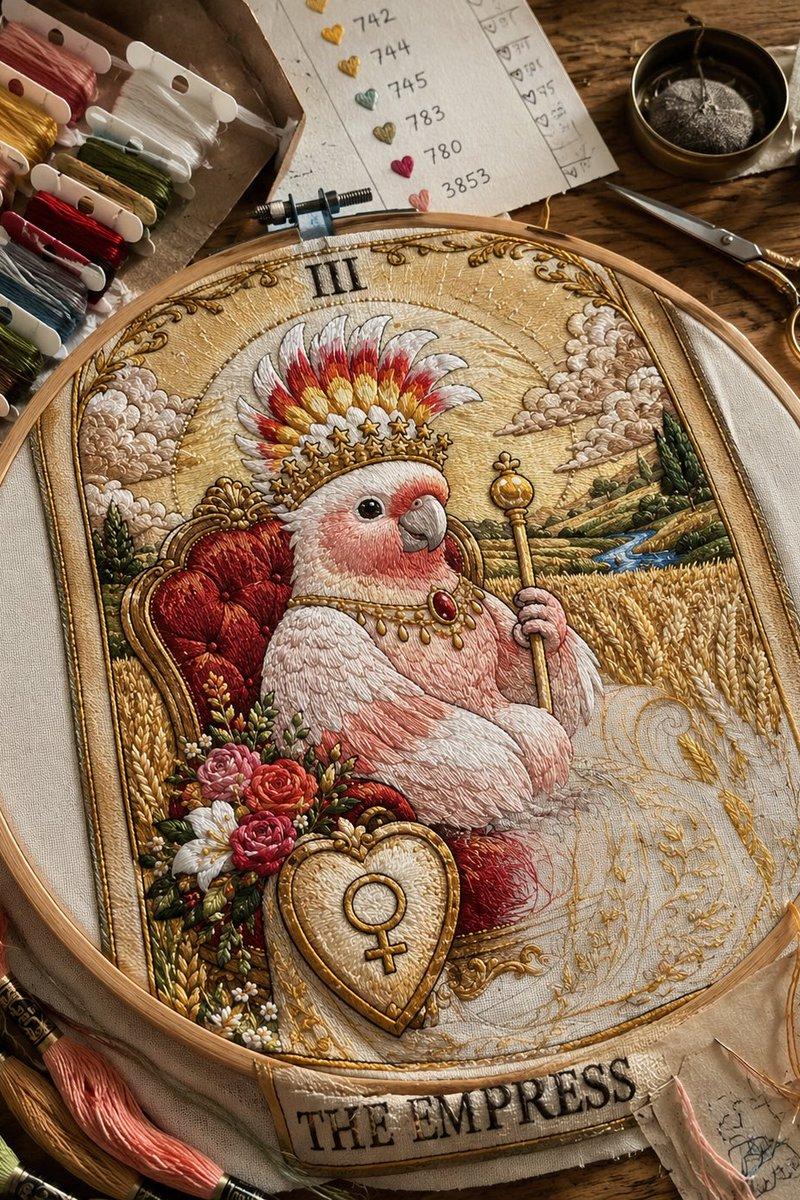
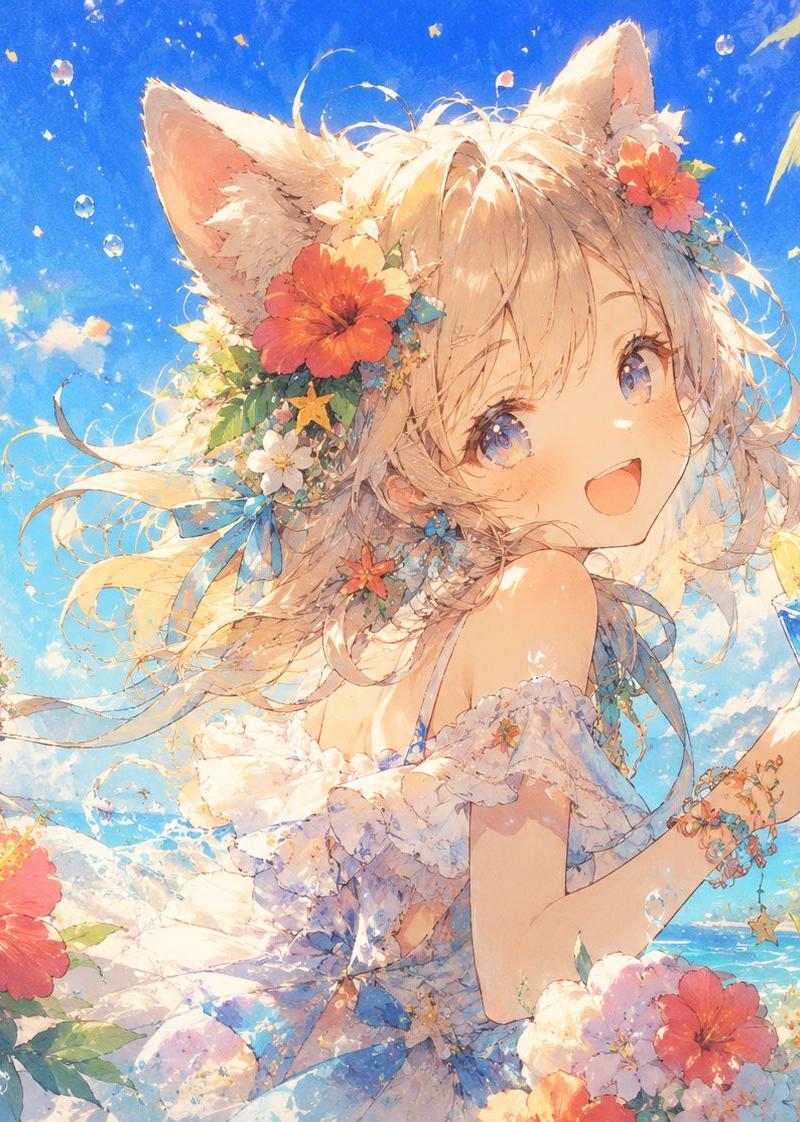
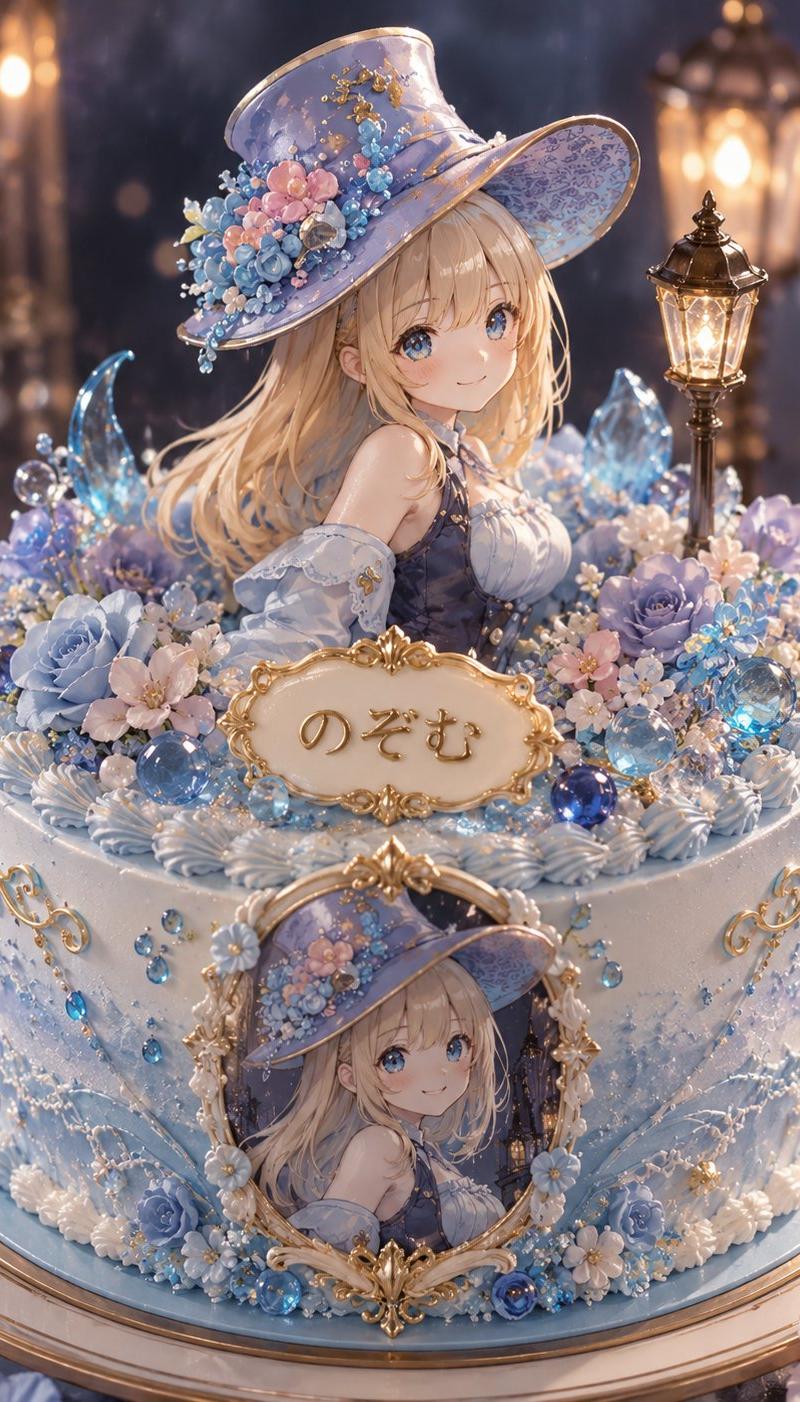
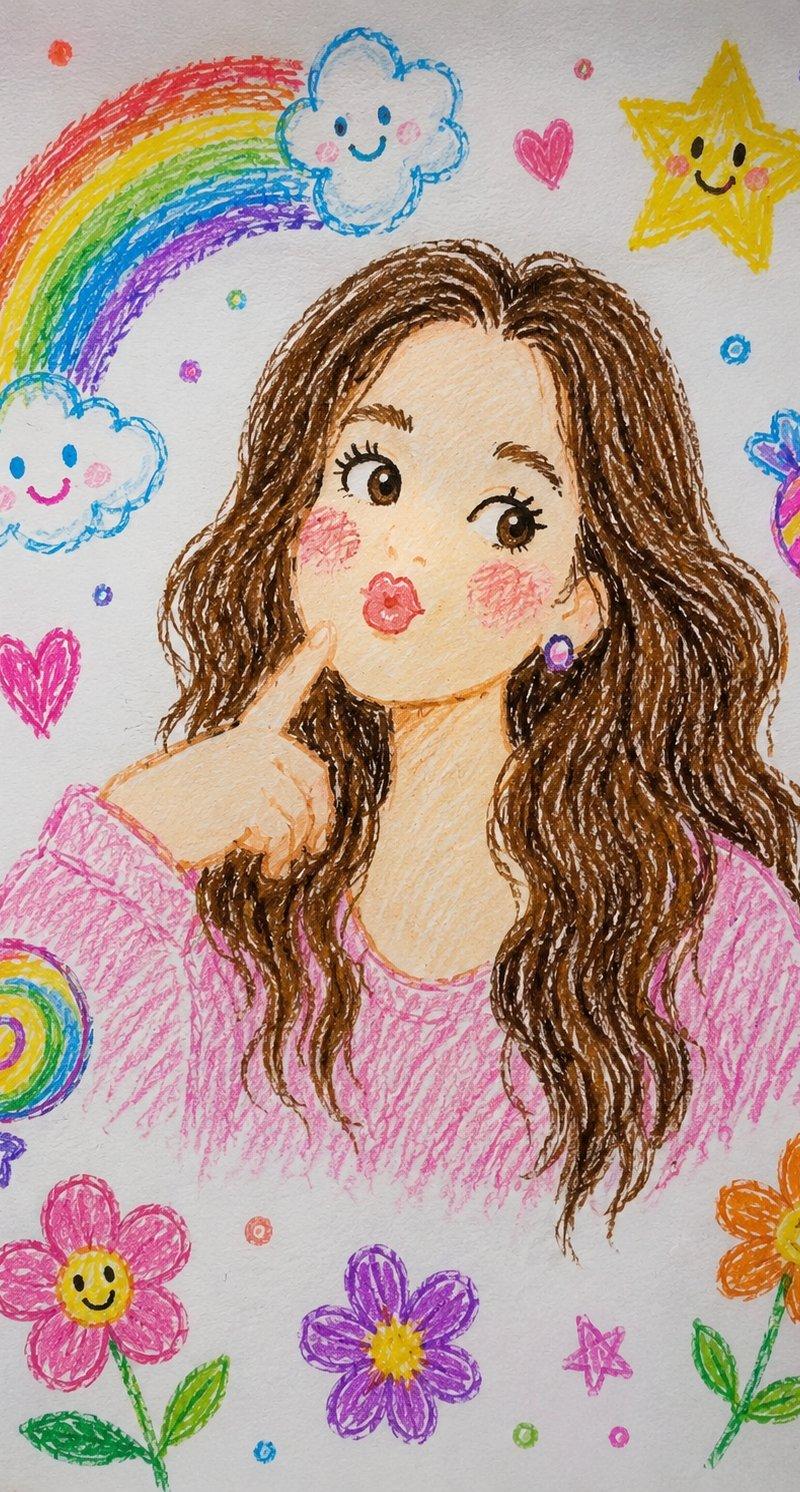
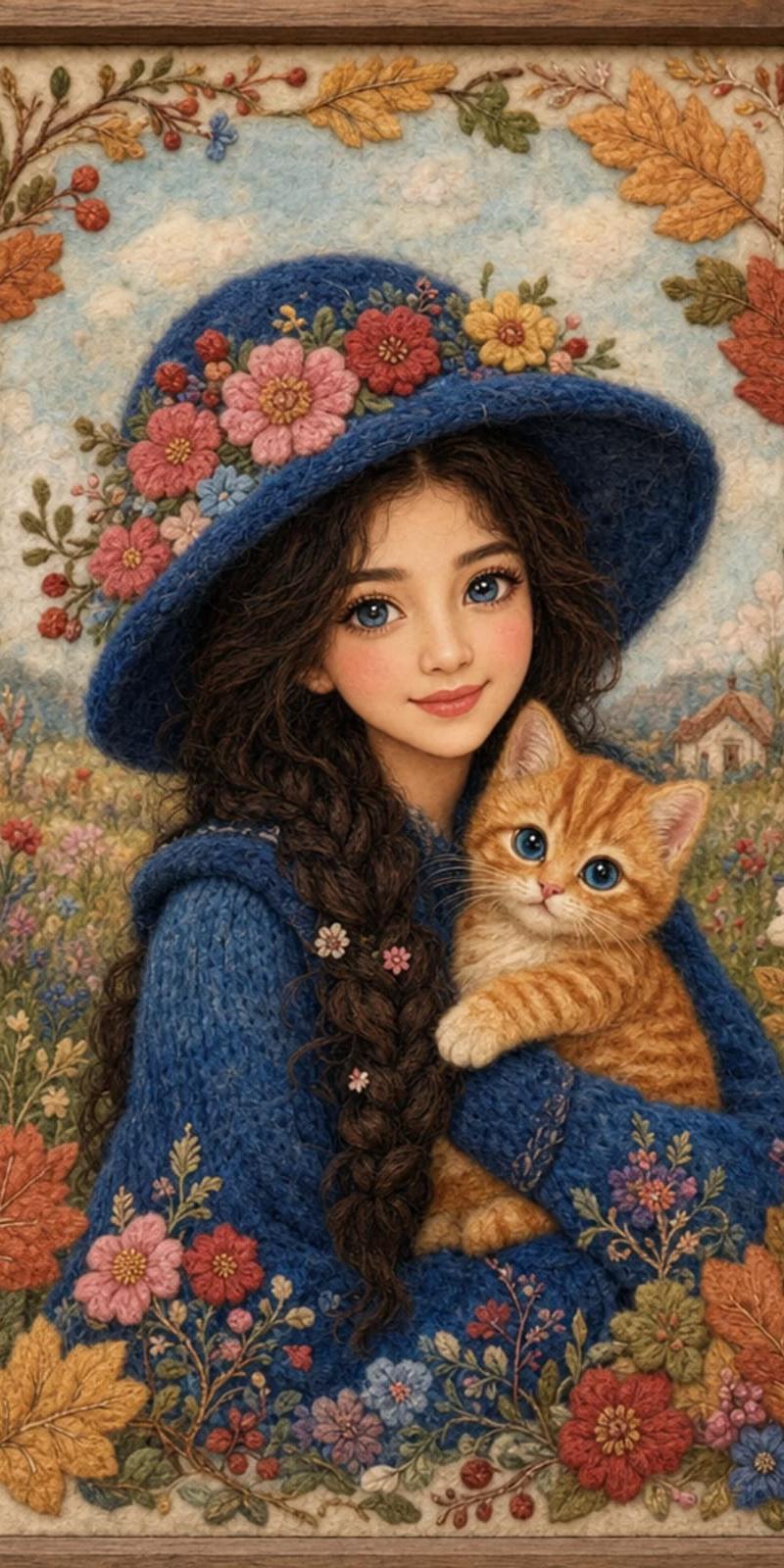
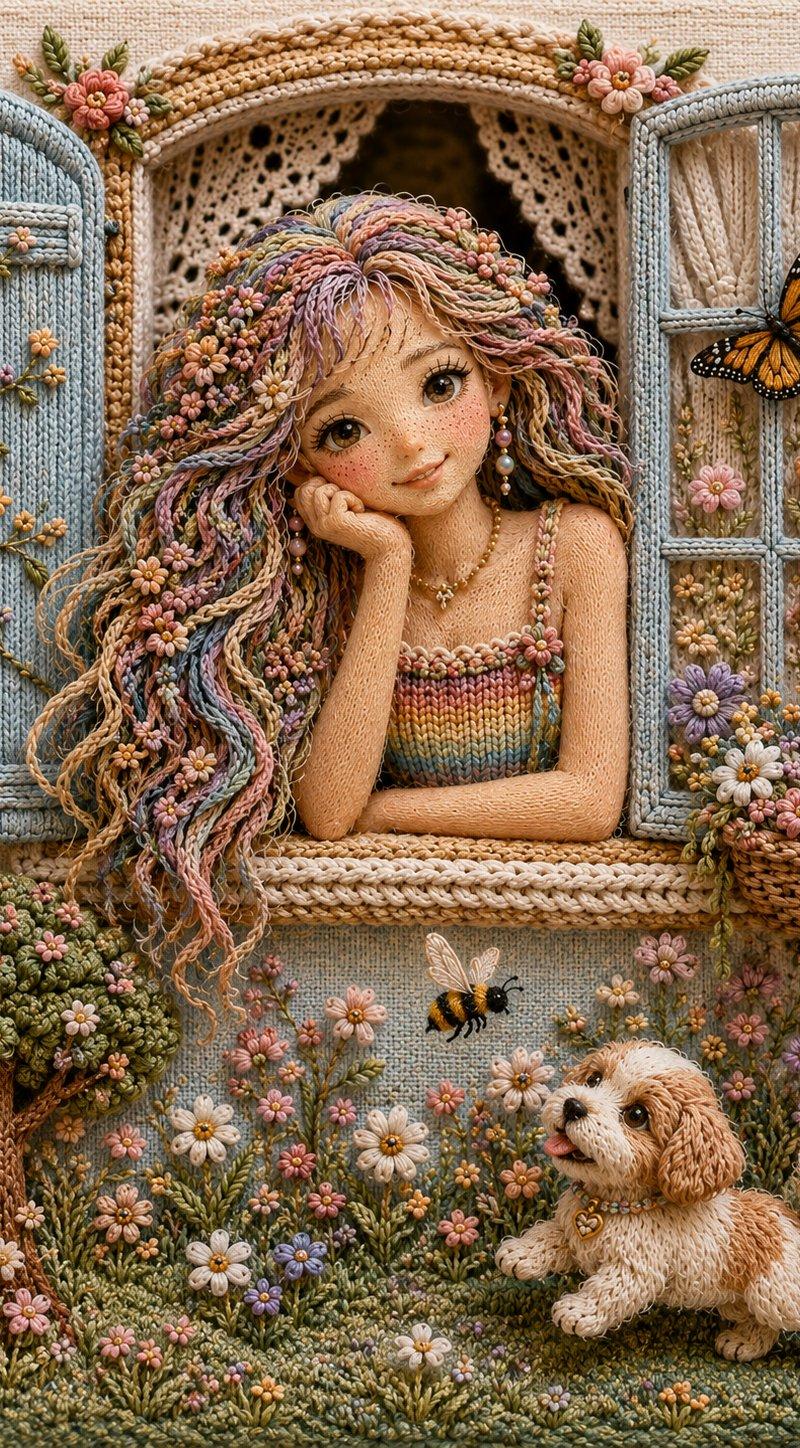
手工 3D 刺绣场景
Enlarge

Example images

手工 3D 刺绣场景

Prompt
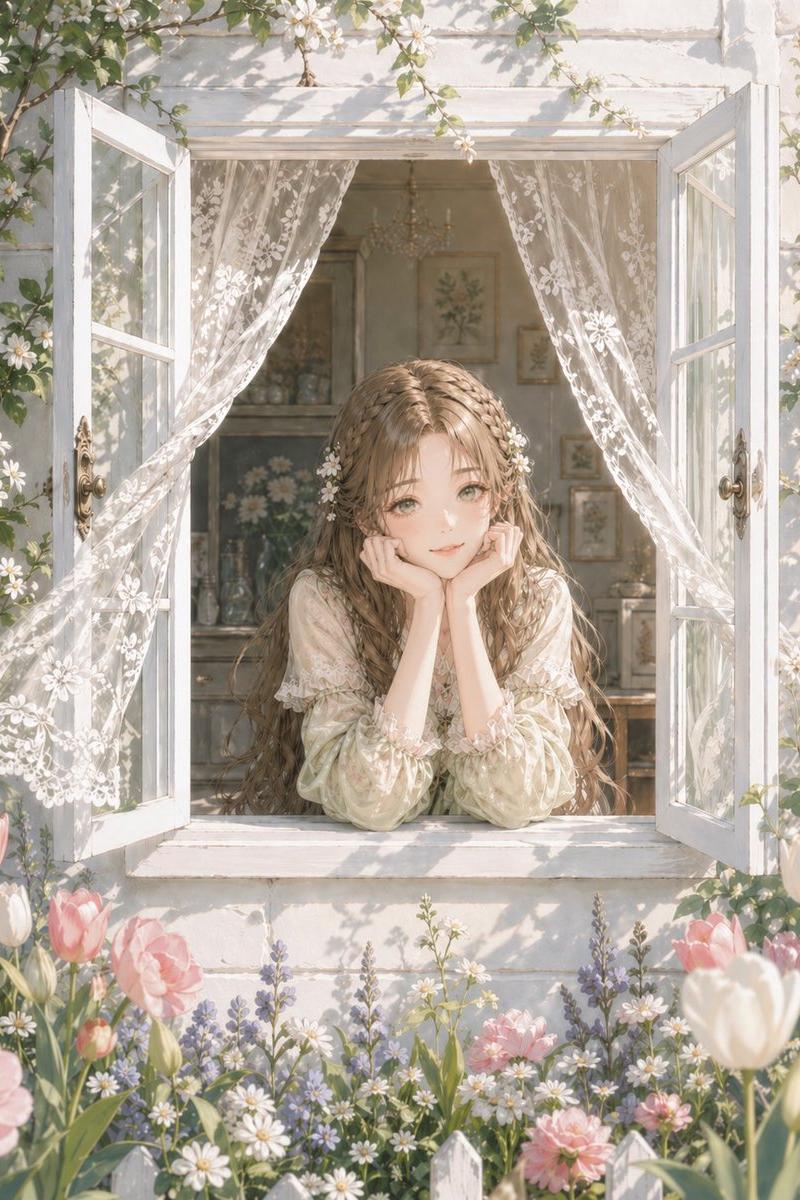
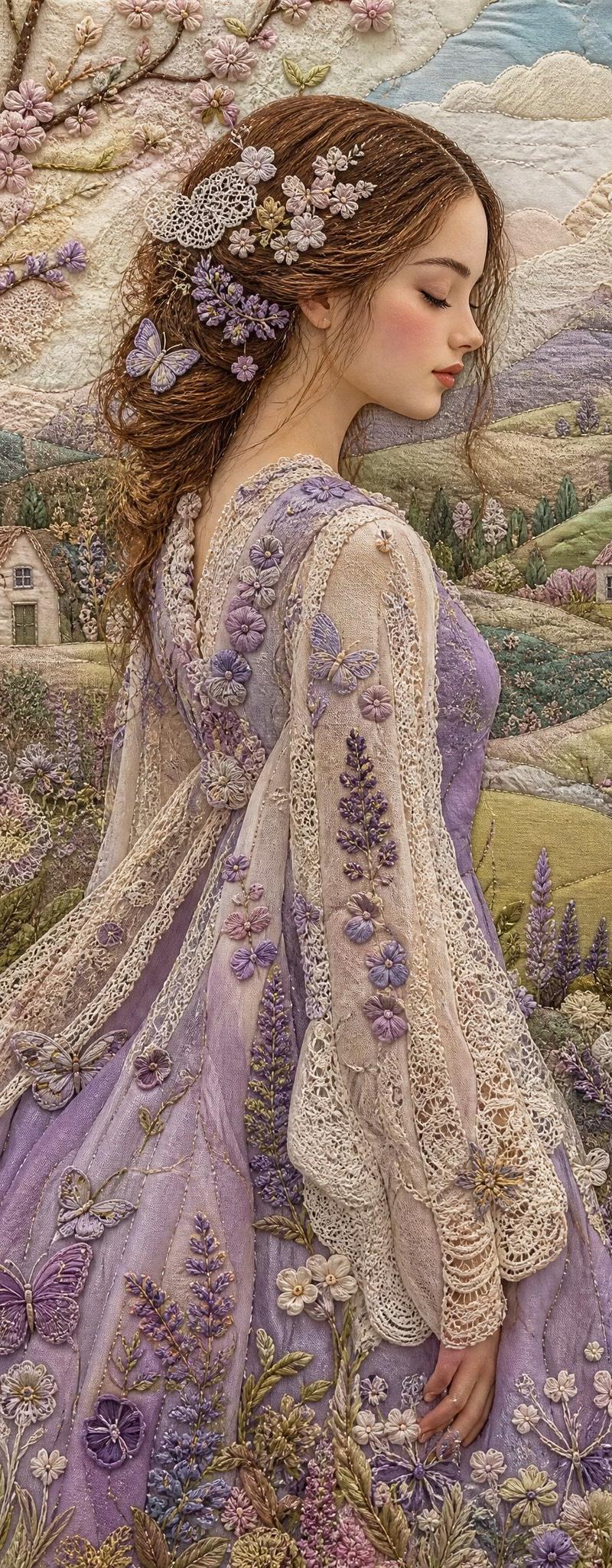
Handcrafted 3D embroidered scene of a whimsical girl leaning from an open window, doll-like face with {argument name="eye color" default="rosy cheeks and big brown eyes"}, {argument name="hair style" default="long wavy yarn hair with pastel streaks"} and tiny embroidered flowers woven throughout, wearing a {argument name="dress style" default="pastel rainbow stitched dress"} made of textured cable and satin stitches, delicate gold bead necklace and earrings, braided thread window frame with vine embroidery, monarch butterfly on the pane, buzzing embroidered bee, small stitched puppy frolicking in a grassy meadow of daisies and tiny flowers, stumpwork textile art, tactile yarn and thread textures, photorealistic macro textile detail, soft natural warm light, shallow depth of field, cozy cottagecore aesthetic, pastel color palette, ultra-detailed, high resolution, studio-quality composition
Category
Photography & Realism
Model
GPT Image 2
Creator
Fatema
Source language
en
Views0
Source ID
26646
Published
Jun 24, 2026
Studio

Guide

About "手工 3D 刺绣场景"

What is this prompt for?

"手工 3D 刺绣场景" AI image prompt for GPT Image 2 (Photography & Realism). 用于生成高分辨率 3D 刺绣纺织艺术的提示词,展现了奇幻少女与田园风美学。 Copy it on Picva and recreate the look in one click.

The full copyable prompt and example visuals above are ready for AI image generation or one-click recreate in Picva.

How to use this prompt

  1. Step 1

    Open the prompt detail

    Review the example visuals, category, and full prompt text for "手工 3D 刺绣场景".

  2. Step 2

    Copy the prompt

    Copy the prompt body from this page, or load it directly in Studio.

  3. Step 3

    Pick a model (GPT Image 2)

    Prefer GPT Image 2. If you switch models, keep subject and composition and tweak style terms.

  4. Step 4

    Generate and export

    Recreate the look in Picva, or export into your workflow for editing and publishing.

FAQ

What is the "手工 3D 刺绣场景" prompt?
It is an AI image-generation prompt for GPT Image 2 in the Photography & Realism category. This page includes the full prompt text, example visuals, and a one-click recreate path in Picva.
How do I use this prompt to generate an image?
Copy the prompt from this page, or use Generate / Studio. Paste it into a compatible image model, or recreate the look in Picva with optional reference images.
Which model is this prompt for?
This page lists GPT Image 2. Most descriptive prompts also transfer to nearby image models such as GPT Image, Flux, or Midjourney with light style tweaks.
Can I use the result commercially?
You can usually copy the prompt for creation, but commercial use of the final image depends on the model terms, reference-image rights, and the generated content. Follow the source author and platform rules.