LartAI 下载步骤教程
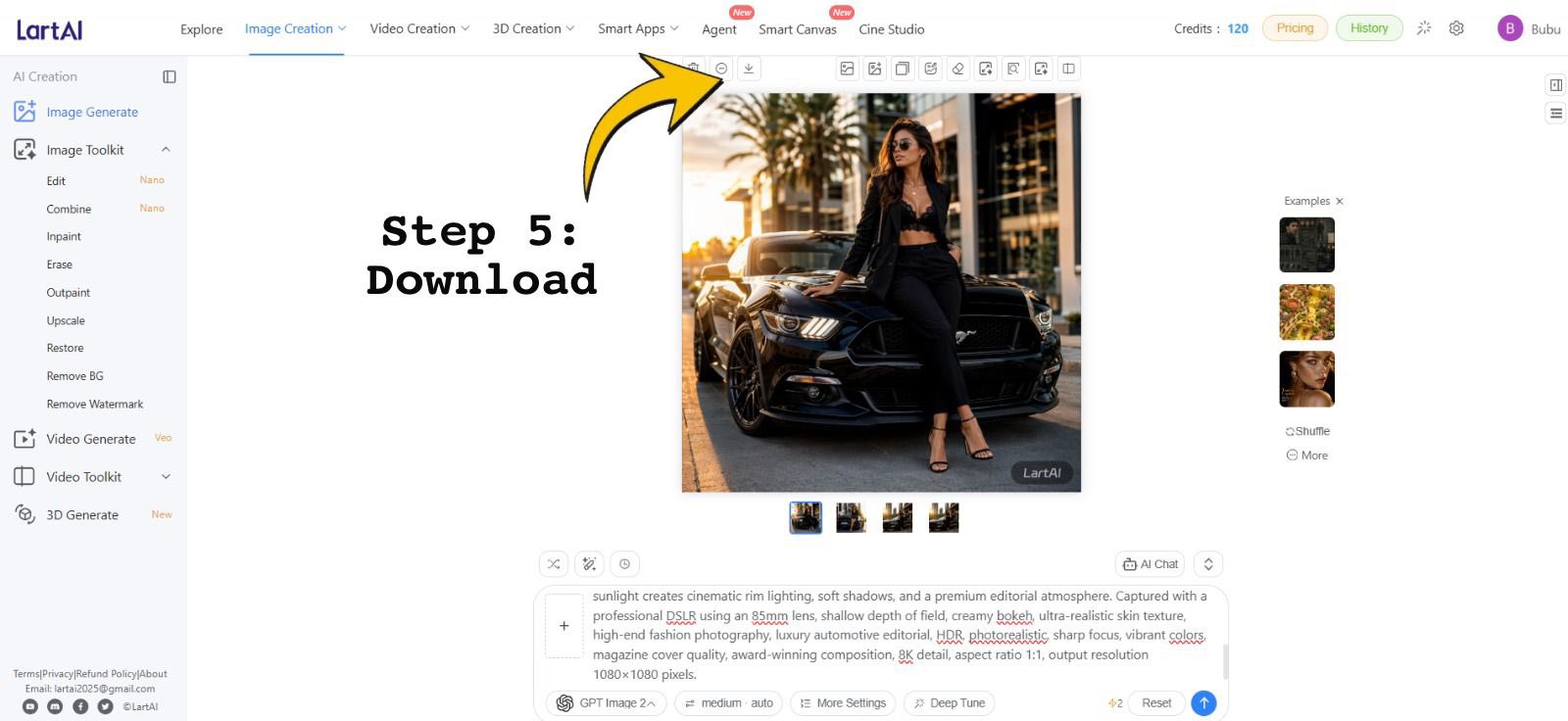
创建一张 LartAI 图像生成界面的教程截图,并带有醒目的“第 5 步:下载”箭头标注。
- Category
- Charts & Infographics
- Model
- GPT Image 2
- Creator
- Bairan
- Source language
- en
- Source ID
- 28079
- Published
- Jul 8, 2026
Full prompt
Goal: Create a wide tutorial-style screenshot graphic showing the LartAI image generation web app interface with an instructional overlay for downloading a generated image.

Canvas: 1200×552 horizontal screen capture composition, bright white UI, clean SaaS dashboard look, thin gray dividers, small icons, and lots of empty white space.

Layout: Full browser-app interface. A left sidebar occupies about 12% of the width, a top navigation bar spans the full width, the central workspace contains one large generated square image, and a right examples strip contains small thumbnails. Add a bold annotation on the left-center reading “Step 5: Download” in a black typewriter/monospace font, with a large curved yellow arrow outlined in black pointing upward toward the small download icon in the top toolbar above the generated image.

Top navigation: Show the LartAI logo at top left. Include exactly 7 main navigation items across the top: “Explore”, “Image Creation” highlighted/underlined in blue, “Video Creation”, “3D Creation”, “Smart Apps”, “Agent”, “Smart Canvas”, and “Cine Studio”; place small red “New” badges near Agent and Smart Canvas. On the right, show “Credits: 120”, pill buttons “Pricing” and “History”, small utility icons, and a purple circular avatar with the letter “B” followed by the username {argument name="user name" default="Bubu"}.

Left sidebar: Under the “AI Creation” heading, show exactly 14 visible tool entries: “Image Generate” selected in blue, “Image Toolkit”, “Edit” with a small “Nano” tag, “Combine” with a small “Nano” tag, “Inpaint”, “Erase”, “Outpaint”, “Upscale”, “Restore”, “Remove BG”, “Remove Watermark”, “Video Generate” with a small “Veo” tag, “Video Toolkit”, and “3D Generate” with a small “New” tag. At the bottom, include tiny footer text links and social icons, resembling Terms/Privacy/Refund Policy/About and contact details.

Central generated image: Display a square fashion editorial photo of {argument name="main subject" default="a stylish woman wearing sunglasses, a black blazer, black crop top, black trousers, and strappy heels"} leaning against the front of {argument name="vehicle" default="a glossy black Ford Mustang"} on a city street at golden hour. The subject sits on the car hood/front corner with one leg bent, palm trees and modern buildings in the background, warm cinematic sunlight, realistic shadows, high-end fashion and luxury automotive photography. Add a small dark “LartAI” watermark in the lower-right corner of this generated image.

Toolbar and controls: Above the square image, show a row of small square action icons, with the yellow arrow specifically pointing at the download icon. Beneath the large image, show exactly 4 small square result thumbnails in a row, with the first thumbnail selected using a blue border.

Right examples panel: Show the heading “Examples ×” and exactly 3 stacked example thumbnails: a dark car/fashion image, a yellow floral image, and a woman’s face portrait. Below them show exactly 2 small text controls: “Shuffle” and “More”.

Bottom prompt area: Include a large prompt input box with a plus button at its left and a visible text prompt beginning with “sunlight creates cinematic rim lighting, soft shadows, and a premium editorial atmosphere...” and containing underlined red spellcheck marks on some words. Below it, show controls including “GPT Image 2”, “medium auto”, “More Settings”, “Deep Tune”, a “4/2” indicator, “Reset”, and a blue circular send button.

Text overlay: The annotation text must read exactly {argument name="step label" default="Step 5:\nDownload"}. Use very large black bold typewriter lettering. The arrow should be bright yellow with a thick black outline, curved, and point from the text region toward the top toolbar download button.

Constraints: Preserve the clean web-app screenshot style, keep all UI text in English, use crisp small interface typography, no browser chrome, no extra popups, and no additional instructional steps.
Translations
LartAI 下载步骤教程
enGoal: Create a wide tutorial-style screenshot graphic showing the LartAI image generation web app interface with an instructional overlay for downloading a generated image. Canvas: 1200×552 horizontal screen capture composition, bright white UI, clean SaaS dashboard look, thin gray dividers, small icons, and lots of empty white space. Layout: Full browser-app interface. A left sidebar occupies about 12% of the width, a top navigation bar spans the full width, the central workspace contains one large generated square image, and a right examples strip contains small thumbnails. Add a bold annotation on the left-center reading “Step 5: Download” in a black typewriter/monospace font, with a large curved yellow arrow outlined in black pointing upward toward the small download icon in the top toolbar above the generated image. Top navigation: Show the LartAI logo at top left. Include exactly 7 main navigation items across the top: “Explore”, “Image Creation” highlighted/underlined in blue, “Video Creation”, “3D Creation”, “Smart Apps”, “Agent”, “Smart Canvas”, and “Cine Studio”; place small red “New” badges near Agent and Smart Canvas. On the right, show “Credits: 120”, pill buttons “Pricing” and “History”, small utility icons, and a purple circular avatar with the letter “B” followed by the username {argument name="user name" default="Bubu"}. Left sidebar: Under the “AI Creation” heading, show exactly 14 visible tool entries: “Image Generate” selected in blue, “Image Toolkit”, “Edit” with a small “Nano” tag, “Combine” with a small “Nano” tag, “Inpaint”, “Erase”, “Outpaint”, “Upscale”, “Restore”, “Remove BG”, “Remove Watermark”, “Video Generate” with a small “Veo” tag, “Video Toolkit”, and “3D Generate” with a small “New” tag. At the bottom, include tiny footer text links and social icons, resembling Terms/Privacy/Refund Policy/About and contact details. Central generated image: Display a square fashion editorial photo of {argument name="main subject" default="a stylish woman wearing sunglasses, a black blazer, black crop top, black trousers, and strappy heels"} leaning against the front of {argument name="vehicle" default="a glossy black Ford Mustang"} on a city street at golden hour. The subject sits on the car hood/front corner with one leg bent, palm trees and modern buildings in the background, warm cinematic sunlight, realistic shadows, high-end fashion and luxury automotive photography. Add a small dark “LartAI” watermark in the lower-right corner of this generated image. Toolbar and controls: Above the square image, show a row of small square action icons, with the yellow arrow specifically pointing at the download icon. Beneath the large image, show exactly 4 small square result thumbnails in a row, with the first thumbnail selected using a blue border. Right examples panel: Show the heading “Examples ×” and exactly 3 stacked example thumbnails: a dark car/fashion image, a yellow floral image, and a woman’s face portrait. Below them show exactly 2 small text controls: “Shuffle” and “More”. Bottom prompt area: Include a large prompt input box with a plus button at its left and a visible text prompt beginning with “sunlight creates cinematic rim lighting, soft shadows, and a premium editorial atmosphere...” and containing underlined red spellcheck marks on some words. Below it, show controls including “GPT Image 2”, “medium auto”, “More Settings”, “Deep Tune”, a “4/2” indicator, “Reset”, and a blue circular send button. Text overlay: The annotation text must read exactly {argument name="step label" default="Step 5:\nDownload"}. Use very large black bold typewriter lettering. The arrow should be bright yellow with a thick black outline, curved, and point from the text region toward the top toolbar download button. Constraints: Preserve the clean web-app screenshot style, keep all UI text in English, use crisp small interface typography, no browser chrome, no extra popups, and no additional instructional steps.
LartAI 下载步骤教程
zh-CN目标:创建一张宽幅教程风格的截图图形,展示 LartAI 图像生成 Web 应用界面,并附带下载生成图像的操作说明覆盖层。 画布:1200×552 水平屏幕截图构图,明亮的白色 UI,简洁的 SaaS 仪表板外观,细灰色分隔线,小图标,以及大量的留白。 布局:完整的浏览器应用界面。左侧边栏占据约 12% 的宽度,顶部导航栏横跨全宽,中央工作区包含一张大型生成的正方形图像,右侧示例栏包含小型缩略图。在左侧中心添加醒目的标注,文字为“Step 5: Download”,使用黑色打字机/等宽字体,并配有一个带黑色轮廓的巨大黄色弯曲箭头,指向生成图像上方顶部工具栏中的小型下载图标。 顶部导航:左上角显示 LartAI 标志。顶部包含 7 个主要导航项:“Explore”、“Image Creation”(高亮并带有蓝色下划线)、“Video Creation”、“3D Creation”、“Smart Apps”、“Agent”、“Smart Canvas”以及“Cine Studio”;在 Agent 和 Smart Canvas 附近放置红色“New”小徽章。右侧显示“Credits: 120”、胶囊按钮“Pricing”和“History”、小型实用图标,以及一个带有字母“B”的紫色圆形头像,后跟用户名 {argument name="user name" default="Bubu"}。 左侧边栏:在“AI Creation”标题下,显示 14 个可见工具条目:“Image Generate”(蓝色选中状态)、“Image Toolkit”、“Edit”(带“Nano”小标签)、“Combine”(带“Nano”小标签)、“Inpaint”、“Erase”、“Outpaint”、“Upscale”、“Restore”、“Remove BG”、“Remove Watermark”、“Video Generate”(带“Veo”小标签)、“Video Toolkit”以及“3D Generate”(带“New”小标签)。底部包含微小的页脚文本链接和社交图标,类似于服务条款/隐私政策/退款政策/关于我们及联系方式。 中央生成图像:显示一张正方形时尚编辑照片,内容为 {argument name="main subject" default="一位戴着太阳镜、身穿黑色西装外套、黑色露脐上衣、黑色长裤和系带高跟鞋的时髦女性"} 倚靠在 {argument name="vehicle" default="一辆亮黑色福特野马"} 前方,背景为黄金时段的城市街道。主体坐在车盖/前角,一条腿弯曲,背景有棕榈树和现代建筑,温暖的电影感阳光,逼真的阴影,高端时尚和豪华汽车摄影风格。在这张生成图像的右下角添加一个深色的“LartAI”小水印。 工具栏和控件:在正方形图像上方,显示一行小型方形操作图标,黄色箭头专门指向下载图标。在大型图像下方,横向显示 4 个小型方形结果缩略图,第一个缩略图用蓝色边框选中。 右侧示例面板:显示标题“Examples ×”和 3 个堆叠的示例缩略图:一张深色汽车/时尚图像、一张黄色花卉图像和一张女性面部肖像。在它们下方显示 2 个小型文本控件:“Shuffle”和“More”。 底部提示词区域:包含一个大型提示词输入框,左侧有一个加号按钮,可见的文本提示词以“sunlight creates cinematic rim lighting, soft shadows, and a premium editorial atmosphere...”开头,部分单词带有红色下划线拼写检查标记。在下方显示控件,包括“GPT Image 2”、“medium auto”、“More Settings”、“Deep Tune”、“4/2”指示器、“Reset”以及一个蓝色圆形发送按钮。 文本覆盖:标注文本必须准确显示为 {argument name="step label" default="Step 5:\nDownload"}。使用非常大的黑色粗体打字机字体。箭头应为亮黄色,带有粗黑色轮廓,呈弯曲状,从文本区域指向顶部工具栏的下载按钮。 约束:保持简洁的 Web 应用截图风格,所有 UI 文本保持为英文,使用清晰的小型界面字体,无浏览器边框,无额外弹窗,且不添加额外的操作步骤。