20

Locked reference product layout: GPT Image 2 prompt
Enlarge

Locked reference product layout: GPT Image 2 prompt

Prompt
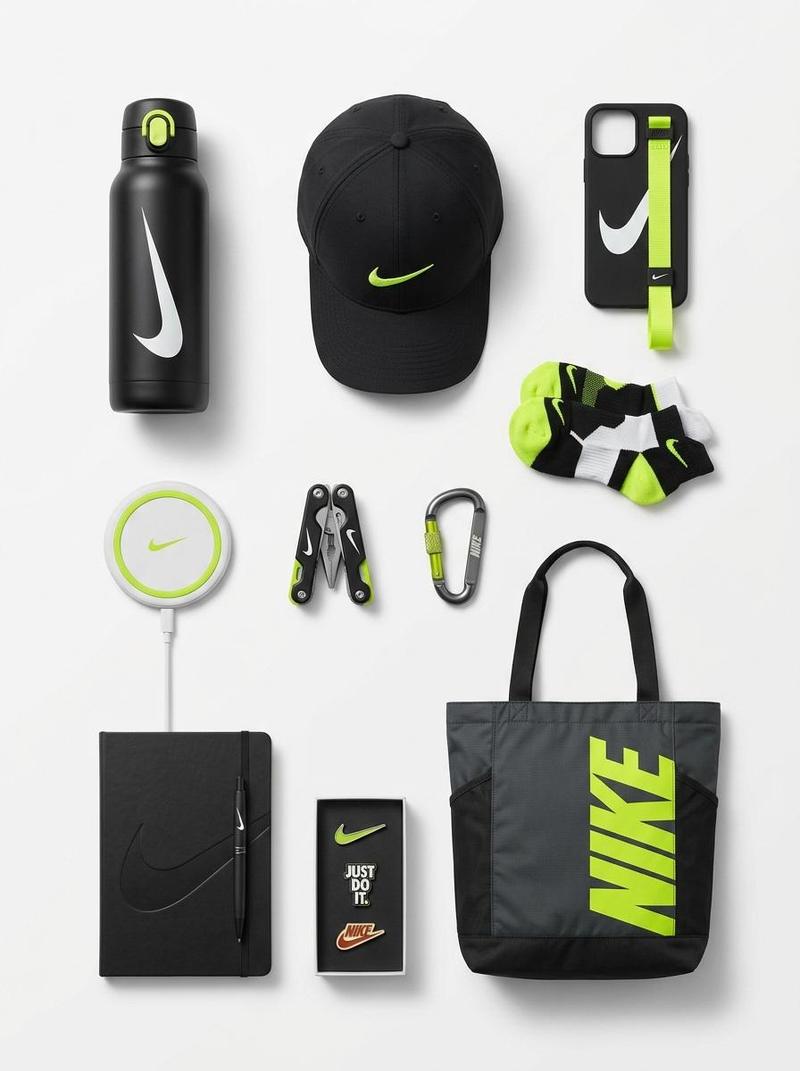
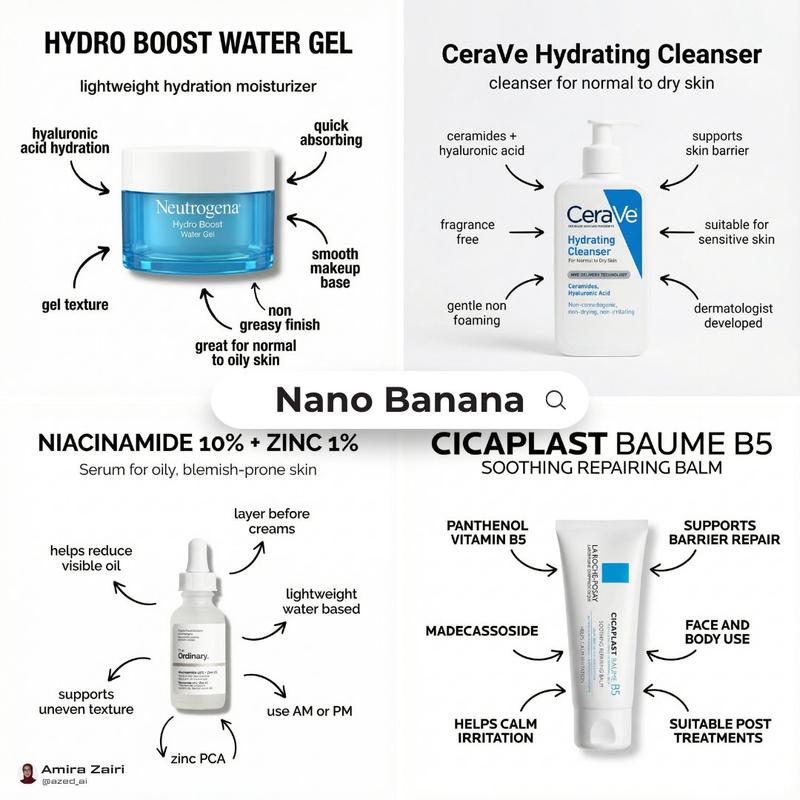
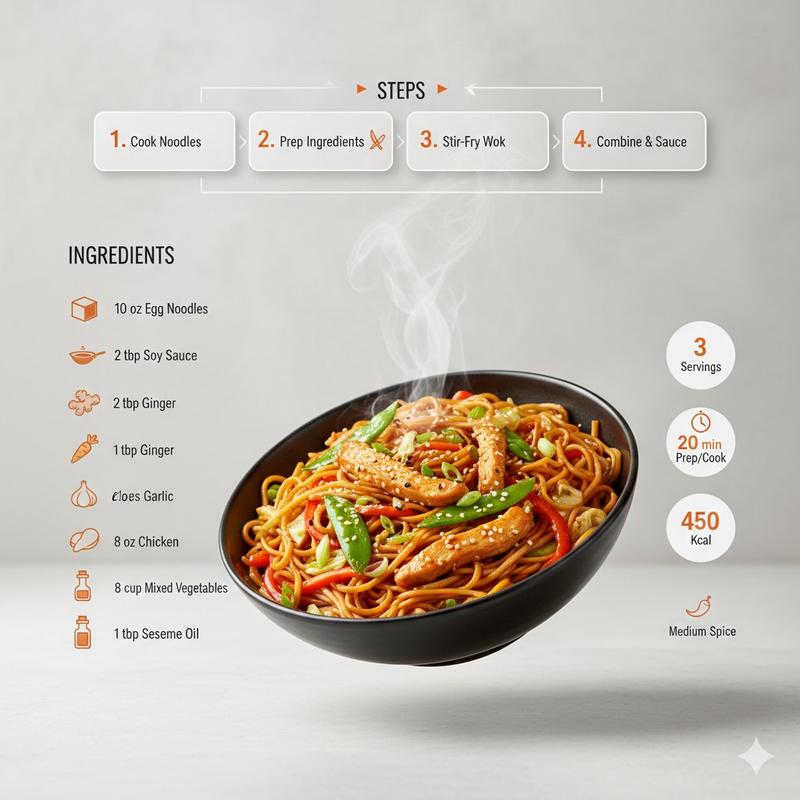
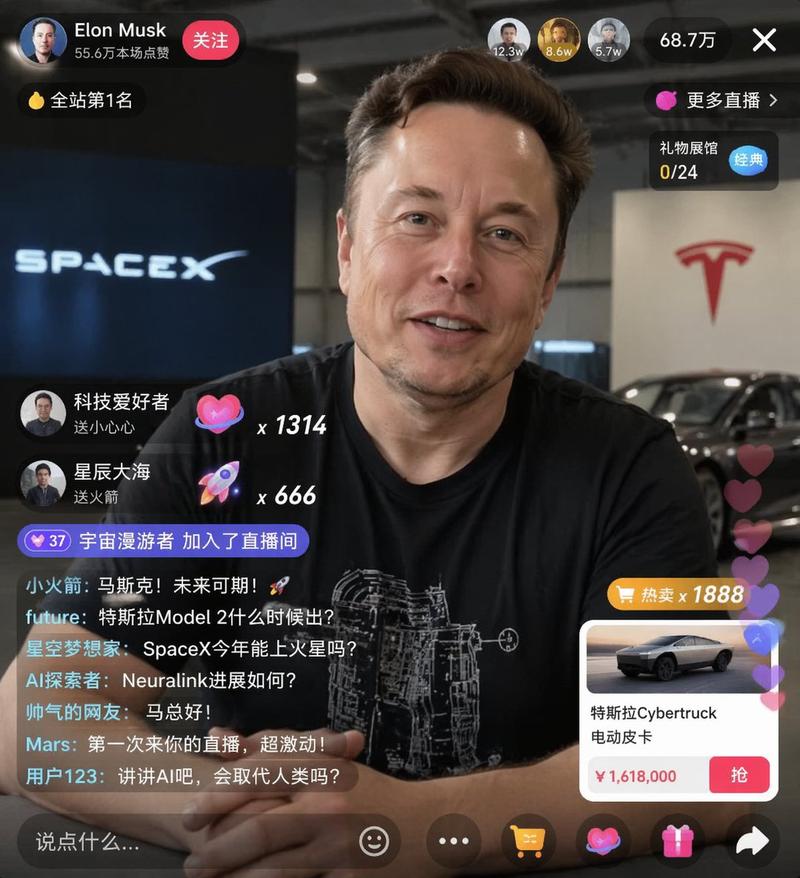
Core Subject: [{argument name="reference" default="use the uploaded image"}, keep the details, typography and structure locked 100%]

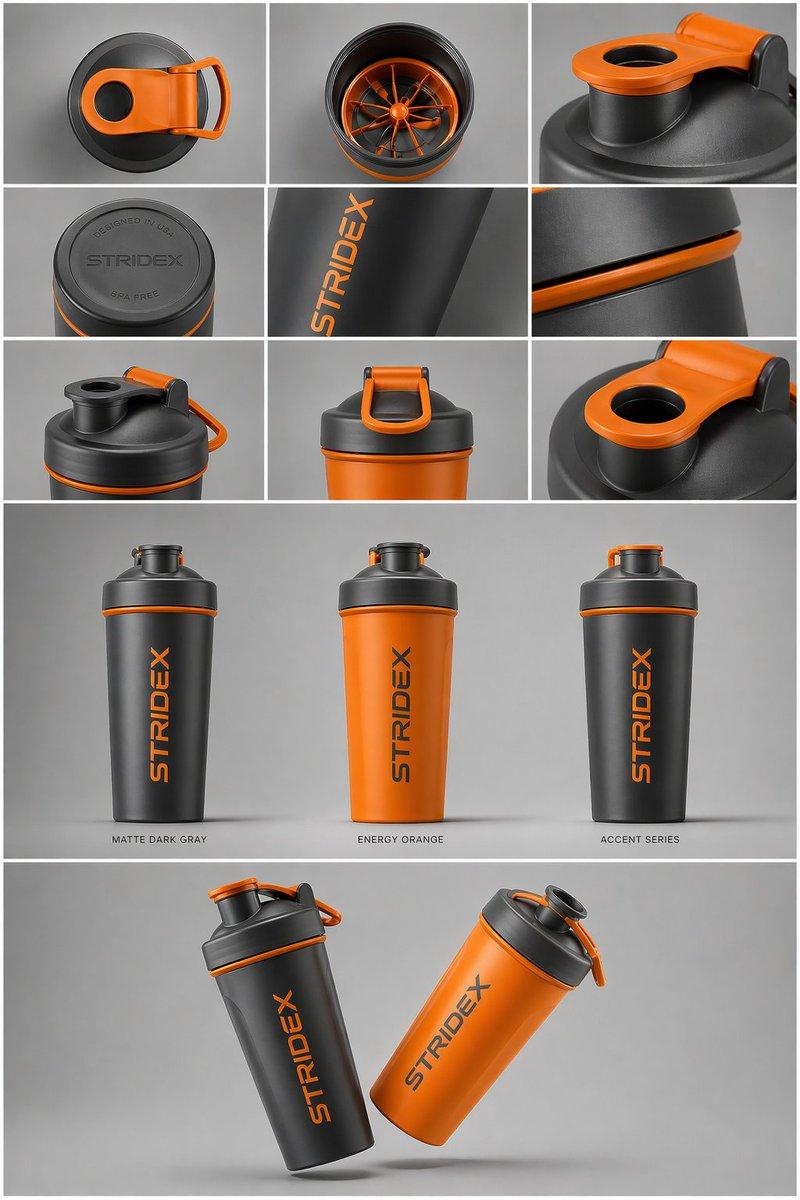
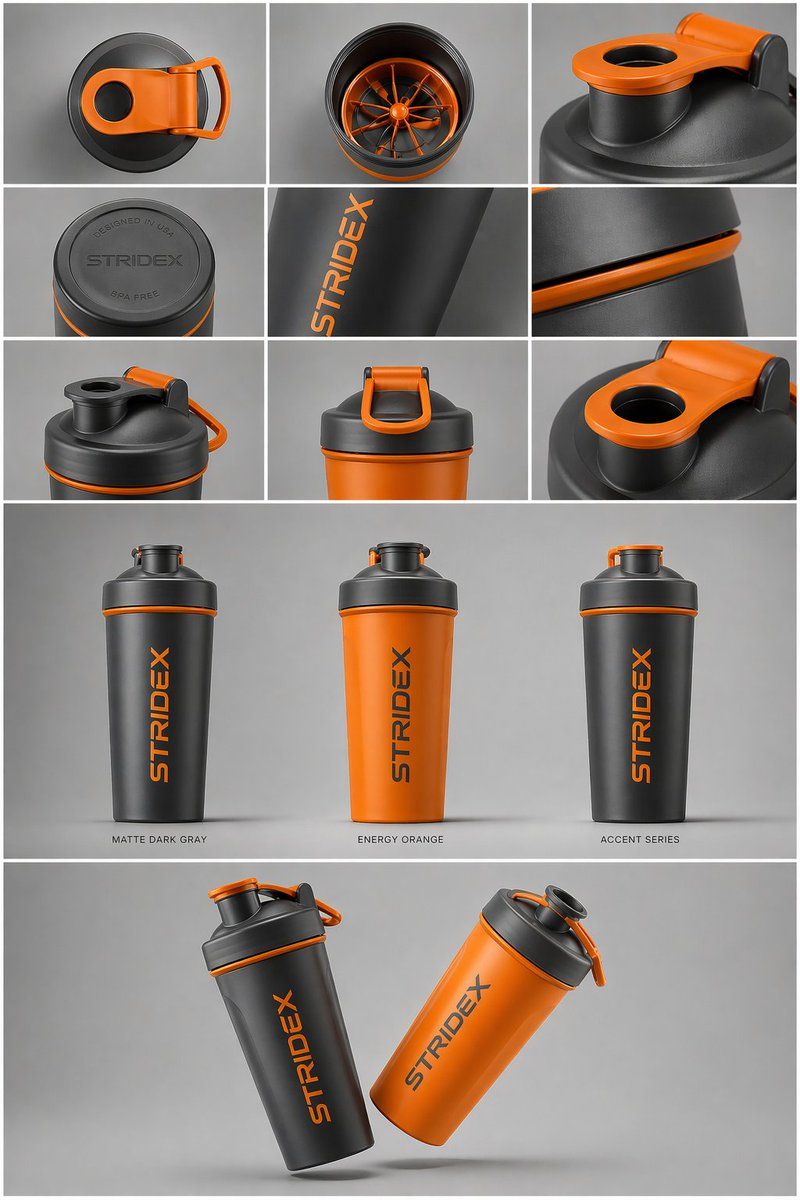
Layout & Composition: A {argument name="presentation type" default="professional industrial design presentation sheet"}. The image should be organized into a clean grid system.

Top Row: A 3x3 layout showing top-down flat lay views and close-up macro details of materials.

Middle Section: Three hero shots of the product standing upright in different color ways (Matte Black, Arctic White, and accented variants). The products should be slightly tilted to show depth and form.

Bottom Section: A dynamic "floating" composition featuring two products overlapping at opposing angles to showcase the front and side profiles simultaneously.

Environment & Lighting: Set against a minimalist, neutral studio gray background. Soft top-down lighting with realistic contact shadows. High-end product photography aesthetic.

Style & Finish: Matte textures, clean silhouettes, and sharp edges. Leave designated blank areas on the product surfaces for "Placeholder Branding" and "Graphic Mockups." 4k resolution, Unreal Engine 5 render style, hyper-realistic, clean aesthetic.
Category
Products & E-commerce
Model
GPT Image 2
Views0
Source ID
awesome-ecommerce-116
Published
Apr 29, 2026

Guide

About "Locked reference product layout: GPT Image 2 prompt"

What is this prompt for?

"Locked reference product layout: GPT Image 2 prompt" AI image prompt for GPT Image 2 (Products & E-commerce). Core Subject: [{argument name="reference" defaul…

The full copyable prompt and example visuals above are ready for AI image generation or one-click recreate in Picva.

How to use this prompt

  1. Step 1

    Open the prompt detail

    Review the example visuals, category, and full prompt text for "Locked reference product layout: GPT Image 2 prompt".

  2. Step 2

    Copy the prompt

    Copy the prompt body from this page, or load it directly in Studio.

  3. Step 3

    Pick a model (GPT Image 2)

    Prefer GPT Image 2. If you switch models, keep subject and composition and tweak style terms.

  4. Step 4

    Generate and export

    Recreate the look in Picva, or export into your workflow for editing and publishing.

FAQ

What is the "Locked reference product layout: GPT Image 2 prompt" prompt?
It is an AI image-generation prompt for GPT Image 2 in the Products & E-commerce category. This page includes the full prompt text, example visuals, and a one-click recreate path in Picva.
How do I use this prompt to generate an image?
Copy the prompt from this page, or use Generate / Studio. Paste it into a compatible image model, or recreate the look in Picva with optional reference images.
Which model is this prompt for?
This page lists GPT Image 2. Most descriptive prompts also transfer to nearby image models such as GPT Image, Flux, or Midjourney with light style tweaks.
Can I use the result commercially?
You can usually copy the prompt for creation, but commercial use of the final image depends on the model terms, reference-image rights, and the generated content. Follow the source author and platform rules.