20

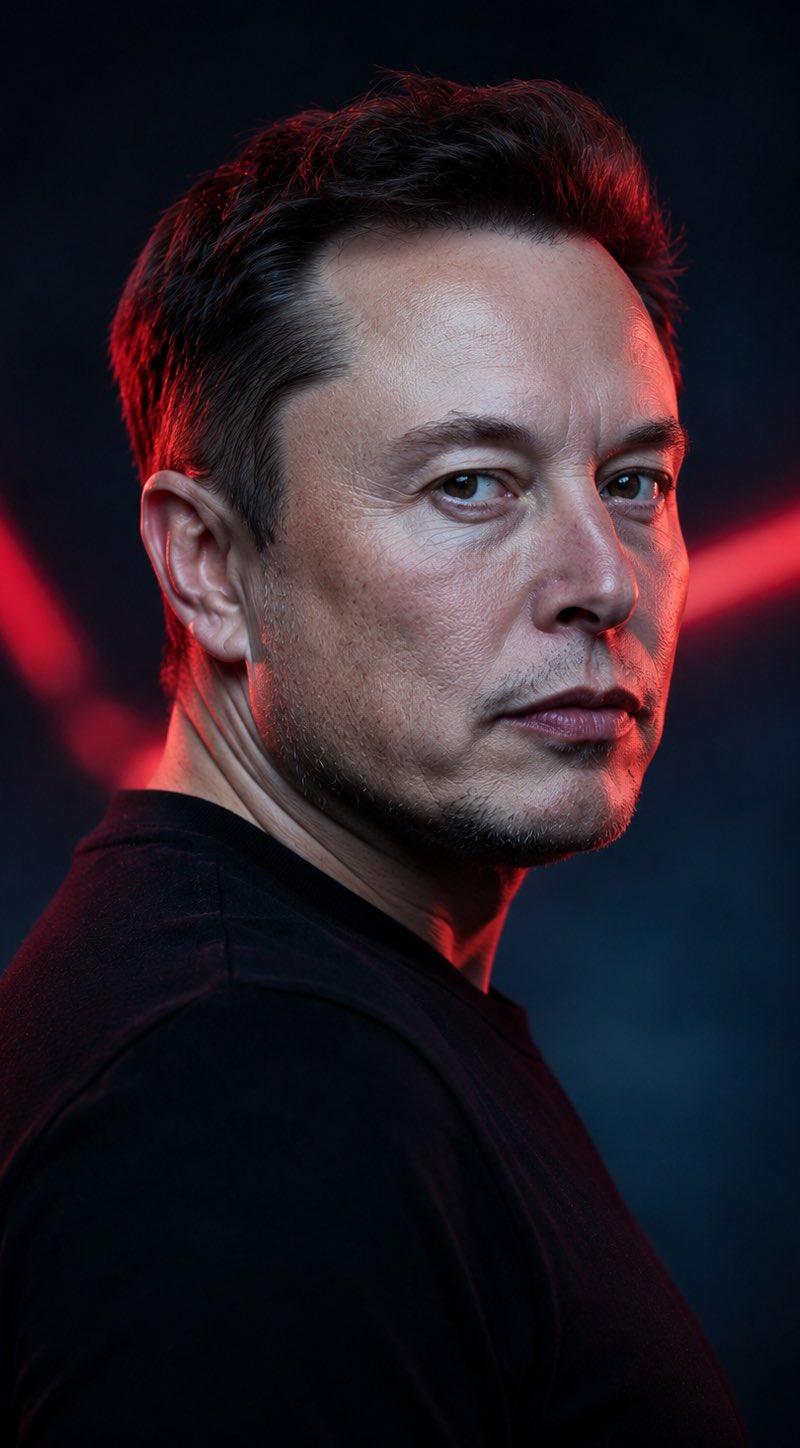
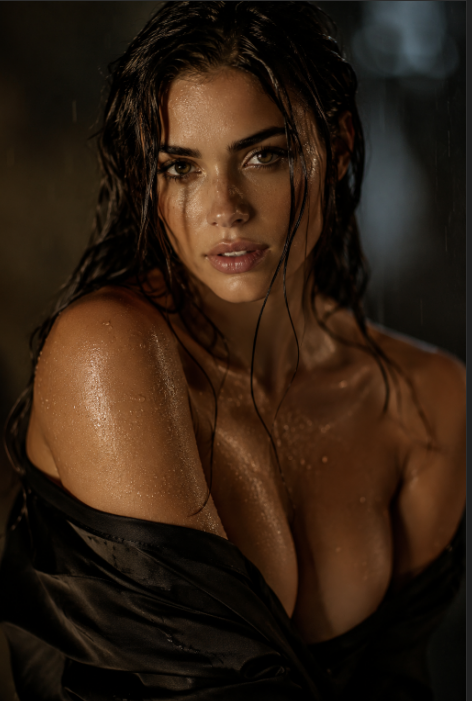
明暗对照法烟雾呼出肖像
Enlarge

明暗对照法烟雾呼出肖像

Prompt
Use the exact same face from the reference image and generate a picture, captured mid-exhale {argument name="smoke effect" default="a thick stream of white smoke"} pouring from slightly parted lips, catching a single narrow beam of {argument name="lighting" default="warm amber key light"} in an otherwise black environment. The smoke beam acts as the sole light source, scattering across his nose bridge and brow. Deep shadows consume the rest of his face completely. Extreme close-crop — forehead to collarbone only. Hyper-textured skin, stubble detail, catchlights in eyes. "{argument name="watermark" default="OzairAI"}" woven imperceptibly into the light-scatter pattern within the smoke stream. Vertical 9:13 format. Ultra photorealistic, 8K, no text overlays, cinematic color grading.
Category
Posters & Typography
Model
GPT Image 2
Creator
Ozair AI
Source language
en
Views4
Source ID
23793
Published
Jun 2, 2026
Studio

Guide

About "明暗对照法烟雾呼出肖像"

What is this prompt for?

"明暗对照法烟雾呼出肖像" AI image prompt for GPT Image 2 (Posters & Typography). 一个极近距离的肖像提示词,聚焦于超高纹理的皮肤以及被一束狭窄琥珀色光线照亮的浓厚烟雾。 Copy it on Picva and recreate the look in one…

The full copyable prompt and example visuals above are ready for AI image generation or one-click recreate in Picva.

How to use this prompt

  1. Step 1

    Open the prompt detail

    Review the example visuals, category, and full prompt text for "明暗对照法烟雾呼出肖像".

  2. Step 2

    Copy the prompt

    Copy the prompt body from this page, or load it directly in Studio.

  3. Step 3

    Pick a model (GPT Image 2)

    Prefer GPT Image 2. If you switch models, keep subject and composition and tweak style terms.

  4. Step 4

    Generate and export

    Recreate the look in Picva, or export into your workflow for editing and publishing.

FAQ

What is the "明暗对照法烟雾呼出肖像" prompt?
It is an AI image-generation prompt for GPT Image 2 in the Posters & Typography category. This page includes the full prompt text, example visuals, and a one-click recreate path in Picva.
How do I use this prompt to generate an image?
Copy the prompt from this page, or use Generate / Studio. Paste it into a compatible image model, or recreate the look in Picva with optional reference images.
Which model is this prompt for?
This page lists GPT Image 2. Most descriptive prompts also transfer to nearby image models such as GPT Image, Flux, or Midjourney with light style tweaks.
Can I use the result commercially?
You can usually copy the prompt for creation, but commercial use of the final image depends on the model terms, reference-image rights, and the generated content. Follow the source author and platform rules.