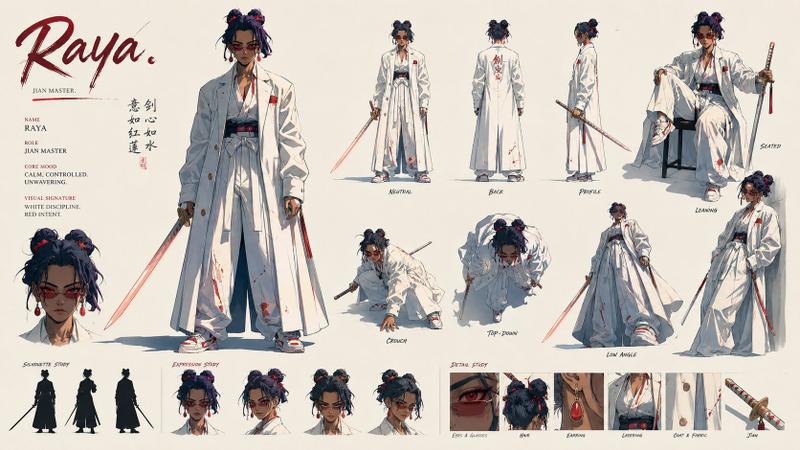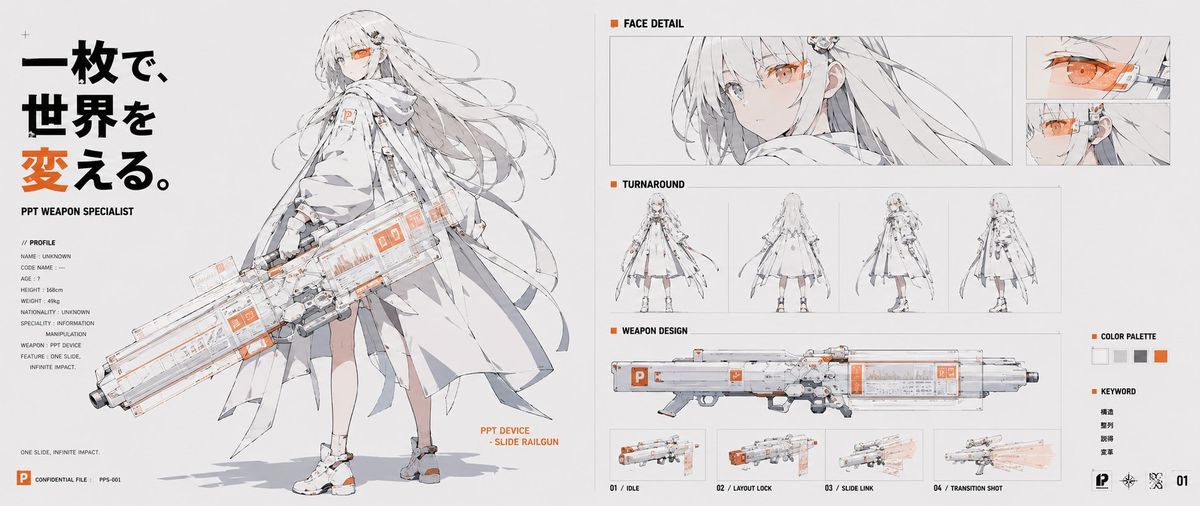
PPT 武器专家角色设定图
Prompt
Goal: Create a wide anime concept-art character sheet for a personified presentation app, a futuristic “PPT weapon specialist” girl wielding a slide-themed railgun. Use a clean white technical-design layout with thin gray panel lines, black typography, and vivid PowerPoint orange accents.

Canvas: Ultra-wide horizontal character sheet, about 2:1 aspect ratio, white/off-white background, crisp editorial presentation-board composition, high-resolution anime line art with pale gray shading and selective orange highlights.

Main left section: Large full-body illustration of {argument name="character name" default="PPT Weapon Specialist"}, a slender young anime woman with very long flowing white/silver hair, pale skin, one visible orange cybernetic visor/monocle over the eye, and a calm serious expression. She wears a layered white futuristic coat/cape, technical straps, small orange PowerPoint-like “P” markings, white shoes with orange details, and light mechanical accessories. She holds an oversized transparent white-and-gray sci-fi railgun shaped like a presentation slide deck, with orange UI panels, small “P” icons, glassy panels, rails, and mechanical grips. Add an orange annotation beside the weapon reading “PPT DEVICE - SLIDE RAILGUN.”

Left typography and profile: At the far left, place a bold vertical Japanese headline in large black and orange characters: {argument name="headline text" default="一枚で、世界を変える。"}. Under it, small English text reads “PPT WEAPON SPECIALIST.” Include a compact profile block labeled “// PROFILE” with 8 lines: NAME: UNKNOWN, CODE NAME: --, AGE: ?, HEIGHT: 158cm, WEIGHT: 49kg, NATIONALITY: UNKNOWN, SPECIALTY: INFORMATION MANIPULATION, WEAPON: PPT DEVICE. Add a small sentence near the bottom: “ONE SLIDE, INFINITE IMPACT.” Bottom-left has a small orange PowerPoint-style square icon, “CONFIDENTIAL FILE,” and “PPS-001.”

Right-side technical panels: Arrange exactly 5 labeled sections on the right half. Section 1 is “FACE DETAIL,” containing 3 face images: one wide close-up portrait of the character looking sideways with orange visor, plus two smaller stacked close-ups showing the orange eye/visor mechanism. Section 2 is “TURNAROUND,” containing exactly 4 small full-body views: front, back, three-quarter side, and side/back view. Section 3 is “WEAPON DESIGN,” containing one long side-view diagram of the railgun. Section 4 is a weapon action row beneath it with exactly 4 small thumbnails labeled “01 / IDLE,” “02 / LAYOUT LOCK,” “03 / SLIDE LINK,” and “04 / TRANSITION SHOT,” showing the gun at rest, locked layout mode, slide-link glow, and a translucent orange firing/transition blast. Section 5 is a small sidebar with “COLOR PALETTE” containing exactly 5 square swatches: white, light gray, medium gray, black/dark gray, and orange; below it a “KEYWORD” list with exactly 4 Japanese words: 構造, 整列, 誘導, 変革.

Visual style: Delicate Japanese anime concept design, thin clean ink lines, pale watercolor-gray shadows, high-tech UI annotations, fashion techwear, schematic presentation-board layout, minimal background, precise spacing. Use orange only for emphasis, UI marks, visor, icons, and key headline character. Make the railgun transparent and presentation-software themed, with visible slide panels and orange interface blocks.

Constraints: Keep the composition text-heavy but clean and readable. Do not add extra characters. Do not add extra thumbnails beyond the counted sections. No watermark. Preserve the Japanese headline and keyword text exactly as specified while keeping all other labels in English.- Category
- Charts & Infographics
- Model
- GPT Image 2
- Creator
- FUJI / Presentation designer
- Source ID
- 24812
- Published
- Jun 8, 2026
Views0