18

皮克斯风格 3D 卡通角色
Enlarge

Example images

皮克斯风格 3D 卡通角色

Prompt
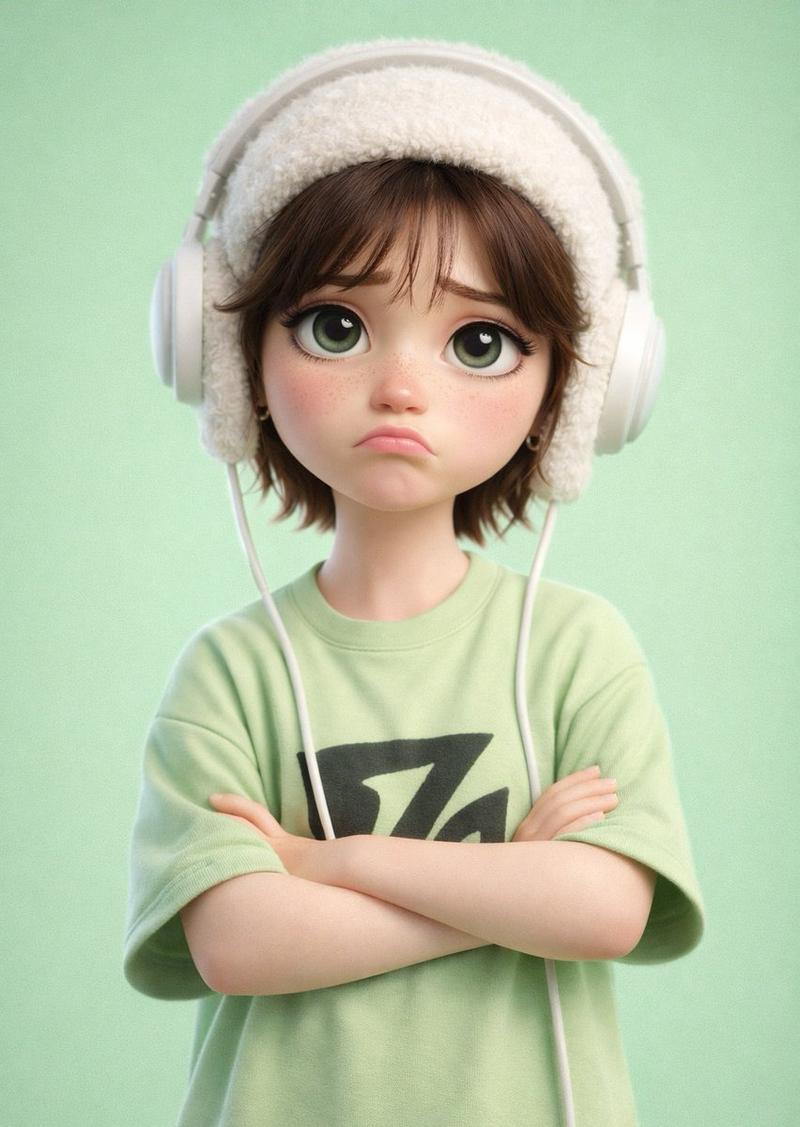
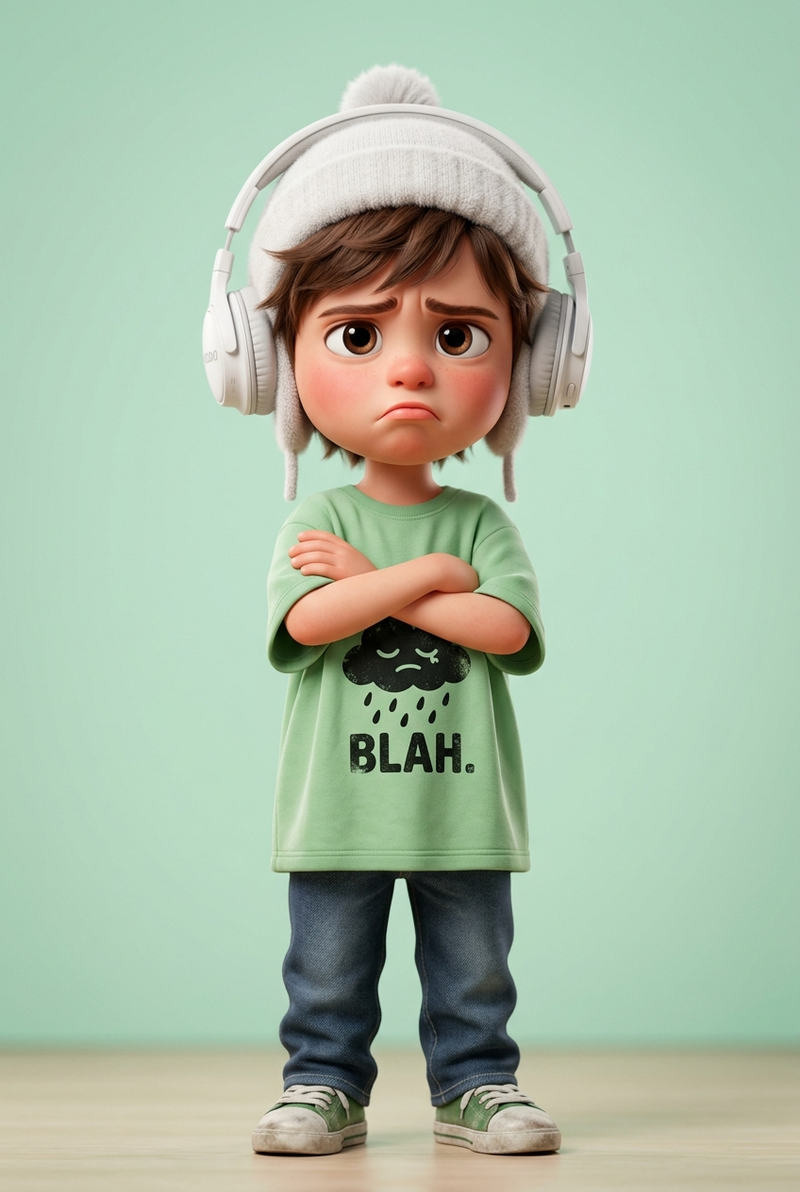
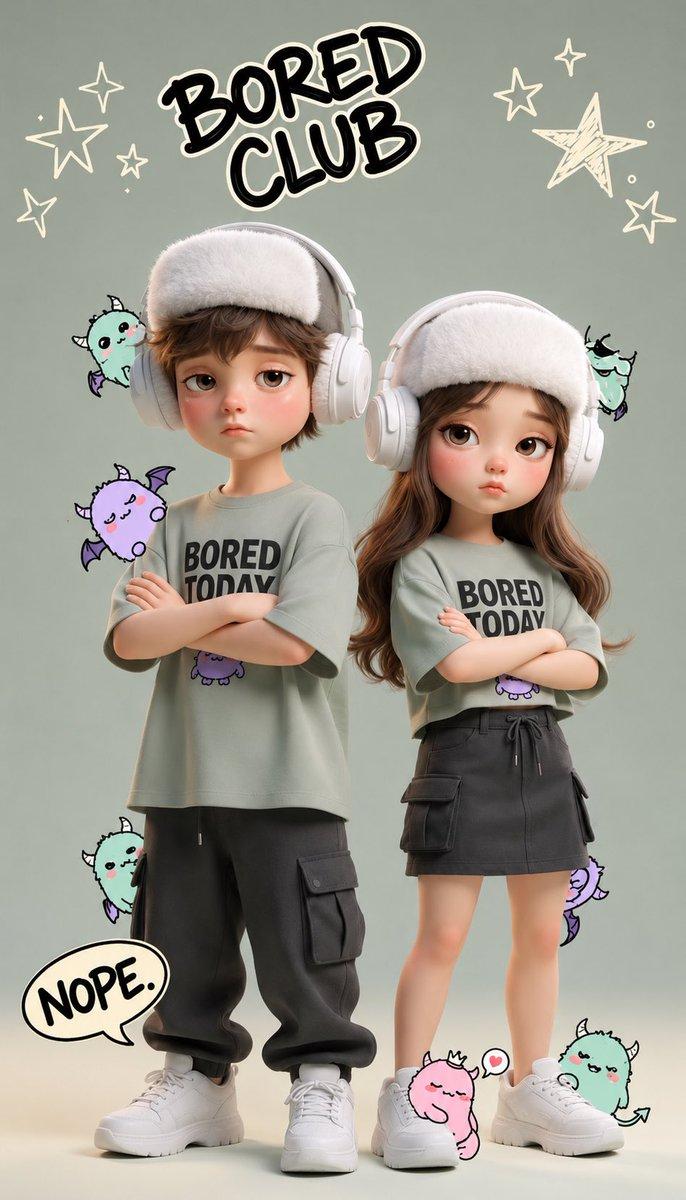
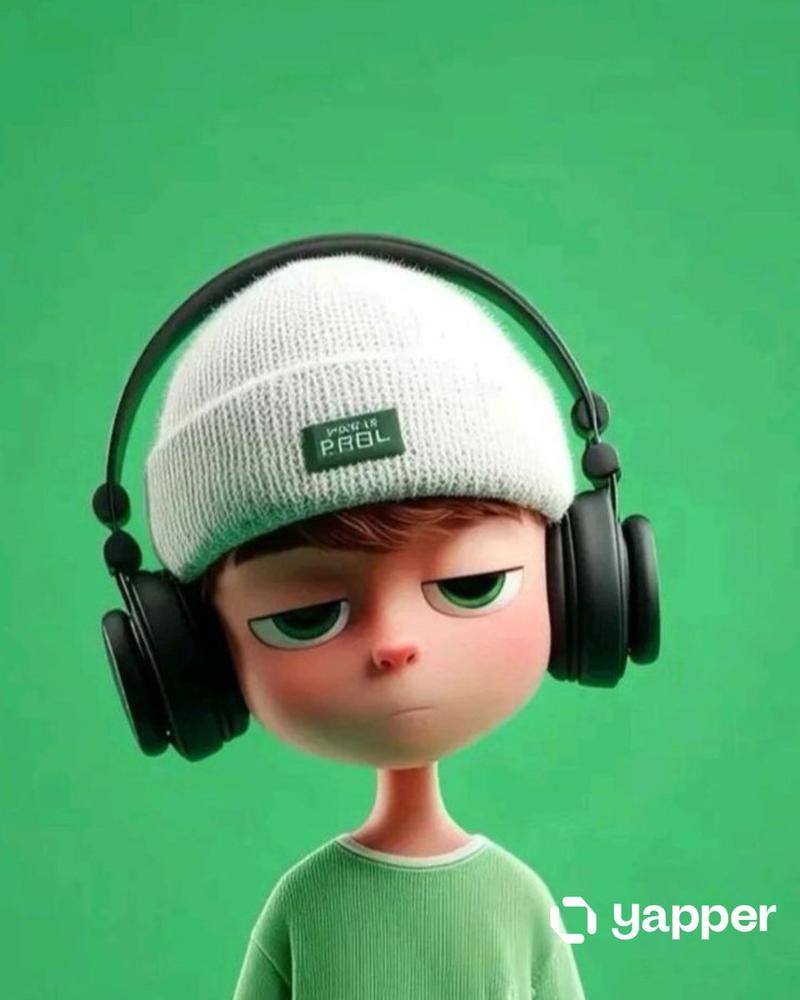
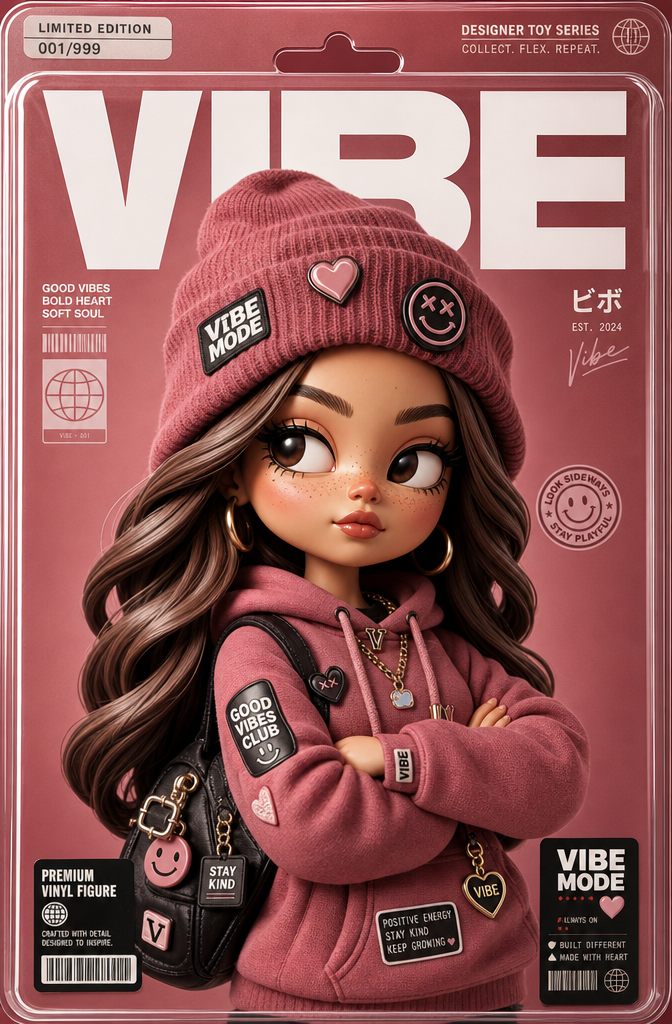
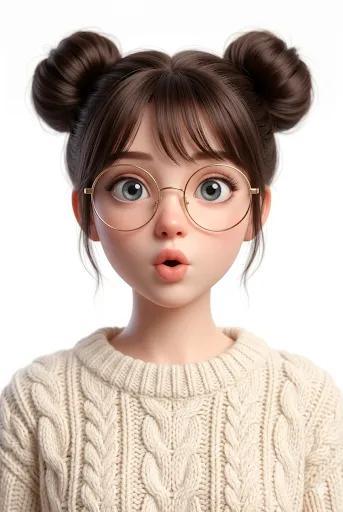
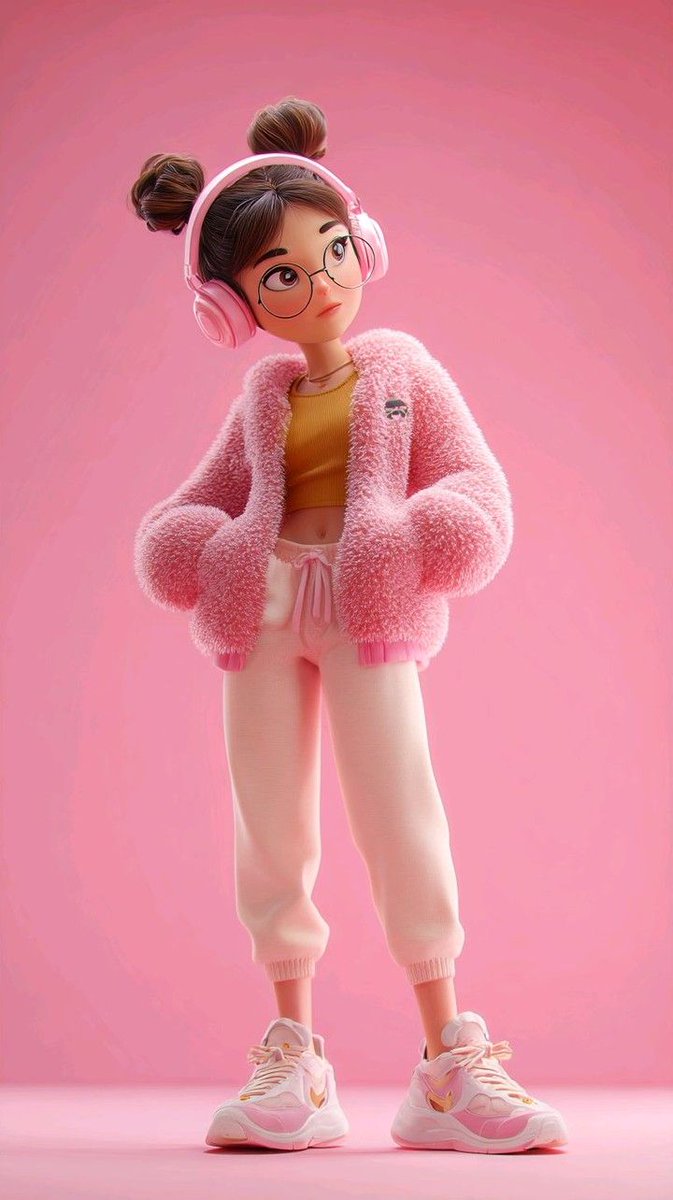
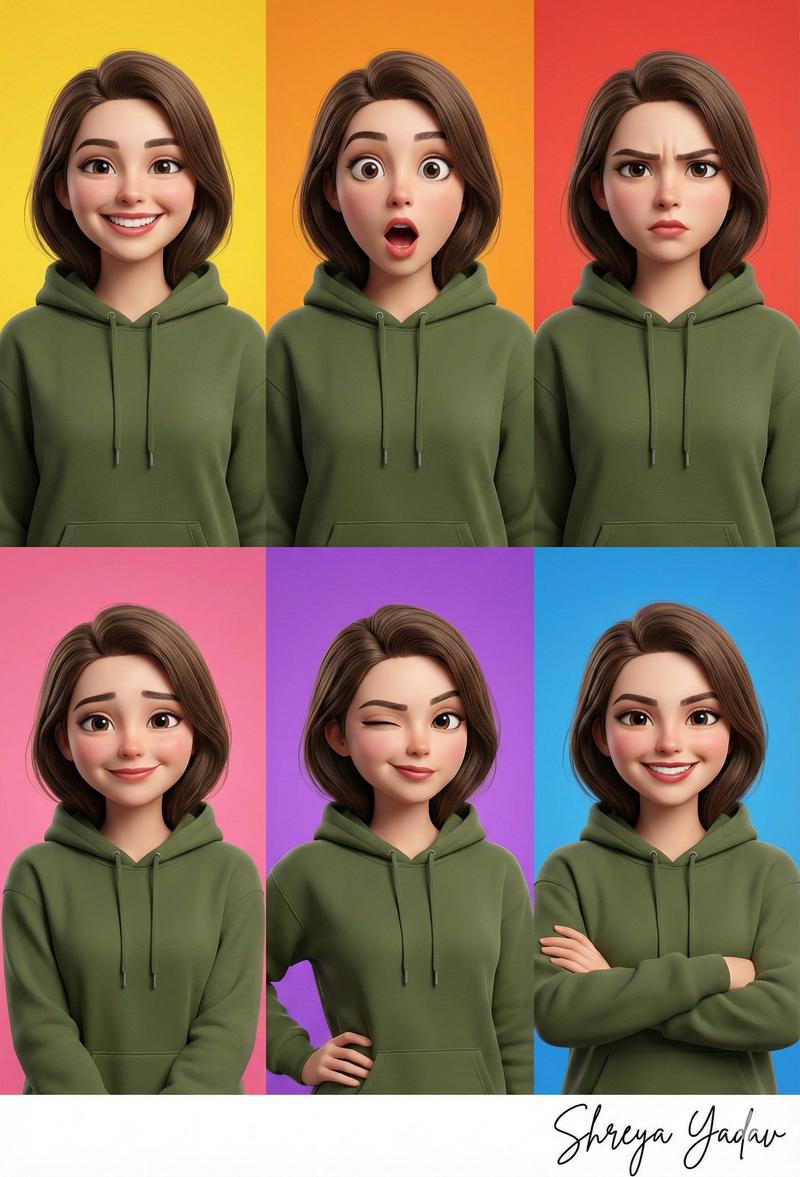
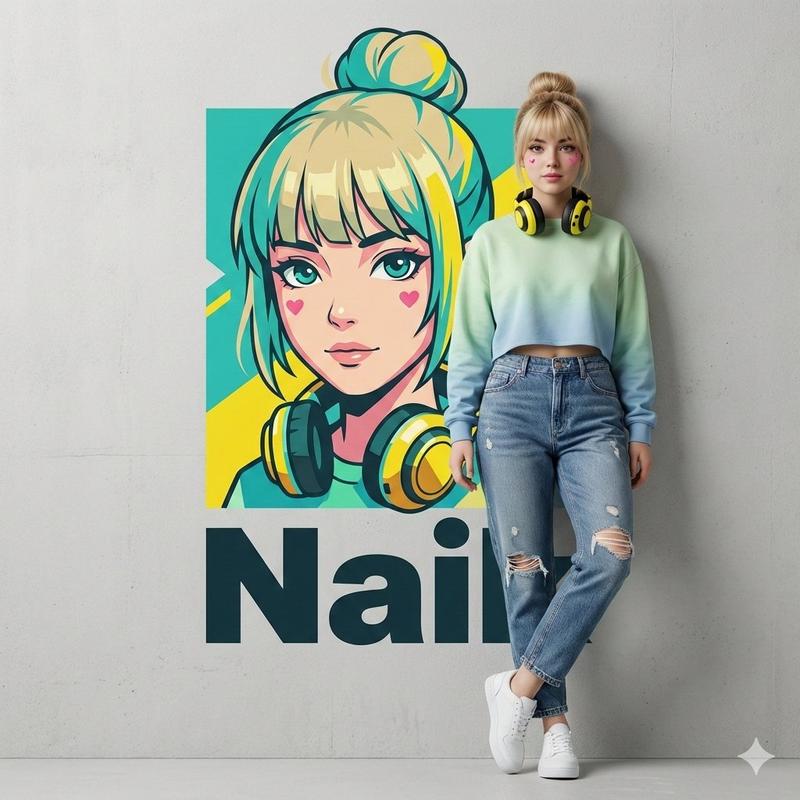
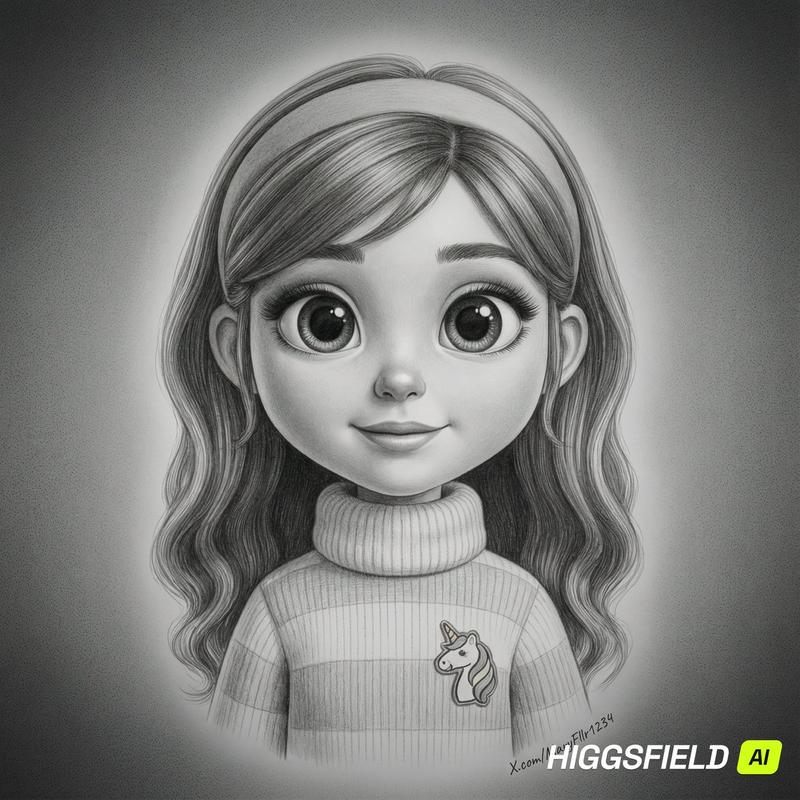
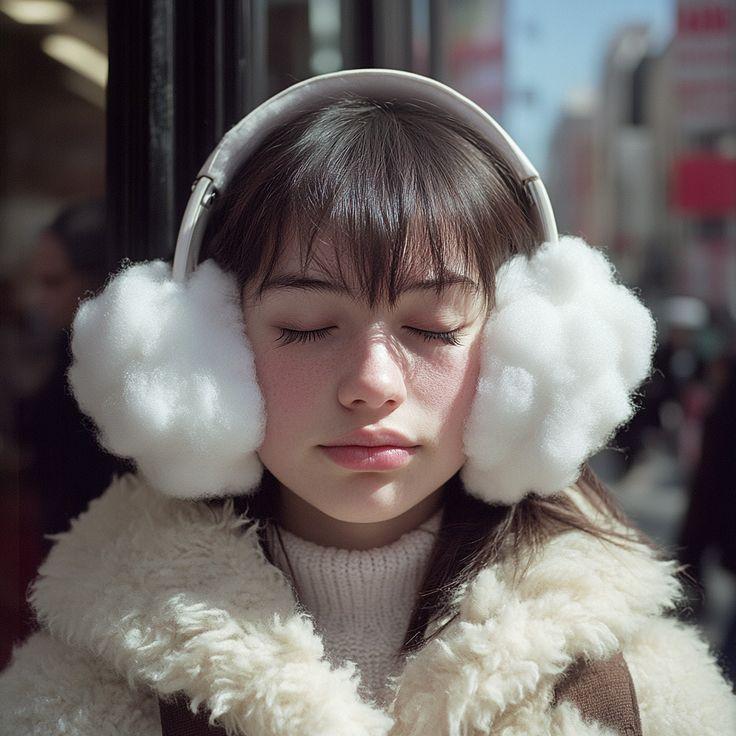
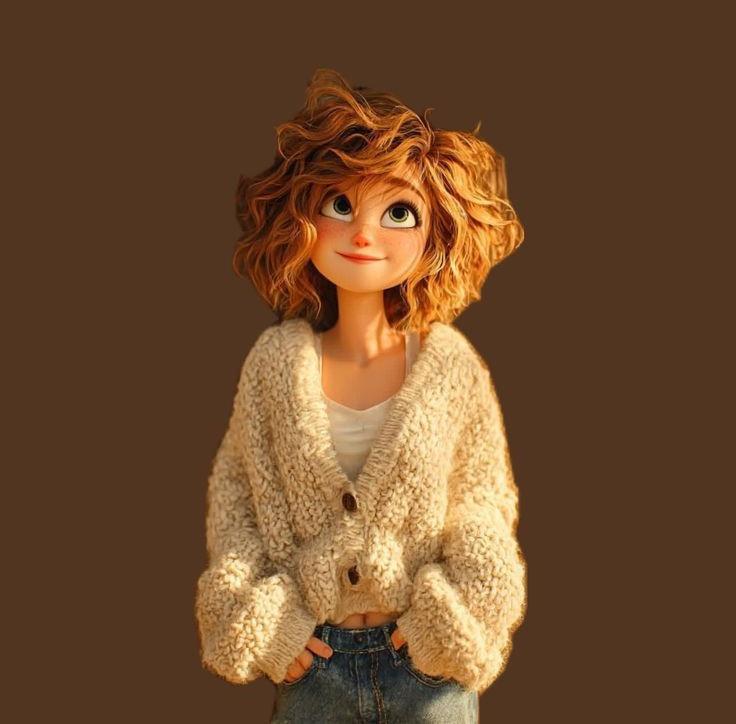
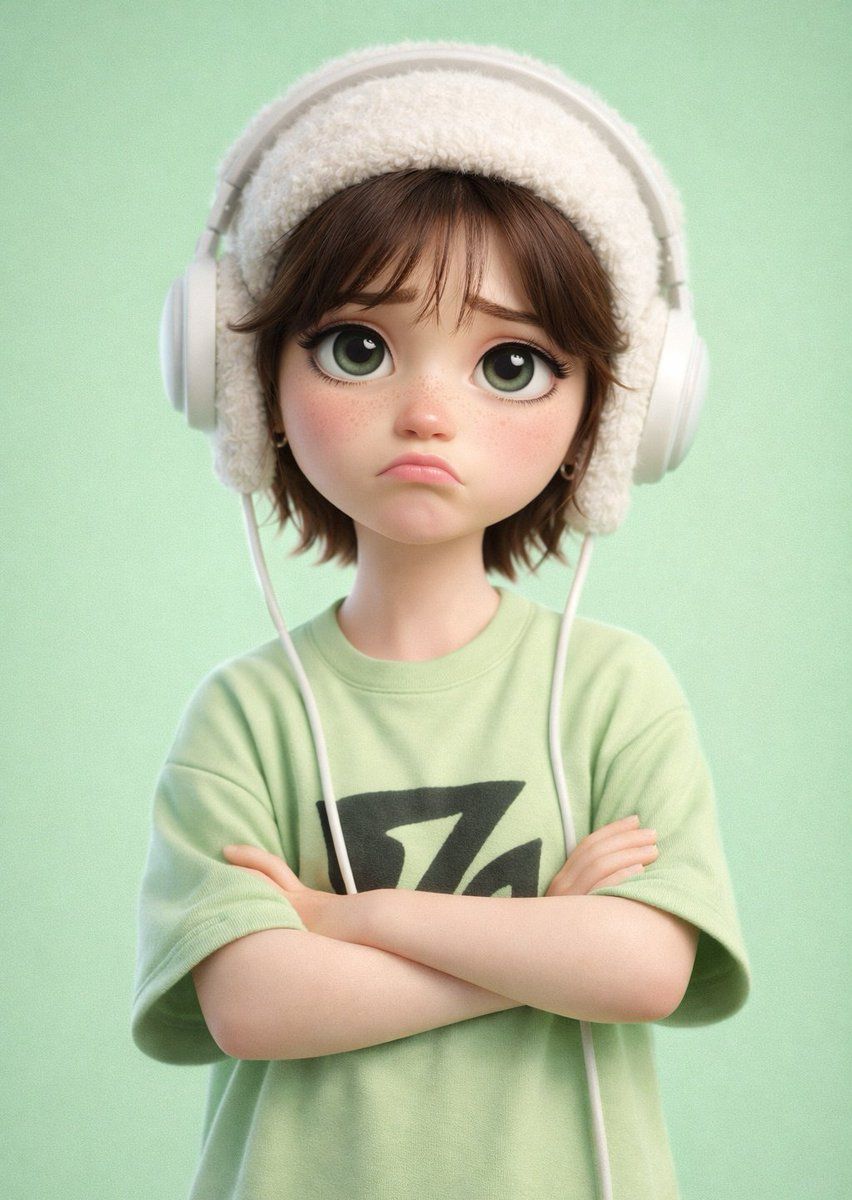
A stylized 3D cartoon figure of a {argument name="person" default="character"} featuring large expressive eyes and a mildly sad, sulky expression, set against a flat {argument name="background color" default="pastel green"} backdrop. The character sports a plush white fuzzy beanie with ear flaps and coordinating white over-ear headphones. Short, slightly disheveled brown hair peeks out from under the hat. Dressed in a baggy light green tee with a bold black graphic on the chest, arms folded in a bored or irritated stance. Soft, diffused studio lighting creates smooth shadows for a polished look. Ultra-detailed, high-quality 3D render in a {argument name="art style" default="Pixar-inspired"} style, smooth textures, shallow depth of field, centered framing, clean minimal background, gentle yet vivid color scheme.
Category
Photography & Realism
Model
GPT Image 2
Creator
PromptLab
Views0
Source ID
25388
Published
Jun 12, 2026

Guide

About "皮克斯风格 3D 卡通角色"

What is this prompt for?

"皮克斯风格 3D 卡通角色" AI image prompt for GPT Image 2 (Photography & Realism). 一份详细的提示词,用于创建具有皮克斯美学风格、表情生动的 3D 卡通角色,支持自定义主体和摄影棚灯光效果。 Copy it on Picva and recreate th…

The full copyable prompt and example visuals above are ready for AI image generation or one-click recreate in Picva.

How to use this prompt

  1. Step 1

    Open the prompt detail

    Review the example visuals, category, and full prompt text for "皮克斯风格 3D 卡通角色".

  2. Step 2

    Copy the prompt

    Copy the prompt body from this page, or load it directly in Studio.

  3. Step 3

    Pick a model (GPT Image 2)

    Prefer GPT Image 2. If you switch models, keep subject and composition and tweak style terms.

  4. Step 4

    Generate and export

    Recreate the look in Picva, or export into your workflow for editing and publishing.

FAQ

What is the "皮克斯风格 3D 卡通角色" prompt?
It is an AI image-generation prompt for GPT Image 2 in the Photography & Realism category. This page includes the full prompt text, example visuals, and a one-click recreate path in Picva.
How do I use this prompt to generate an image?
Copy the prompt from this page, or use Generate / Studio. Paste it into a compatible image model, or recreate the look in Picva with optional reference images.
Which model is this prompt for?
This page lists GPT Image 2. Most descriptive prompts also transfer to nearby image models such as GPT Image, Flux, or Midjourney with light style tweaks.
Can I use the result commercially?
You can usually copy the prompt for creation, but commercial use of the final image depends on the model terms, reference-image rights, and the generated content. Follow the source author and platform rules.