AI Gallery Portrait UI Screenshot
提示词
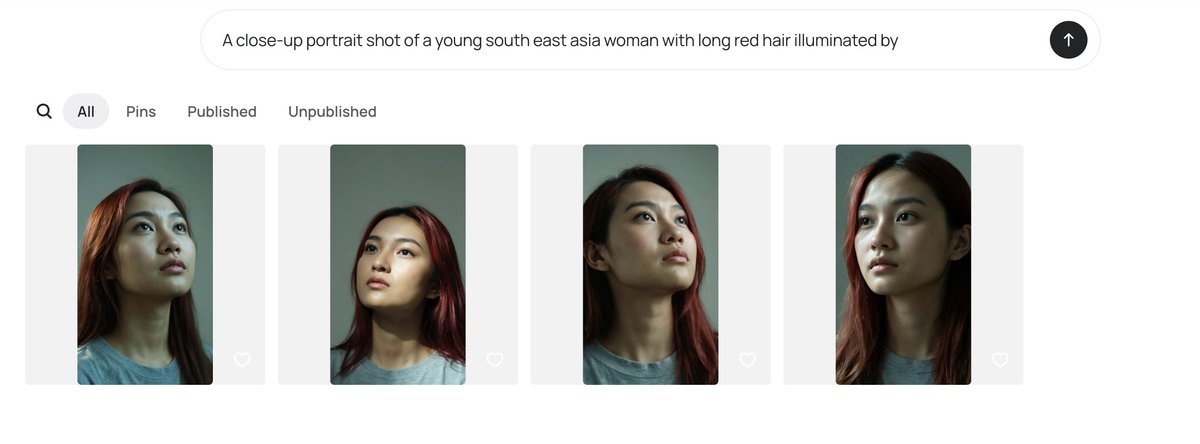
Goal: Create a clean desktop web app screenshot showing an AI image generation gallery interface for comparing portrait outputs.

Canvas: Wide horizontal browser-like screenshot, approximately 1200×410 px, white background with generous margins, minimal modern UI.

Top input area: Centered rounded prompt bar near the top, light gray outline, containing the exact prompt text: “A close-up portrait shot of a young south east asia woman with long red hair illuminated by”. At the far right inside the bar is a black circular submit button with a white upward arrow.

Navigation row: Beneath the prompt bar, aligned left, show exactly 5 navigation elements: 1 magnifying-glass search icon, 2 selected pill tab labeled “All”, 3 text tab labeled “Pins”, 4 text tab labeled “Published”, 5 text tab labeled “Unpublished”. Use dark gray text, with the selected “All” tab in a light gray rounded pill.

Gallery layout: Show exactly 4 image cards in one horizontal row, evenly spaced. Each card is a pale gray rounded rectangle background with a vertical portrait thumbnail centered inside it and a small white outline heart icon near the lower-right corner of the card.

Portrait thumbnails: Each thumbnail depicts a close-up portrait of a young Southeast Asian woman with long red hair, wearing a plain gray T-shirt, photographed from the shoulders up against a muted green-gray background. The lighting is moody and directional, with realistic skin texture, dark shadows under the chin and neck, and warm reddish highlights in the hair. The face in each thumbnail is obscured by a soft rectangular blur censor block in muted beige-gray tones.

Count and variation of the 4 portraits: 1 left card shows the woman slightly angled with hair falling over the left side and the head cropped near the top; 2 second card shows a straighter centered head-and-shoulders crop with red hair framing both sides; 3 third card shows the chin lifted and neck elongated, face turned slightly upward with red hair visible on the right; 4 fourth card shows the closest crop, head high in frame, red hair along both sides, with the darkest face blur rectangle.

Visual style: Minimal white UI, soft shadows or very subtle borders, rounded corners, neutral gray typography, realistic generated portrait thumbnails. Keep the interface uncluttered and preserve the exact visible text labels. Do not add logos, watermarks, extra buttons, or additional gallery items.
- 分类
- 图表信息图
- 模型
- GPT Image 2
- 来源作者
- F2aldi
- 来源 ID
- youmind-24205
浏览量0