Retro Claude Code Usage Gauge
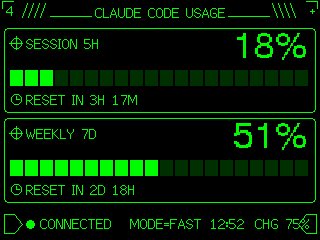
Transforms a simple usage meter reference into a neon-green pixel terminal dashboard suitable for an M5Stack-style device UI.
- 分类
- 图表信息图
- 模型
- GPT Image 2
- 来源作者
- 潮留
- 原始语言
- en
- 来源 ID
- 18187
- 发布时间
- 2026年5月3日
完整提示词
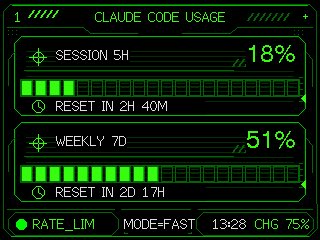
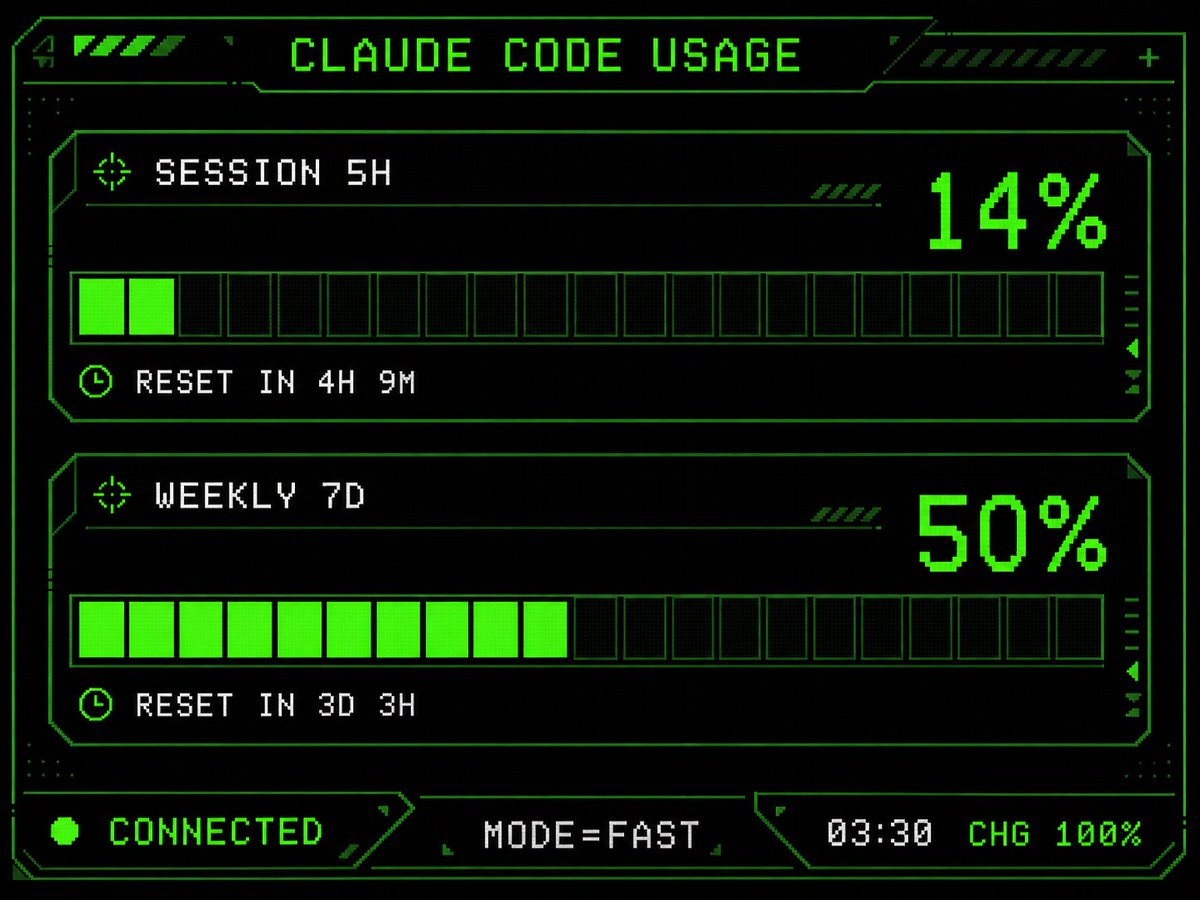
Using REFERENCE_0 as the functional layout and data source, redesign it as a polished monochrome neon-green retro terminal UI for an M5Stack-style low-resolution display. Keep the same concept of a Claude Code usage gauge with 2 usage panels: SESSION 5H and WEEKLY 7D. Convert the plain progress bars into segmented pixel bars with 24 rectangular blocks each, preserve the approximate usage values but update the visible numbers to {argument name="session percentage" default="18%"} and {argument name="weekly percentage" default="51%"}. Add thin glowing green borders around each panel, pixel/bitmap typography, small target/crosshair icons beside the panel titles, and clock icons beside the reset lines. Replace the simple title with a decorative header reading {argument name="headline text" default="CLAUDE CODE USAGE"}, flanked by terminal-like slashes and line ornaments. At the bottom, add a retro status row with a flag/terminal outline icon, green connection dot, {argument name="connection label" default="CONNECTED"}, MODE=FAST, {argument name="time" default="12:52"}, and CHG 75% with a small battery/charging icon. Use a black background, bright CRT green lines, crisp pixel art styling, and make the result look like a refined embedded-device dashboard rather than a flat chart.多语言版本
Retro Claude Code Usage Gauge
enUsing REFERENCE_0 as the functional layout and data source, redesign it as a polished monochrome neon-green retro terminal UI for an M5Stack-style low-resolution display. Keep the same concept of a Claude Code usage gauge with 2 usage panels: SESSION 5H and WEEKLY 7D. Convert the plain progress bars into segmented pixel bars with 24 rectangular blocks each, preserve the approximate usage values but update the visible numbers to {argument name="session percentage" default="18%"} and {argument name="weekly percentage" default="51%"}. Add thin glowing green borders around each panel, pixel/bitmap typography, small target/crosshair icons beside the panel titles, and clock icons beside the reset lines. Replace the simple title with a decorative header reading {argument name="headline text" default="CLAUDE CODE USAGE"}, flanked by terminal-like slashes and line ornaments. At the bottom, add a retro status row with a flag/terminal outline icon, green connection dot, {argument name="connection label" default="CONNECTED"}, MODE=FAST, {argument name="time" default="12:52"}, and CHG 75% with a small battery/charging icon. Use a black background, bright CRT green lines, crisp pixel art styling, and make the result look like a refined embedded-device dashboard rather than a flat chart.
Retro Claude Code Usage Gauge
zh-CNUsing REFERENCE_0 as the functional layout and data source, redesign it as a polished monochrome neon-green retro terminal UI for an M5Stack-style low-resolution display. Keep the same concept of a Claude Code usage gauge with 2 usage panels: SESSION 5H and WEEKLY 7D. Convert the plain progress bars into segmented pixel bars with 24 rectangular blocks each, preserve the approximate usage values but update the visible numbers to {argument name="session percentage" default="18%"} and {argument name="weekly percentage" default="51%"}. Add thin glowing green borders around each panel, pixel/bitmap typography, small target/crosshair icons beside the panel titles, and clock icons beside the reset lines. Replace the simple title with a decorative header reading {argument name="headline text" default="CLAUDE CODE USAGE"}, flanked by terminal-like slashes and line ornaments. At the bottom, add a retro status row with a flag/terminal outline icon, green connection dot, {argument name="connection label" default="CONNECTED"}, MODE=FAST, {argument name="time" default="12:52"}, and CHG 75% with a small battery/charging icon. Use a black background, bright CRT green lines, crisp pixel art styling, and make the result look like a refined embedded-device dashboard rather than a flat chart.