17

Snack technical infographic: GPT Image 2 prompt
Enlarge

Snack technical infographic: GPT Image 2 prompt

Prompt
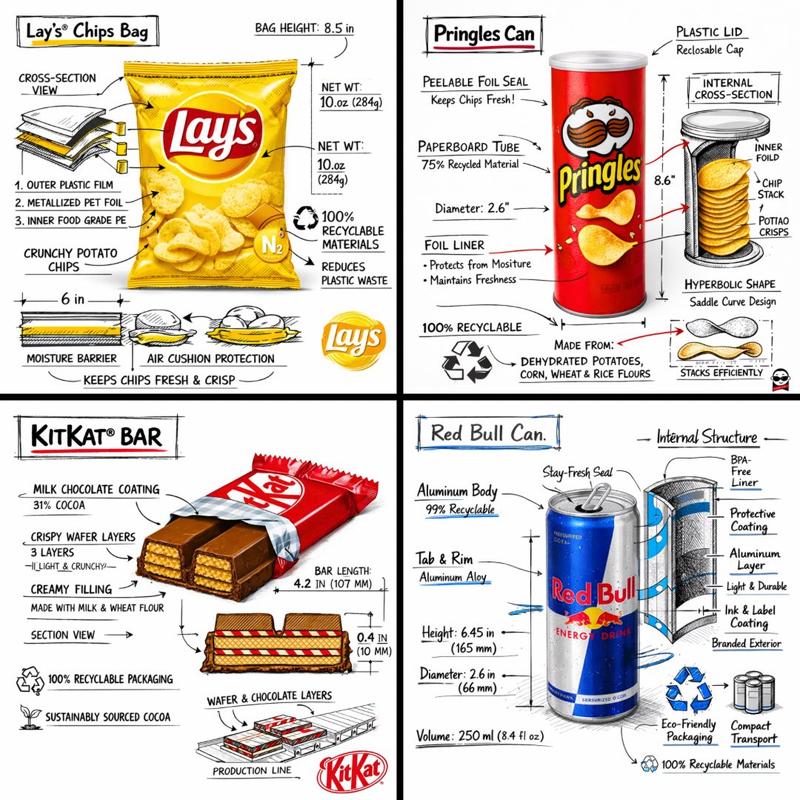
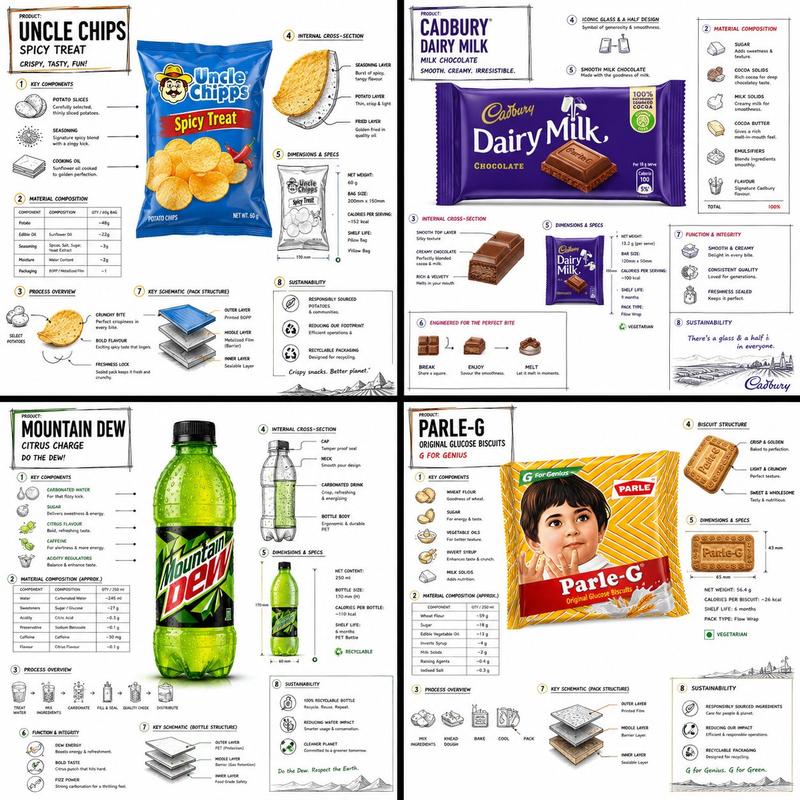
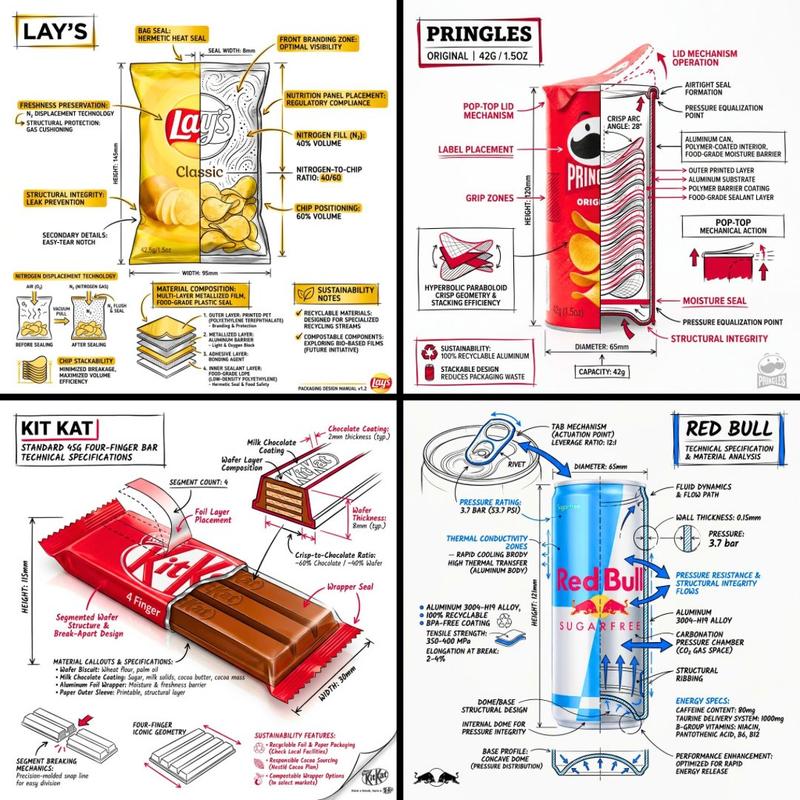
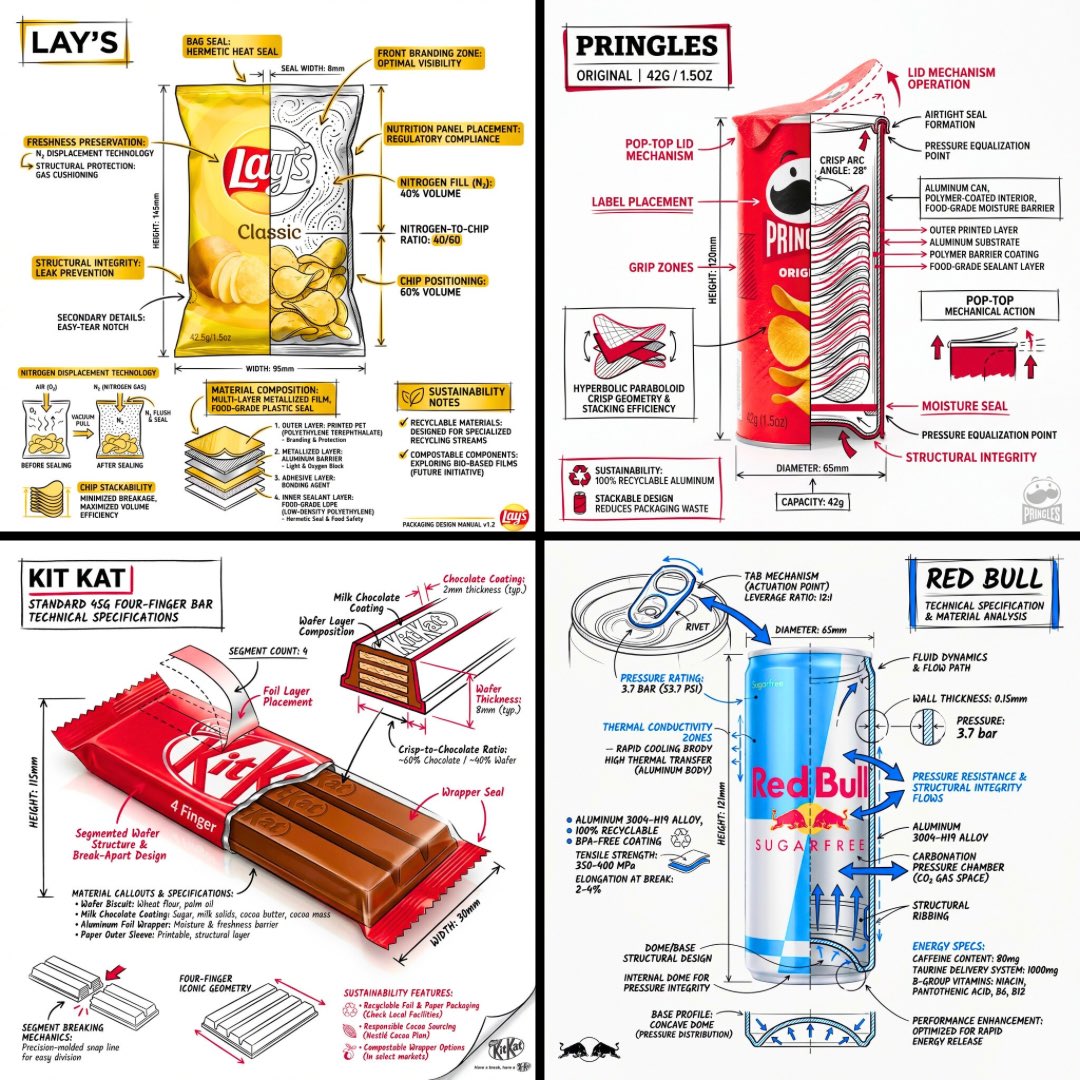
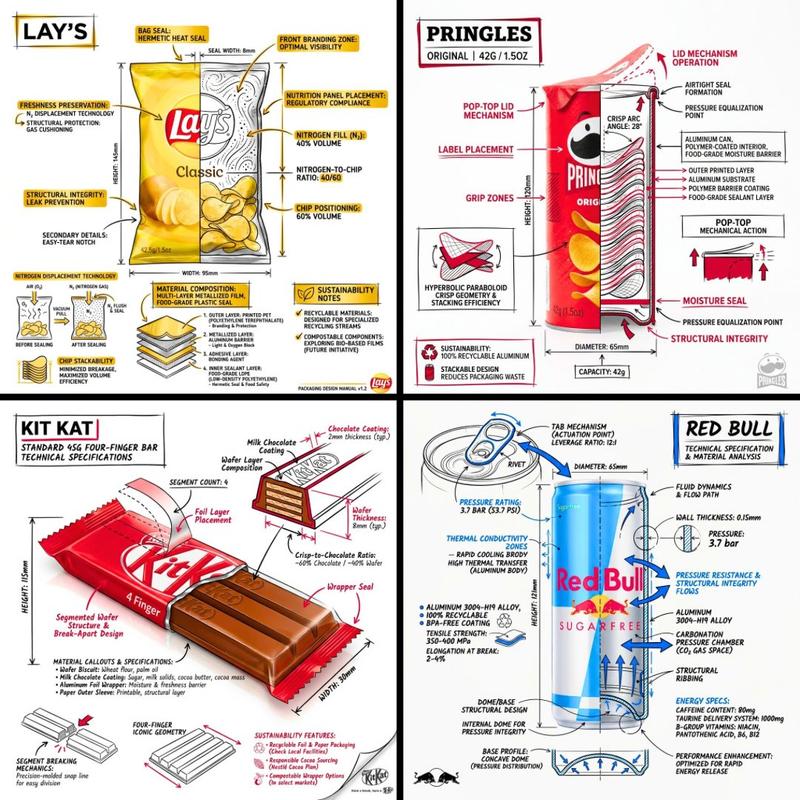
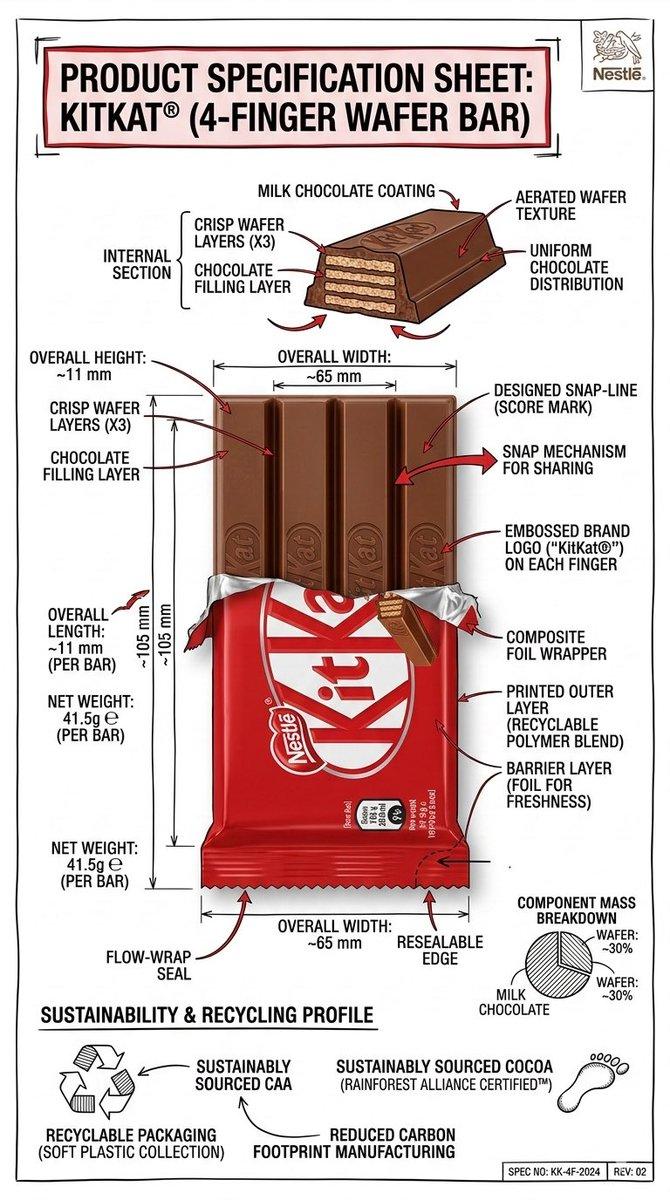
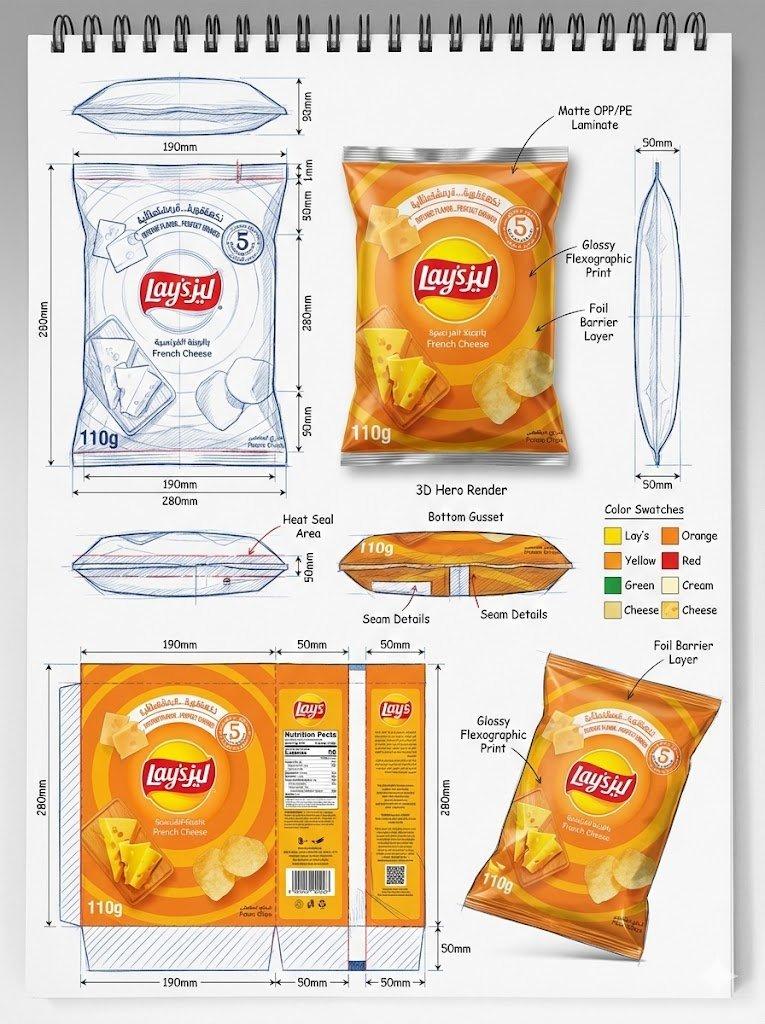
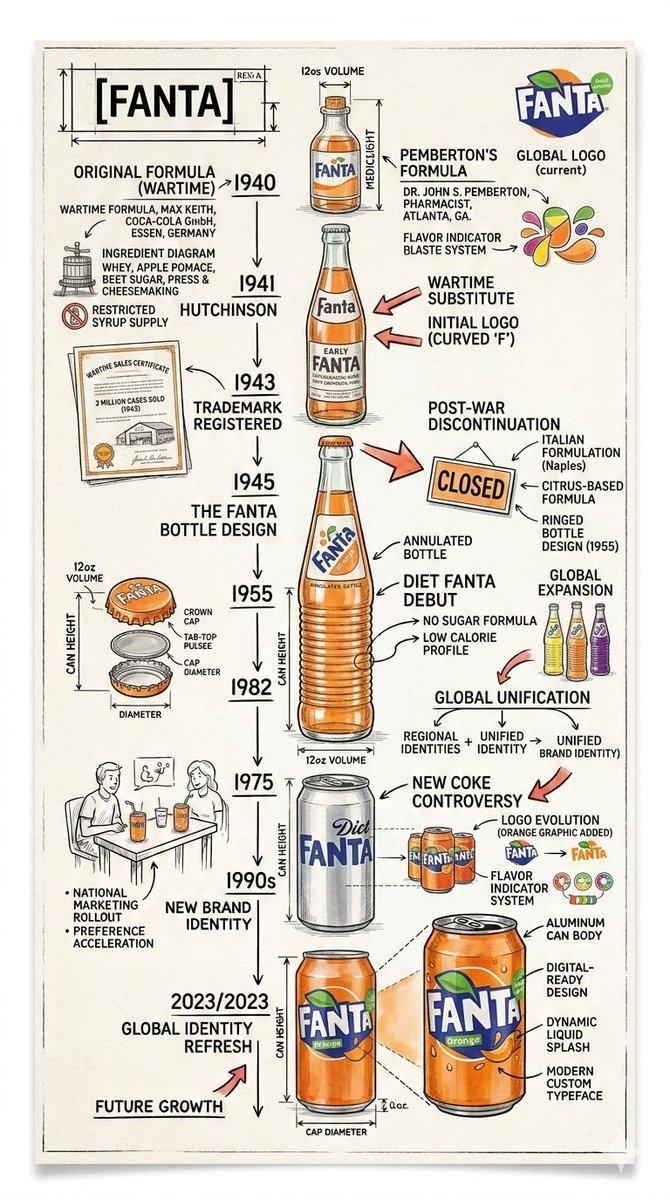
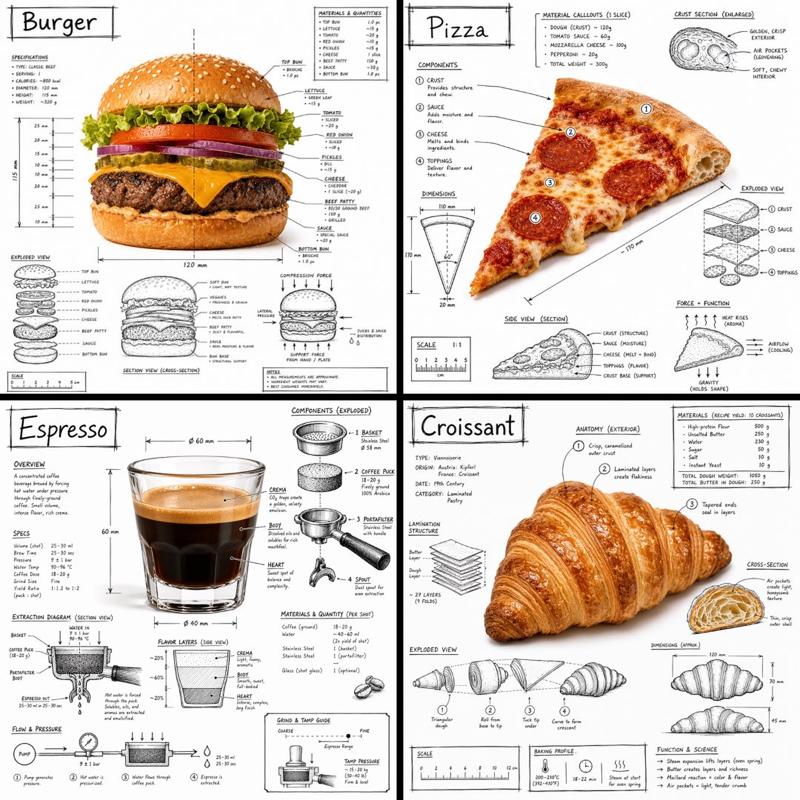
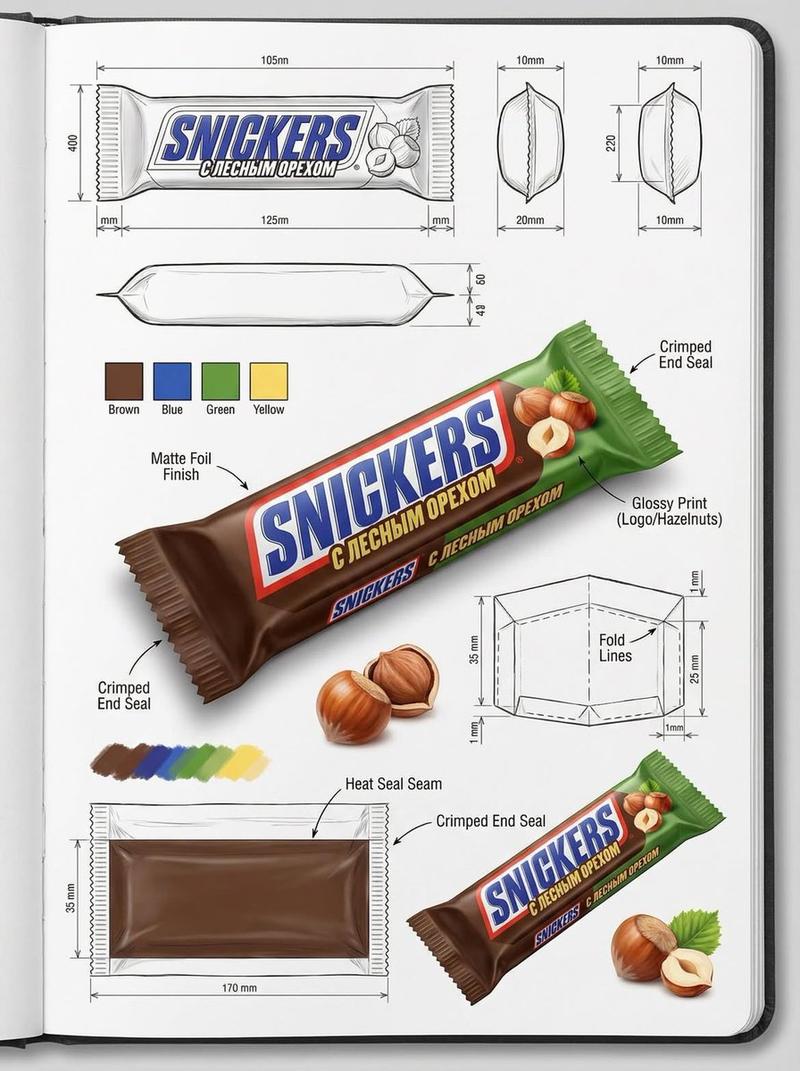
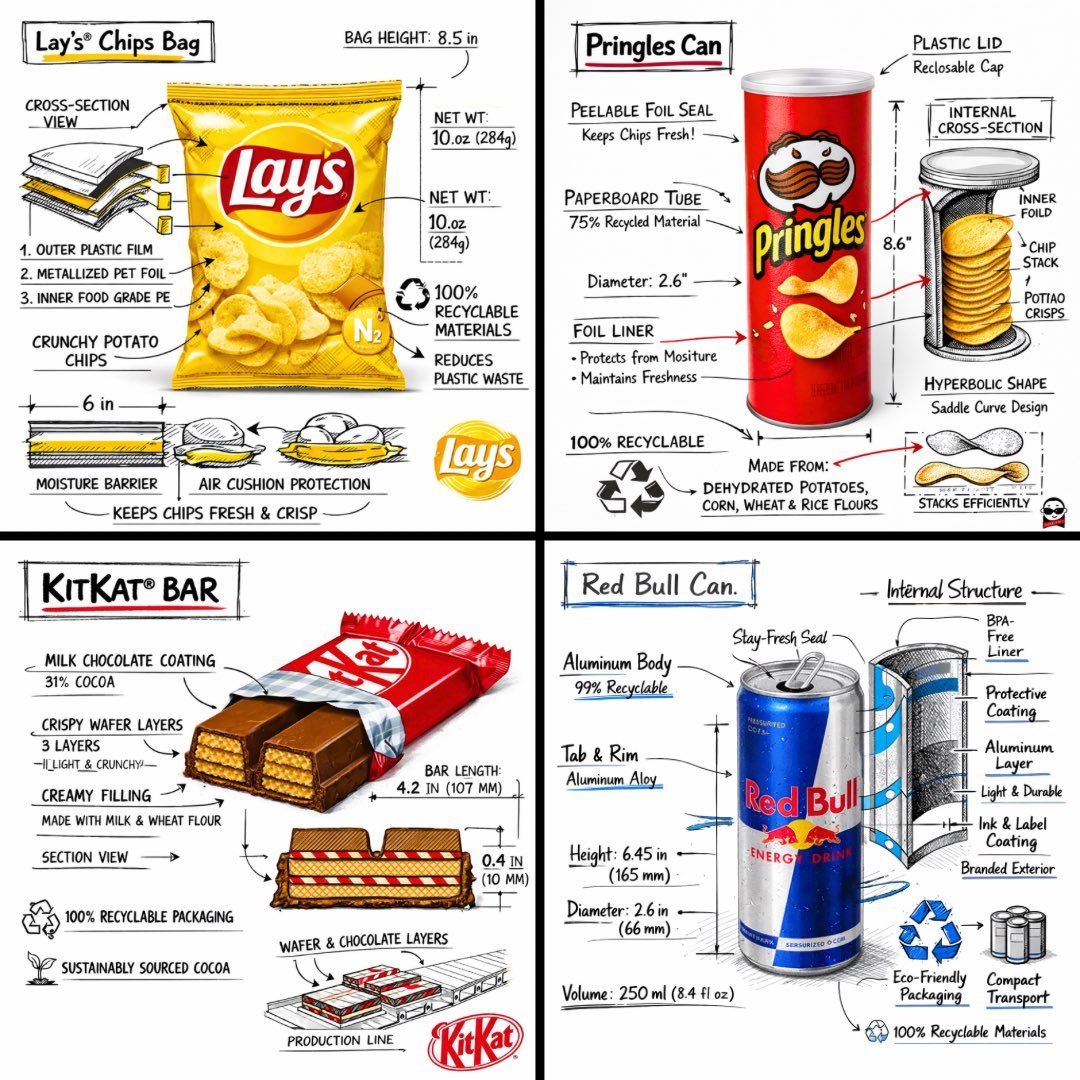
Create a branded technical infographic of a [SNACK], combining a realistic photograph or photoreal render of the product with technical annotation overlays placed directly on top. Use black ink–style line drawings with strategic [BRAND COLOR] accents (architectural sketch look) on a pure white studio background, including:
• Key component labels
• Internal cross-section showing structure, layering, or internal design
• Measurements, dimensions, and specifications
• Material callouts with composition and quantities
• Arrows indicating function for primary features and structural integrity
• Simple schematic or sectional diagram showing key mechanical or design elements
• Sustainability callouts
Title placement: Inside a hand-drawn technical annotation box with accent border reading the product name in bold font, positioned in upper corner.
Style & layout rules:
• The realistic product remains clearly visible
• Annotations feel sketched, technical, and architectural
• Accents used for highlight (20-30% of linework), black for primary technical lines (70-80%)
• Clean composition with balanced negative space
• Educational, food-engineering vibe with premium branding
• Include subtle brand logo mark in corner
Visual style: Minimal technical illustration aesthetic, black linework with accents over realistic imagery, precise but slightly hand-drawn feel.
Color palette: White background, black annotation lines/text, [BRAND COLOR] for accents and key callouts only.
Output: 1080×1080, ultra-crisp, social-feed optimized, no watermark
Category
Products & E-commerce
Model
GPT Image 2
Creator
TechieBySA
Views0
Source ID
2031795709243019280
Published
Mar 11, 2026

Guide

About "Snack technical infographic: GPT Image 2 prompt"

What is this prompt for?

"Snack technical infographic: GPT Image 2 prompt" AI image prompt for GPT Image 2 (Products & E-commerce). Create a branded technical infographic of a [SNACK],…

The full copyable prompt and example visuals above are ready for AI image generation or one-click recreate in Picva.

How to use this prompt

  1. Step 1

    Open the prompt detail

    Review the example visuals, category, and full prompt text for "Snack technical infographic: GPT Image 2 prompt".

  2. Step 2

    Copy the prompt

    Copy the prompt body from this page, or load it directly in Studio.

  3. Step 3

    Pick a model (GPT Image 2)

    Prefer GPT Image 2. If you switch models, keep subject and composition and tweak style terms.

  4. Step 4

    Generate and export

    Recreate the look in Picva, or export into your workflow for editing and publishing.

FAQ

What is the "Snack technical infographic: GPT Image 2 prompt" prompt?
It is an AI image-generation prompt for GPT Image 2 in the Products & E-commerce category. This page includes the full prompt text, example visuals, and a one-click recreate path in Picva.
How do I use this prompt to generate an image?
Copy the prompt from this page, or use Generate / Studio. Paste it into a compatible image model, or recreate the look in Picva with optional reference images.
Which model is this prompt for?
This page lists GPT Image 2. Most descriptive prompts also transfer to nearby image models such as GPT Image, Flux, or Midjourney with light style tweaks.
Can I use the result commercially?
You can usually copy the prompt for creation, but commercial use of the final image depends on the model terms, reference-image rights, and the generated content. Follow the source author and platform rules.