17

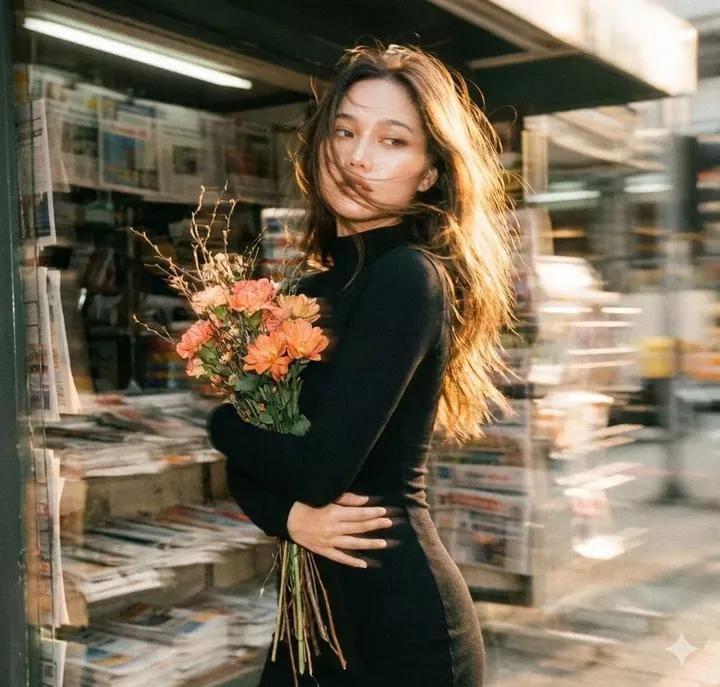
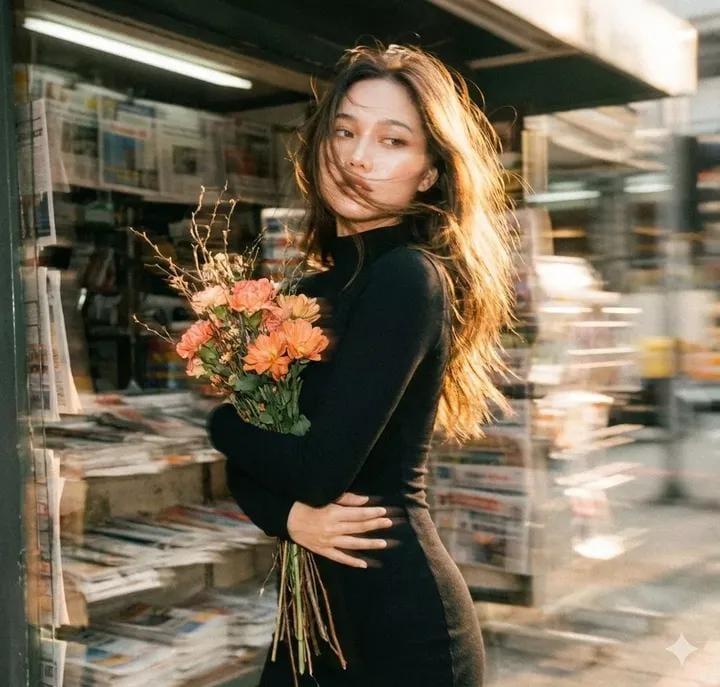
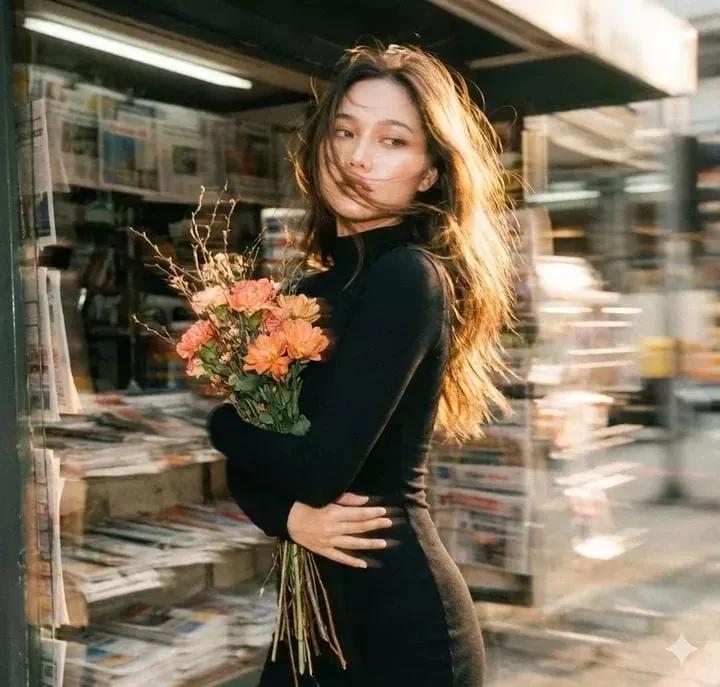
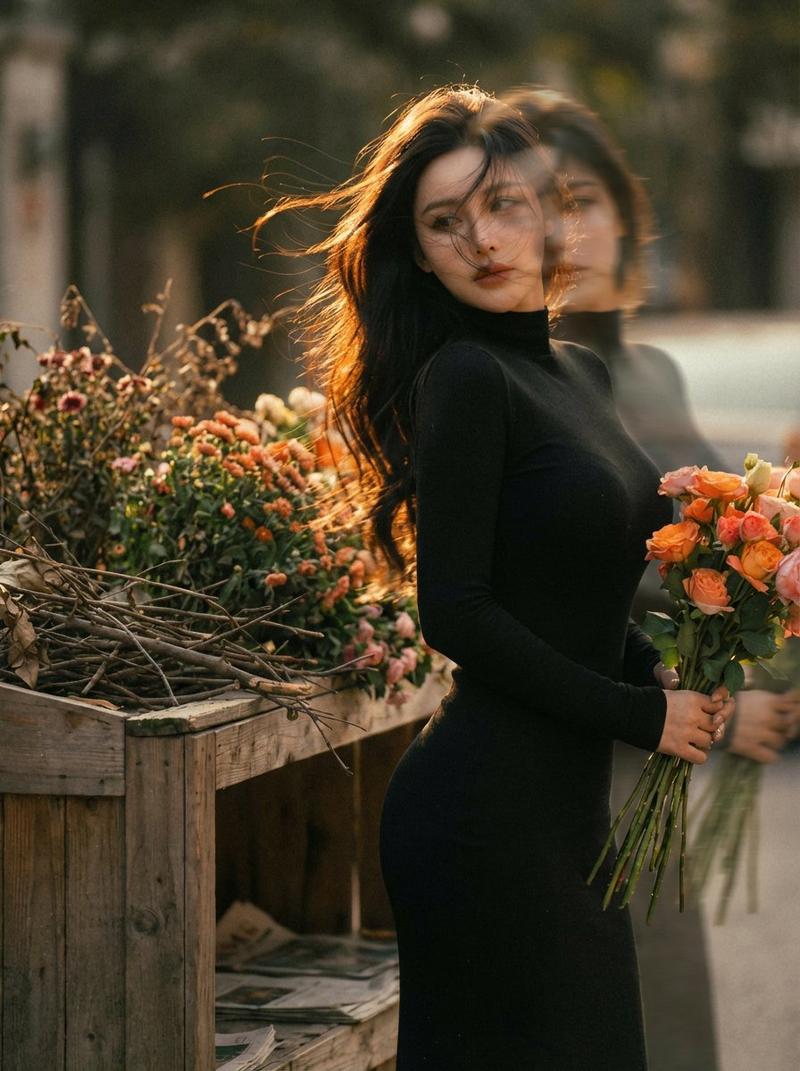
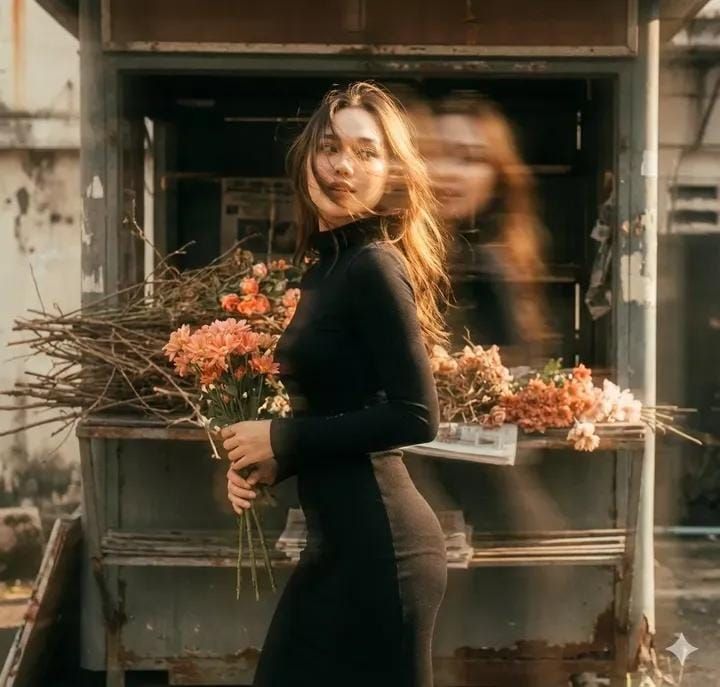
复古胶片双重曝光人像
Enlarge

复古胶片双重曝光人像

Prompt
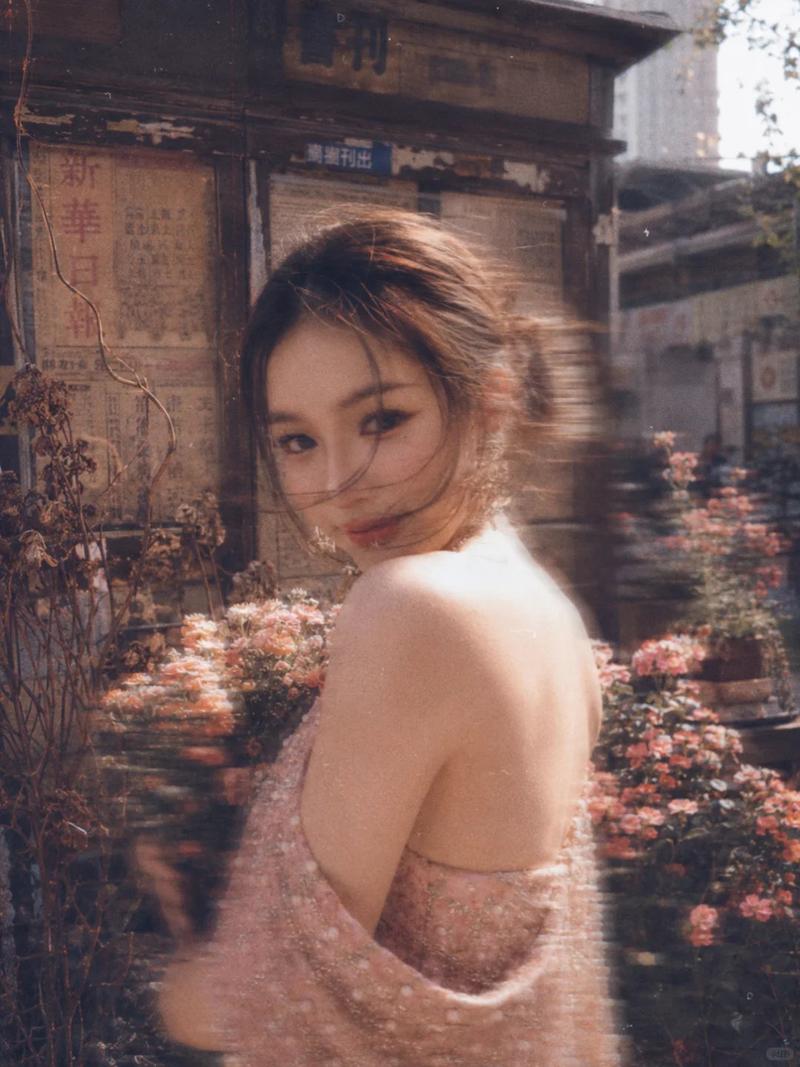
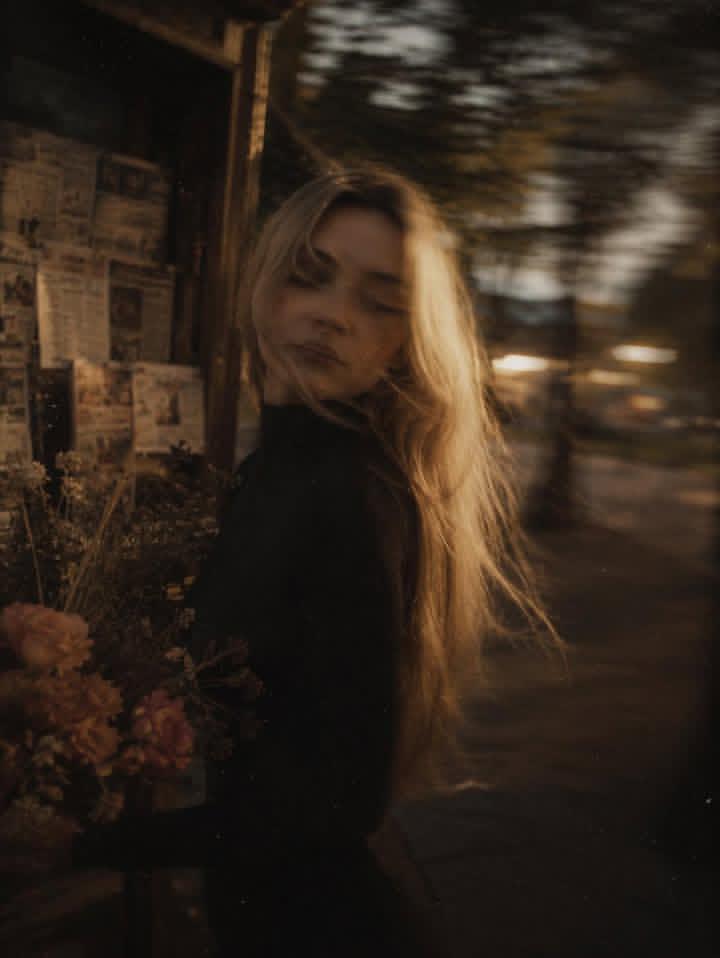
Use the uploaded image as character reference. She wears a {argument name="clothing" default="high-neck, form-fitting black long-sleeved dress"}. Scene: {argument name="background" default="an old newsstand with dry branches and orange-pink blooms scattered nearby"}, vintage film grain woven throughout. Blurred background with visible motion trails and a double-image effect create a fantastical mood. Hauntingly beautiful girl in profile, carrying flowers, fair and delicate skin. Face blurred with panning motion, figure slightly swaying, soft focus adding a hazy, languid feel. Warm-toned low-saturation filter. Long backlit hair glows softly, stray strands sweeping wildly across her jawline, the detail hiding a captivating, dangerous allure. Cute movements add energy, motion blur merging with film grain for a trendy, Instagram-worthy result. Blurred outlines frame a dynamic, story-rich scene that perfectly balances bewitching and sweet.
Category
Photography & Realism
Model
GPT Image 2
Creator
PromptLab
Views0
Source ID
24785
Published
Jun 8, 2026

Guide

About "复古胶片双重曝光人像"

What is this prompt for?

"复古胶片双重曝光人像" AI image prompt for GPT Image 2 (Photography & Realism). 基于角色参考,创作出带有动态模糊和双重曝光效果的唯美复古胶片影像。 Copy it on Picva and recreate the look in one click.

The full copyable prompt and example visuals above are ready for AI image generation or one-click recreate in Picva.

How to use this prompt

  1. Step 1

    Open the prompt detail

    Review the example visuals, category, and full prompt text for "复古胶片双重曝光人像".

  2. Step 2

    Copy the prompt

    Copy the prompt body from this page, or load it directly in Studio.

  3. Step 3

    Pick a model (GPT Image 2)

    Prefer GPT Image 2. If you switch models, keep subject and composition and tweak style terms.

  4. Step 4

    Generate and export

    Recreate the look in Picva, or export into your workflow for editing and publishing.

FAQ

What is the "复古胶片双重曝光人像" prompt?
It is an AI image-generation prompt for GPT Image 2 in the Photography & Realism category. This page includes the full prompt text, example visuals, and a one-click recreate path in Picva.
How do I use this prompt to generate an image?
Copy the prompt from this page, or use Generate / Studio. Paste it into a compatible image model, or recreate the look in Picva with optional reference images.
Which model is this prompt for?
This page lists GPT Image 2. Most descriptive prompts also transfer to nearby image models such as GPT Image, Flux, or Midjourney with light style tweaks.
Can I use the result commercially?
You can usually copy the prompt for creation, but commercial use of the final image depends on the model terms, reference-image rights, and the generated content. Follow the source author and platform rules.