12

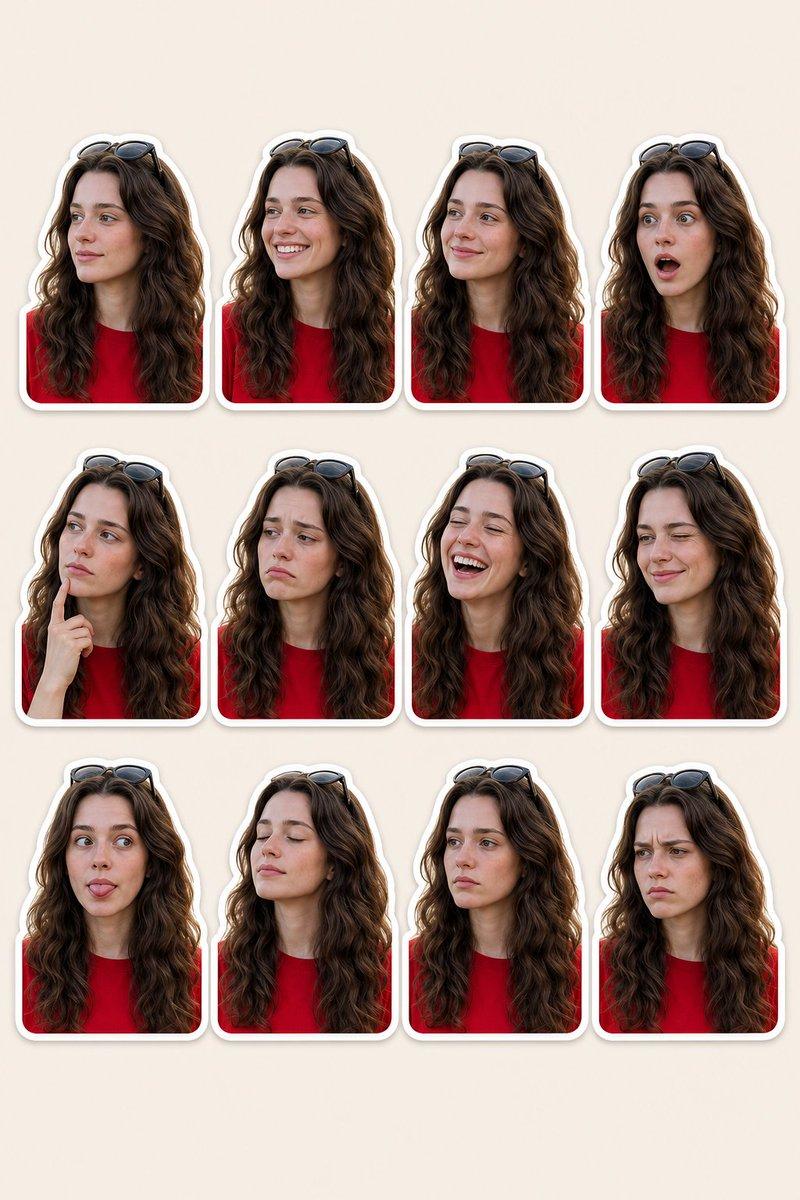
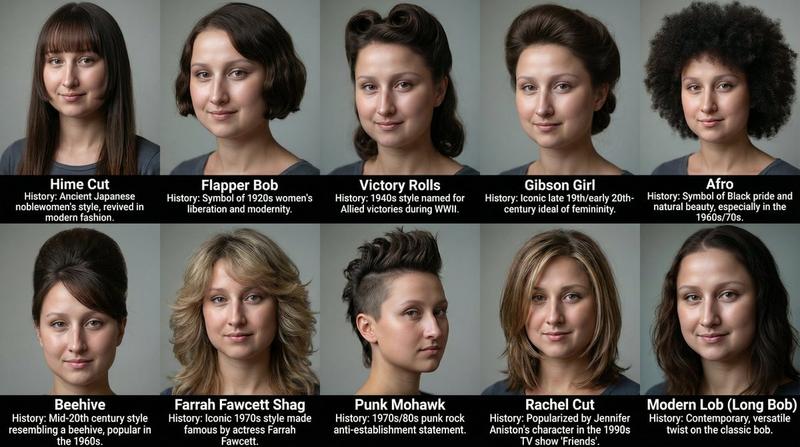
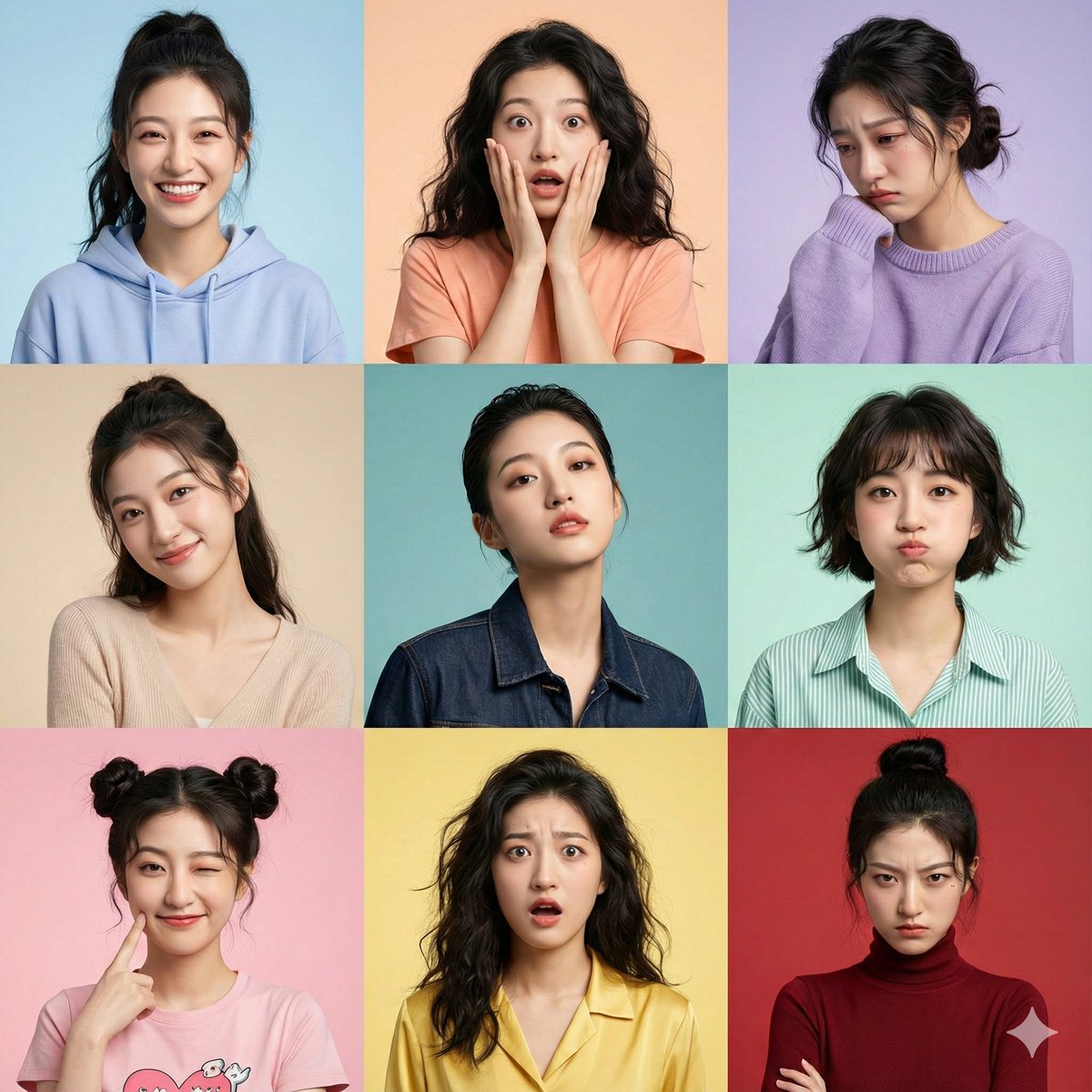
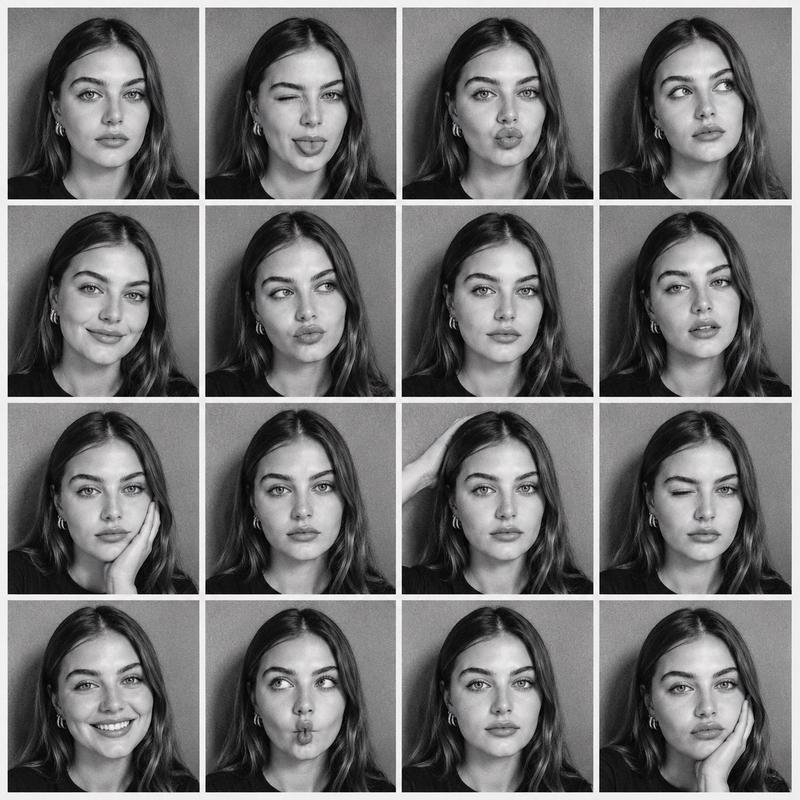
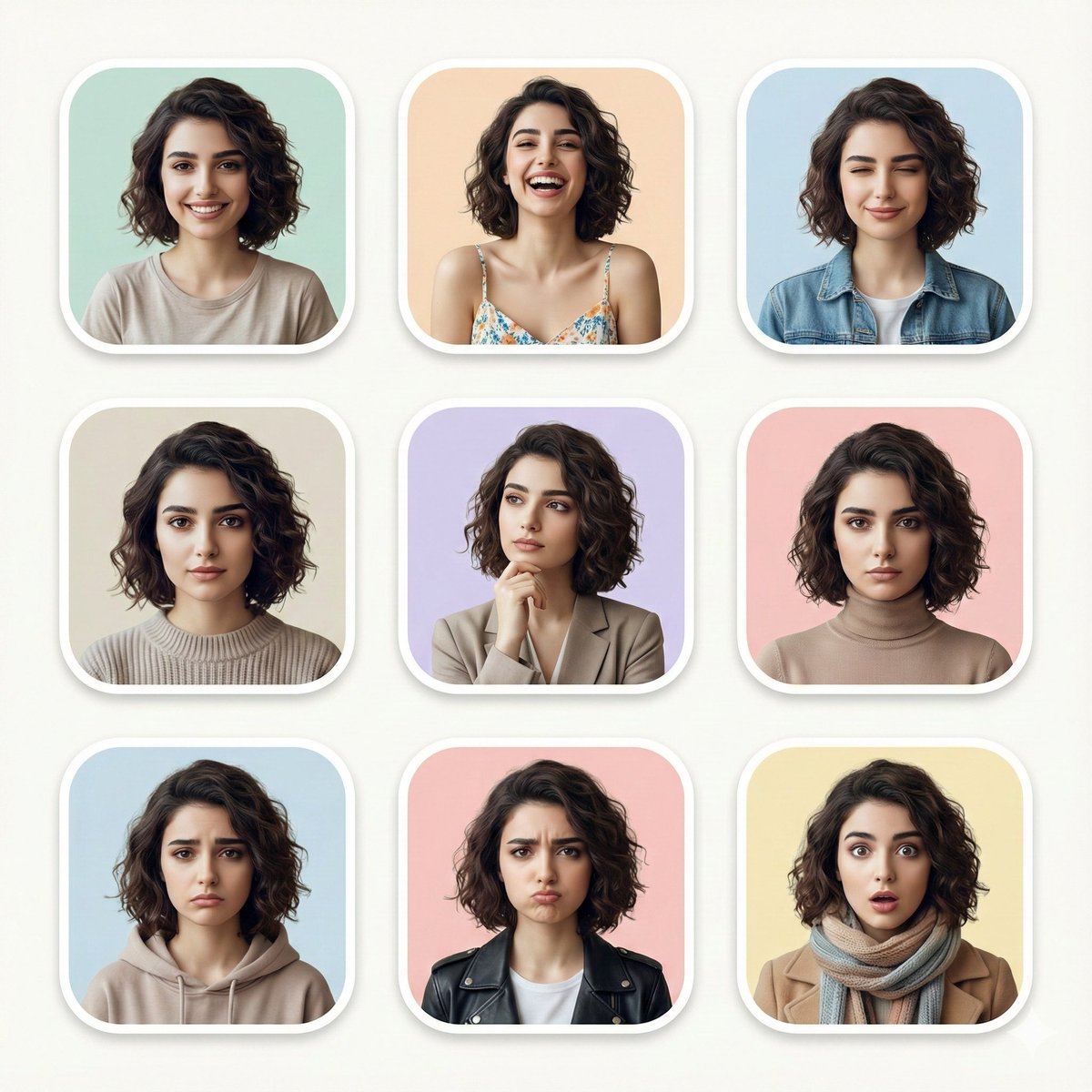
Create your image with different expressions in Google Gemini Nano Banana using
Enlarge

Create your image with different expressions in Google Gemini Nano Banana using

Prompt
Create your image with different expressions in Google Gemini Nano Banana using the prompt 👇

Using the uploaded photo as the base reference, create a clean, modern portrait grid featuring the same person shown in multiple facial expressions and moods. Arrange the images in a neat 3×3 layout with rounded-corner frames and soft pastel backgrounds. Each portrait should maintain identical facial features, hairstyle, and realism, changing only the expression and subtle styling. Include expressions such as: natural smile, joyful laughter, calm with eyes closed, serious neutral look, thoughtful pose with hand on chin, confident composed expression, sad or disappointed mood, playful pout, and surprised wide-eyed reaction. Use soft studio lighting, high-detail skin texture, shallow depth of field, minimal wardrobe variations, cohesive color palette, ultra-realistic, editorial portrait style, high resolution, clean aesthetic.
Category
creative_scene
Model
Nano Banana Pro
Creator
Pixshop
Views3
Source ID
d8161f67-5ae0-4bbe-91a7-5978d26265f9
Published
Jan 11, 2026

Guide

About "Create your image with different expressions in Google Gemini Nano Banana using"

What is this prompt for?

"Create your image with different expressions in Google Gemini Nano Banana using" AI image prompt for Nano Banana Pro (creative_scene). creative_scene Copy it…

The full copyable prompt and example visuals above are ready for AI image generation or one-click recreate in Picva.

How to use this prompt

  1. Step 1

    Open the prompt detail

    Review the example visuals, category, and full prompt text for "Create your image with different expressions in Google Gemini Nano Banana using".

  2. Step 2

    Copy the prompt

    Copy the prompt body from this page, or load it directly in Studio.

  3. Step 3

    Pick a model (Nano Banana Pro)

    Prefer Nano Banana Pro. If you switch models, keep subject and composition and tweak style terms.

  4. Step 4

    Generate and export

    Recreate the look in Picva, or export into your workflow for editing and publishing.

FAQ

What is the "Create your image with different expressions in Google Gemini Nano Banana using" prompt?
It is an AI image-generation prompt for Nano Banana Pro in the creative_scene category. This page includes the full prompt text, example visuals, and a one-click recreate path in Picva.
How do I use this prompt to generate an image?
Copy the prompt from this page, or use Generate / Studio. Paste it into a compatible image model, or recreate the look in Picva with optional reference images.
Which model is this prompt for?
This page lists Nano Banana Pro. Most descriptive prompts also transfer to nearby image models such as GPT Image, Flux, or Midjourney with light style tweaks.
Can I use the result commercially?
You can usually copy the prompt for creation, but commercial use of the final image depends on the model terms, reference-image rights, and the generated content. Follow the source author and platform rules.