20

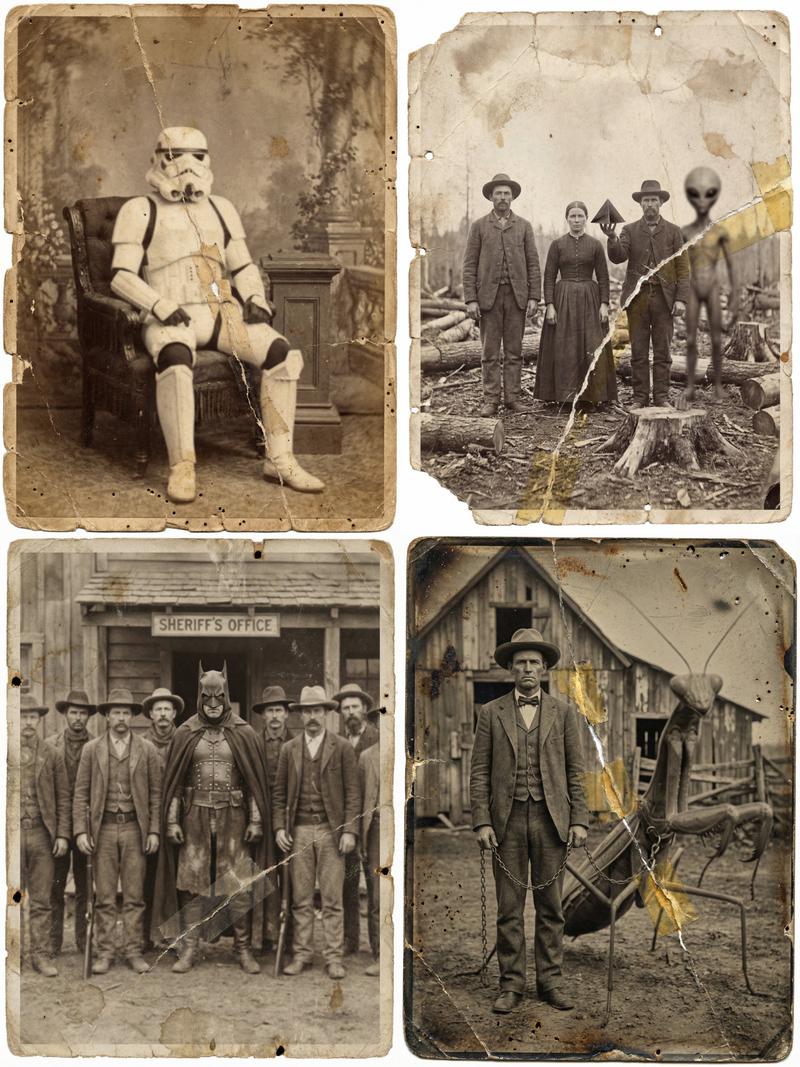
1870 年代复古破损照片
Enlarge

1870 年代复古破损照片

Prompt
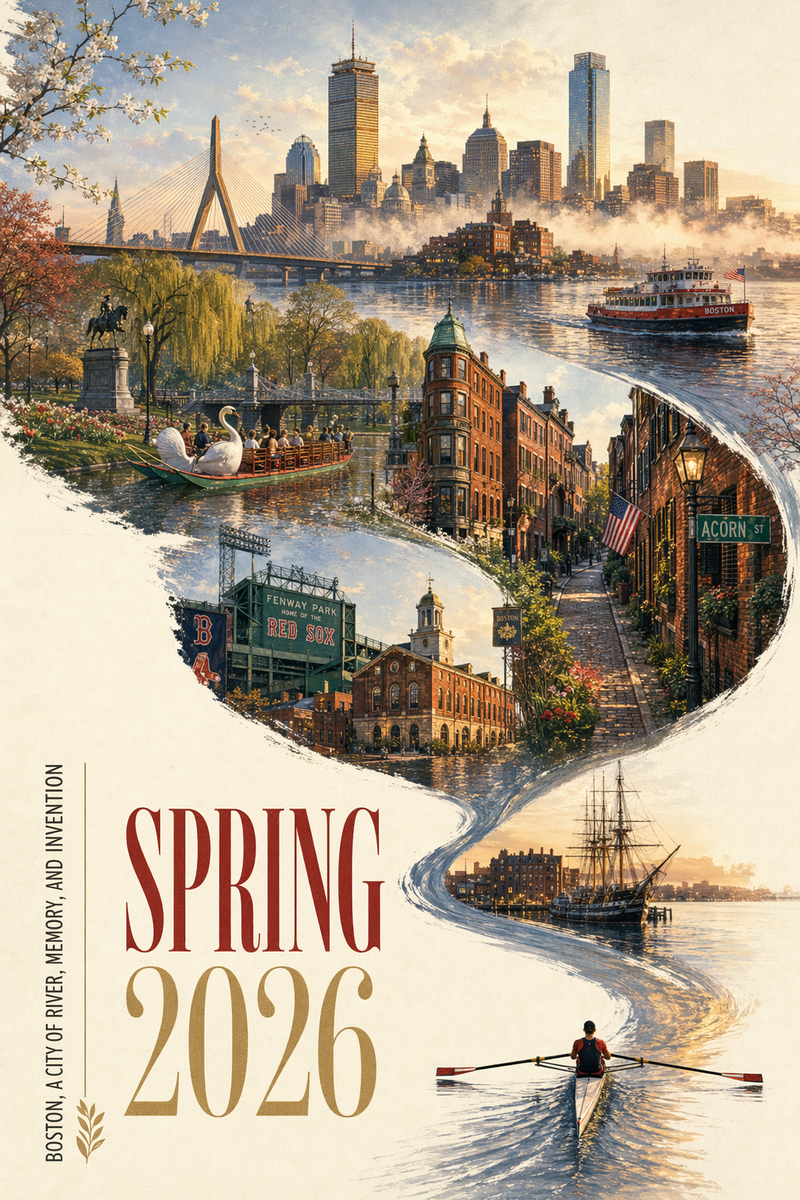
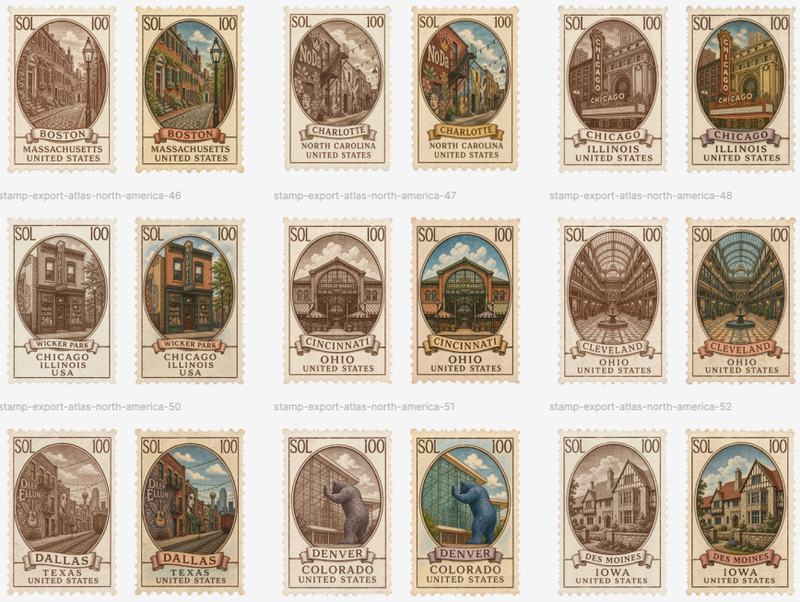
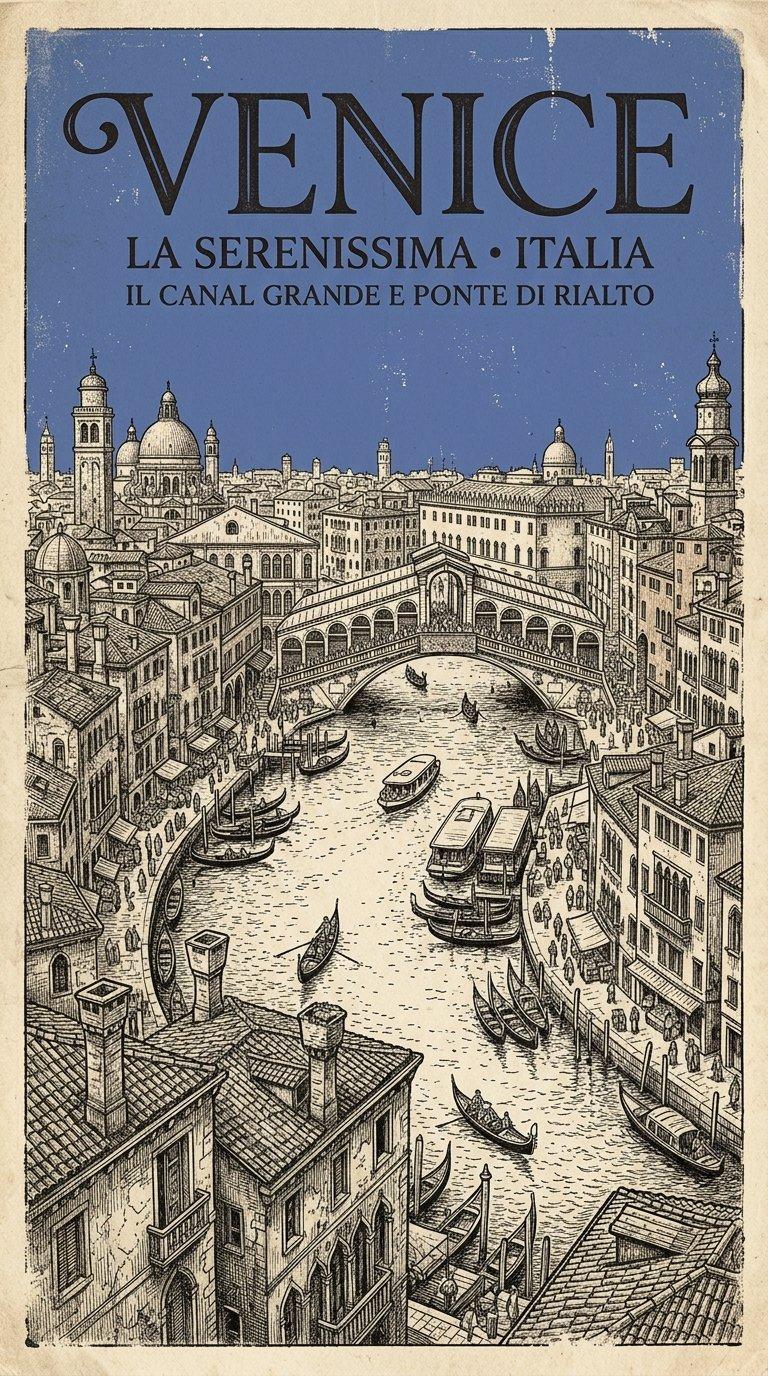
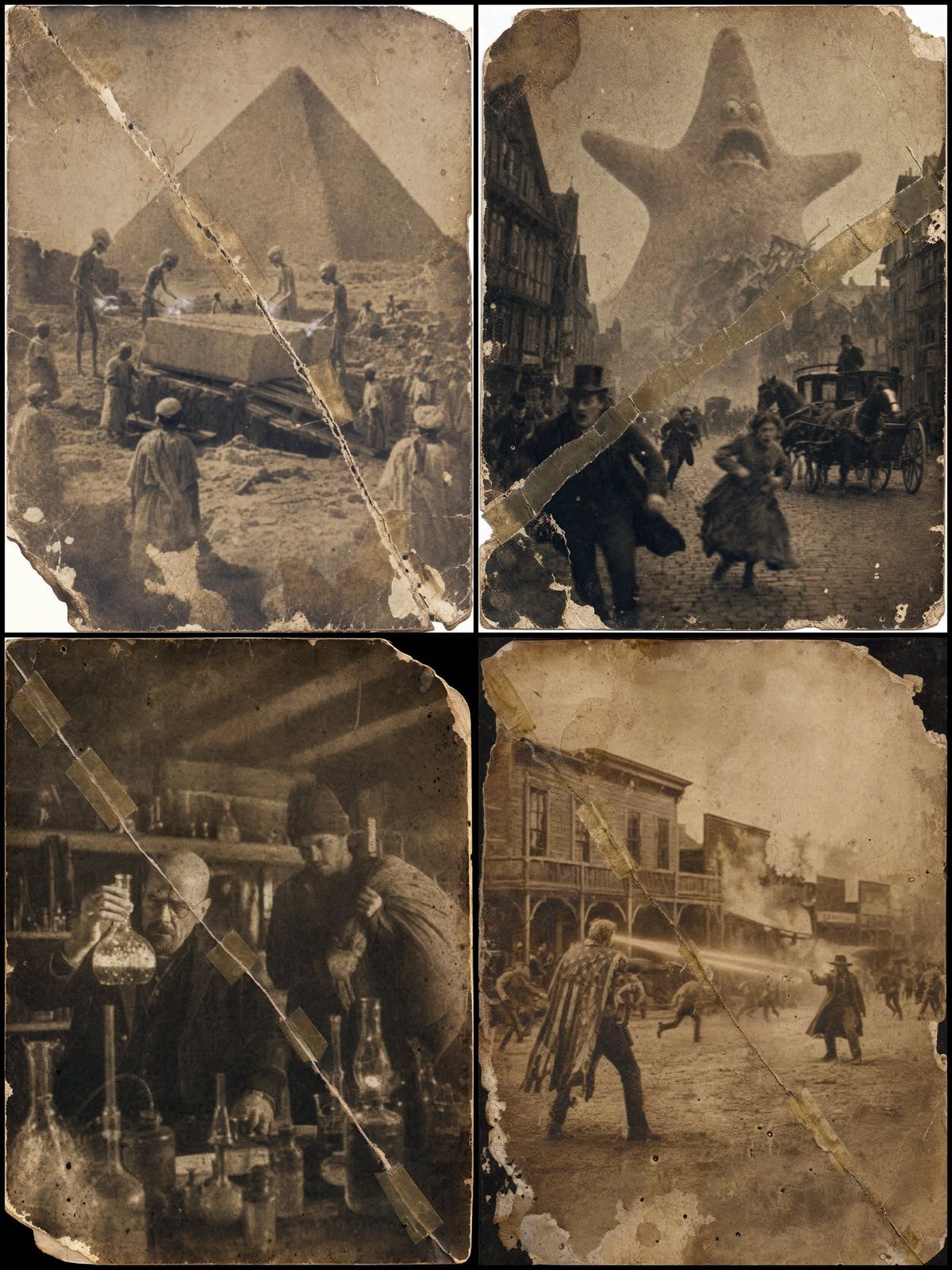
a photographic image in the style of 1870, {argument name="scene description" default="[SCENE DESCRIPTION]"}, with {argument name="characters" default="[CHARACTERS described in period accurate clothing]"}, {argument name="interaction" default="[Describe the interaction]"}.

The photo has an aged and worn appearance, as it was taken in 1870. It features prominent time-induced chemical stains, heavy grain, sepia toning, and deep scratches.

Significantly reduce the sharpness so that the details of the [SUBJECT] are not crisp, making the [SUBJECT] blurry and low-fidelity.

Greatly increase the wear of the photo, including small tears, missing corners, water damage, and small wormholes caused by insect damage. Add a prominent, jagged diagonal cut across the photo, mended clumsily with old, discolored tape.
Category
Charts & Infographics
Model
GPT Image 2
Views0
Source ID
25177
Published
Jun 11, 2026

Guide

About "1870 年代复古破损照片"

What is this prompt for?

"1870 年代复古破损照片" AI image prompt for GPT Image 2 (Charts & Infographics). 一个用于生成具有真实陈旧感和破损效果的复古照片的提示词,包含化学污渍、划痕和修补后的撕裂痕迹。 Copy it on Picva and recreate the look…

The full copyable prompt and example visuals above are ready for AI image generation or one-click recreate in Picva.

How to use this prompt

  1. Step 1

    Open the prompt detail

    Review the example visuals, category, and full prompt text for "1870 年代复古破损照片".

  2. Step 2

    Copy the prompt

    Copy the prompt body from this page, or load it directly in Studio.

  3. Step 3

    Pick a model (GPT Image 2)

    Prefer GPT Image 2. If you switch models, keep subject and composition and tweak style terms.

  4. Step 4

    Generate and export

    Recreate the look in Picva, or export into your workflow for editing and publishing.

FAQ

What is the "1870 年代复古破损照片" prompt?
It is an AI image-generation prompt for GPT Image 2 in the Charts & Infographics category. This page includes the full prompt text, example visuals, and a one-click recreate path in Picva.
How do I use this prompt to generate an image?
Copy the prompt from this page, or use Generate / Studio. Paste it into a compatible image model, or recreate the look in Picva with optional reference images.
Which model is this prompt for?
This page lists GPT Image 2. Most descriptive prompts also transfer to nearby image models such as GPT Image, Flux, or Midjourney with light style tweaks.
Can I use the result commercially?
You can usually copy the prompt for creation, but commercial use of the final image depends on the model terms, reference-image rights, and the generated content. Follow the source author and platform rules.